Display and Control Doors on the Map
After adding doors to the map, you can control door status such as locking and unlocking doors. For the doors of MinMoe face recognition terminal or doors linked with cameras, you can also monitor doors and perform more operations during monitoring such as capturing and recording.
For the detailed explanations of door status, refer to Real-Time Monitoring of Doors.
In the Map module, double click a map, or drag a map to the right window, or right click a map and click Open to view the map and the doors added to the map. For details about adding maps, refer to Add Map.
There are two modes for the map. In the Monitor mode (), you can monitor and control doors on the map. In the Configuration mode (), you can add doors, marks and hot regions to the map, set the types of resources to be displayed on the map, etc.
 ), you can monitor and control doors on the map. In the
Configuration mode (
), you can monitor and control doors on the map. In the
Configuration mode ( ), you can add doors, marks and hot
regions to the map, set the types of resources to be displayed on the map, etc.
), you can add doors, marks and hot
regions to the map, set the types of resources to be displayed on the map, etc.Add Map
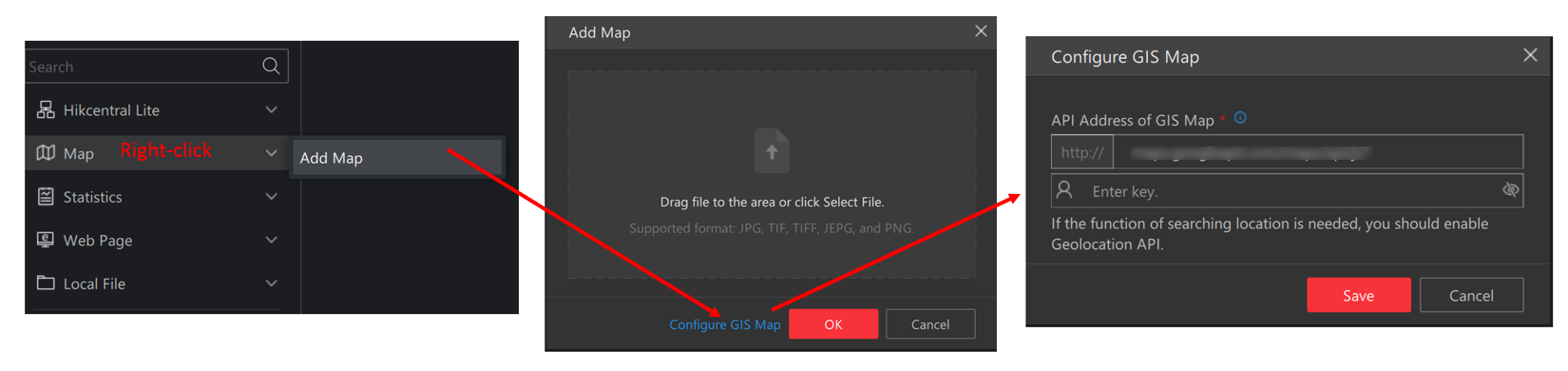
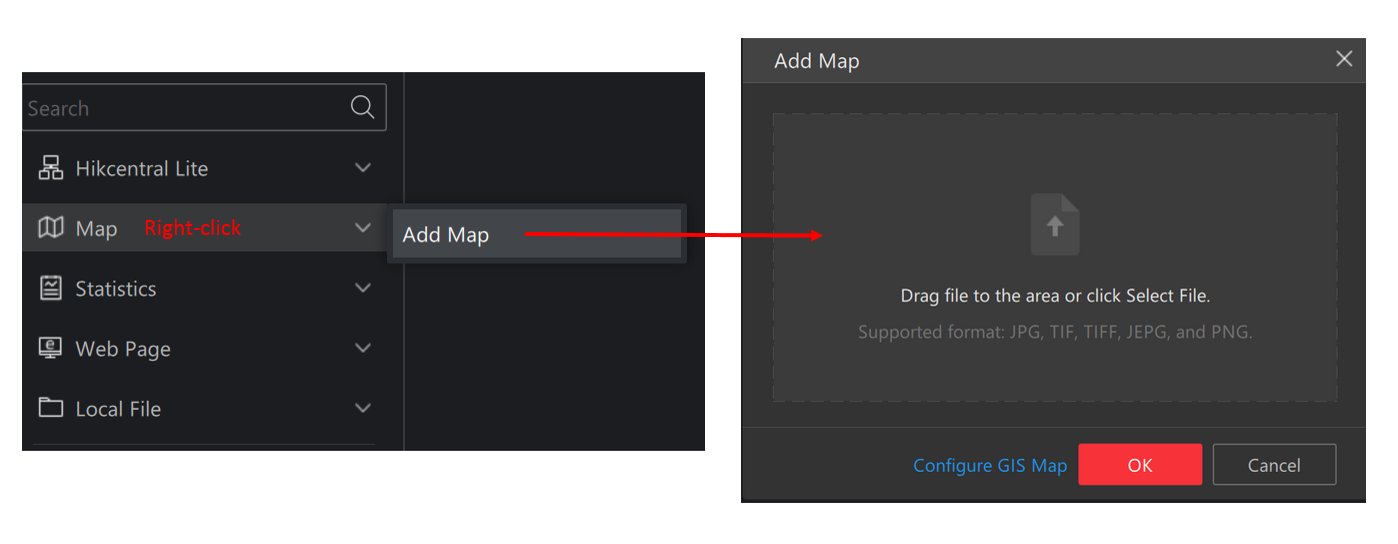
Configuration Mode
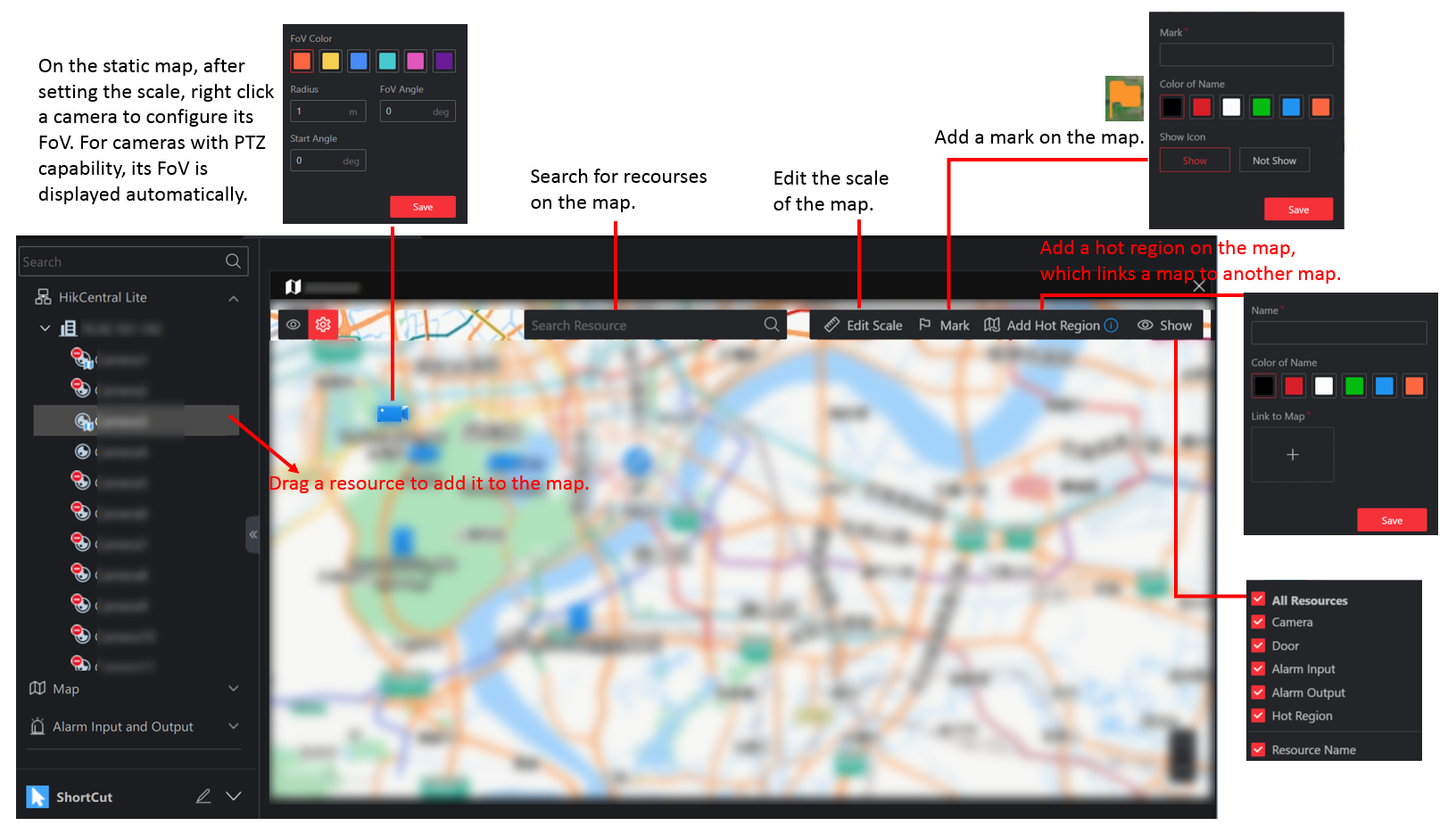
Monitoring Mode
You can perform the following to monitor and control doors on the map.
-
Monitor One Door: click a door to view the live view of its linked camera.
Monitor Doors: click Batch Select, draw an area to select multiple doors, and click Batch Play to view the live view of its linked cameras in a batch.
For details about supported operations when monitoring door(s), refer to Monitor Doors and Control Door Status.
-
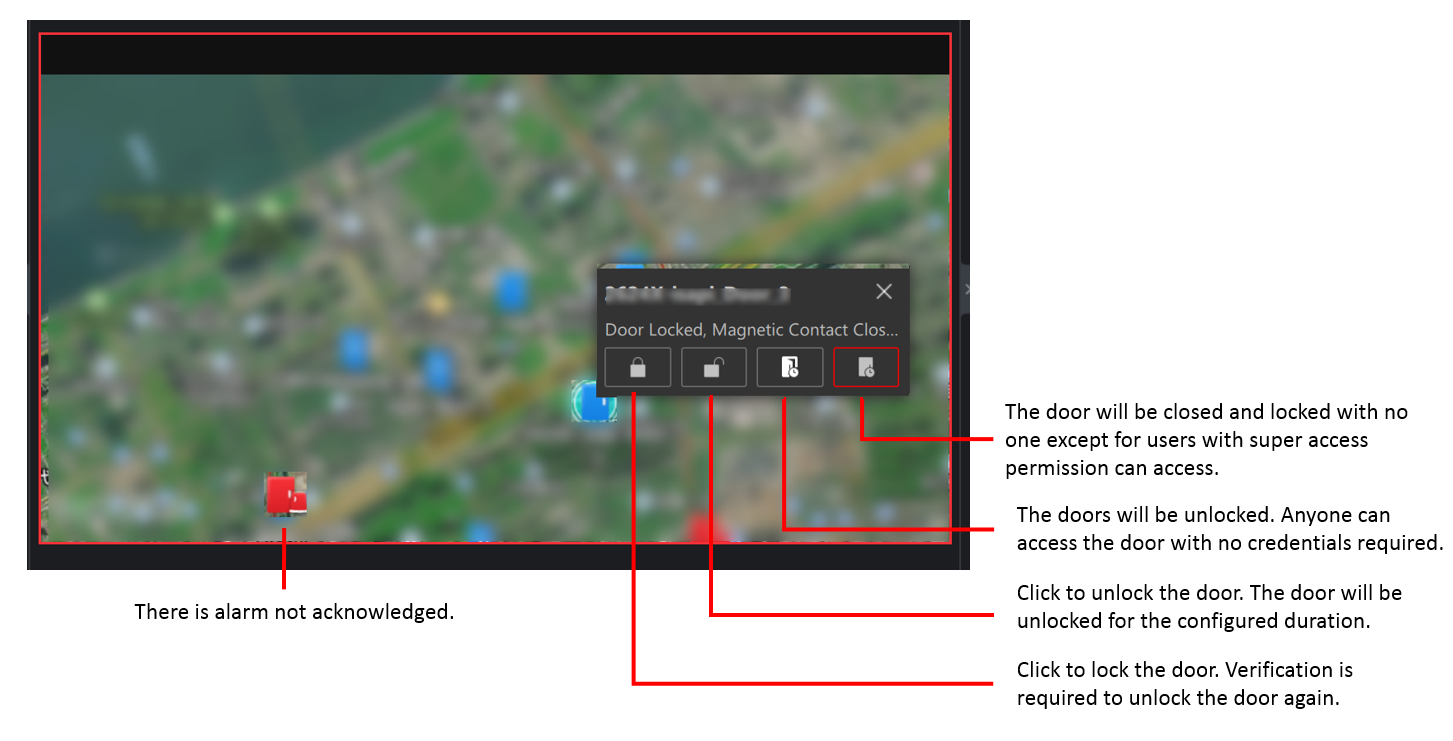
Control One Door: click the door or right click the door.
Figure 4 Control One Door