Monitor via Cameras on the Map
After adding cameras to the map, you can view live view and playback of cameras and camera status on the map.
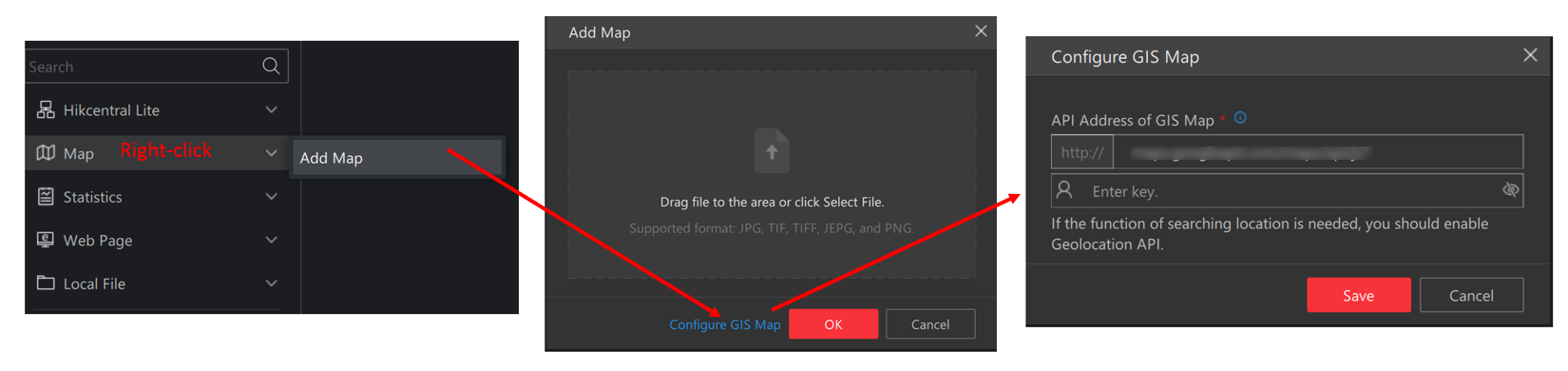
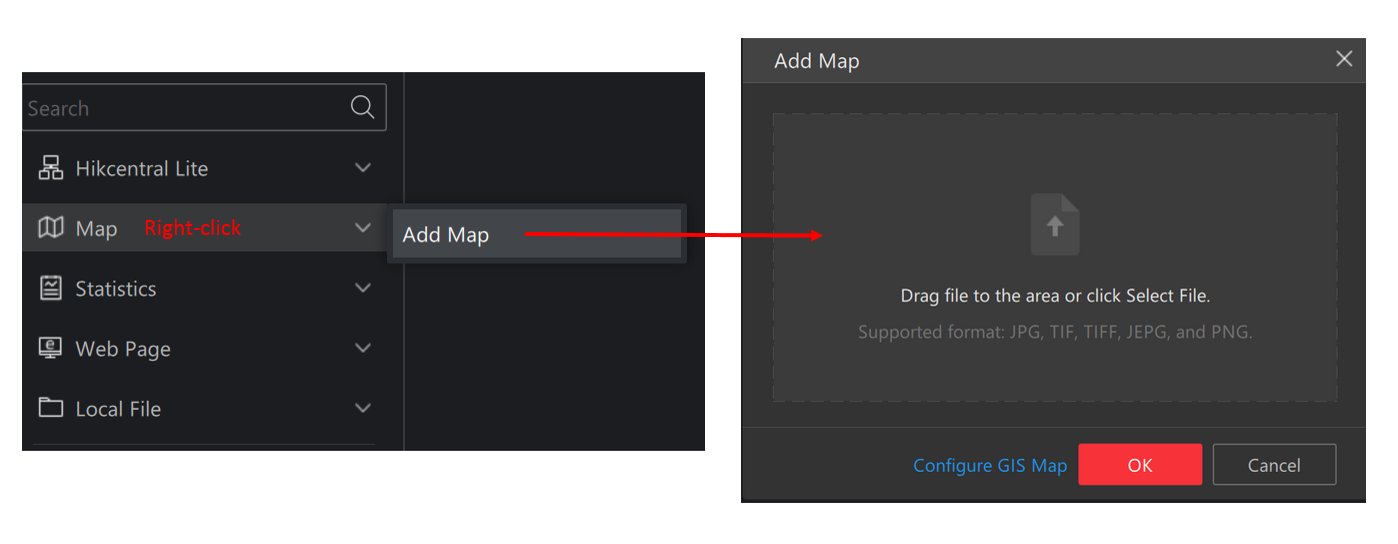
In the Map module, double click a map, or drag a map to the right window, or right click a map and click Open to view the map and its resources. For details about adding maps, refer to Add Map.
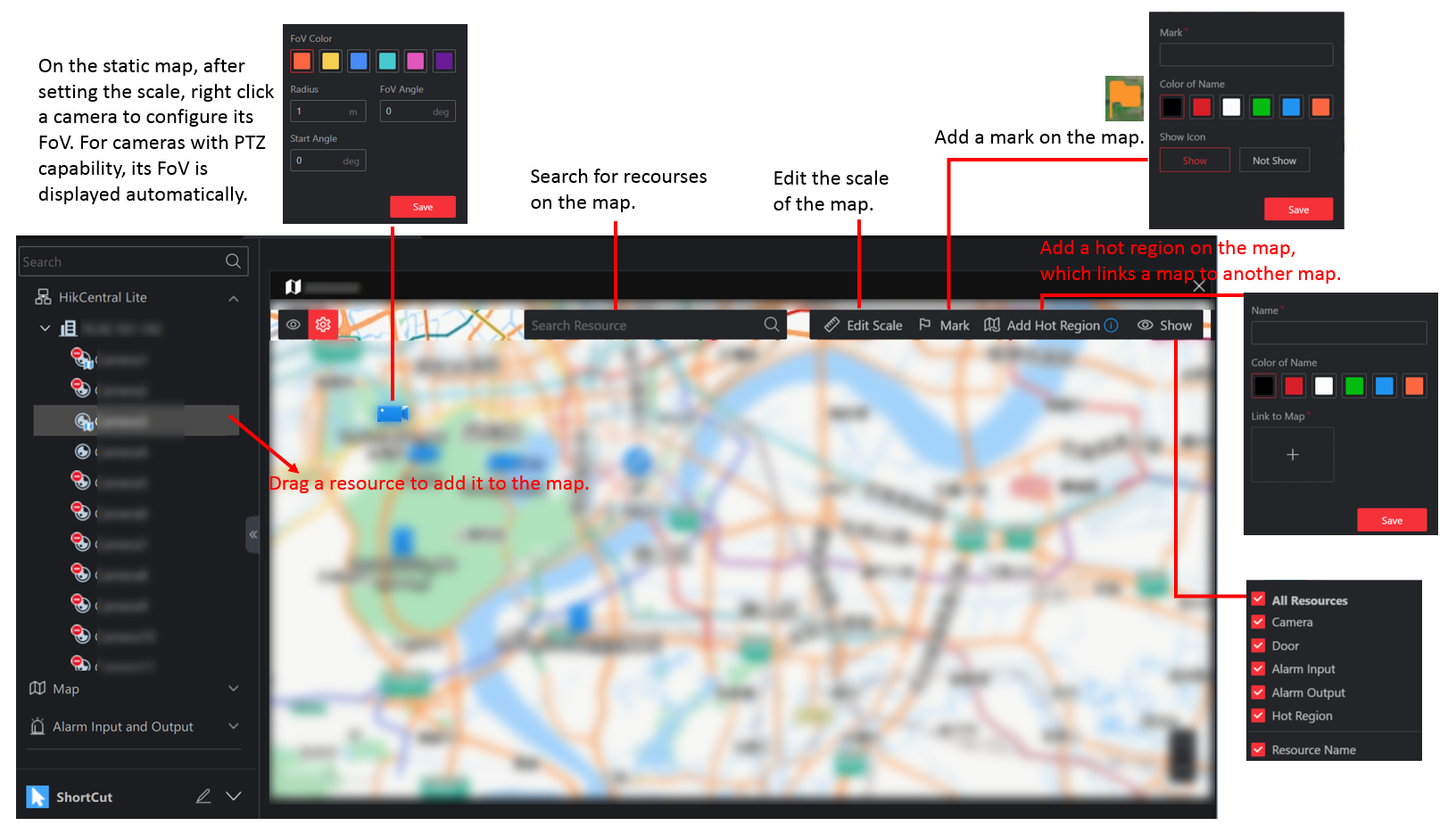
There are two modes for the map. In the Monitoring mode (), you can view live view and playback via cameras on the map. In the Configuration mode (), you can add cameras, marks, and hot regions to the map, set the types of resources to be displayed on the map, etc.
 ), you can view live view and playback via cameras on the map. In the Configuration mode
(
), you can view live view and playback via cameras on the map. In the Configuration mode
( ), you can add cameras, marks,
and hot regions to the map, set the types of resources to be displayed on
the map, etc.
), you can add cameras, marks,
and hot regions to the map, set the types of resources to be displayed on
the map, etc.Add Map
Configuration Mode
Monitoring Mode
You can monitor via cameras on the map.
-
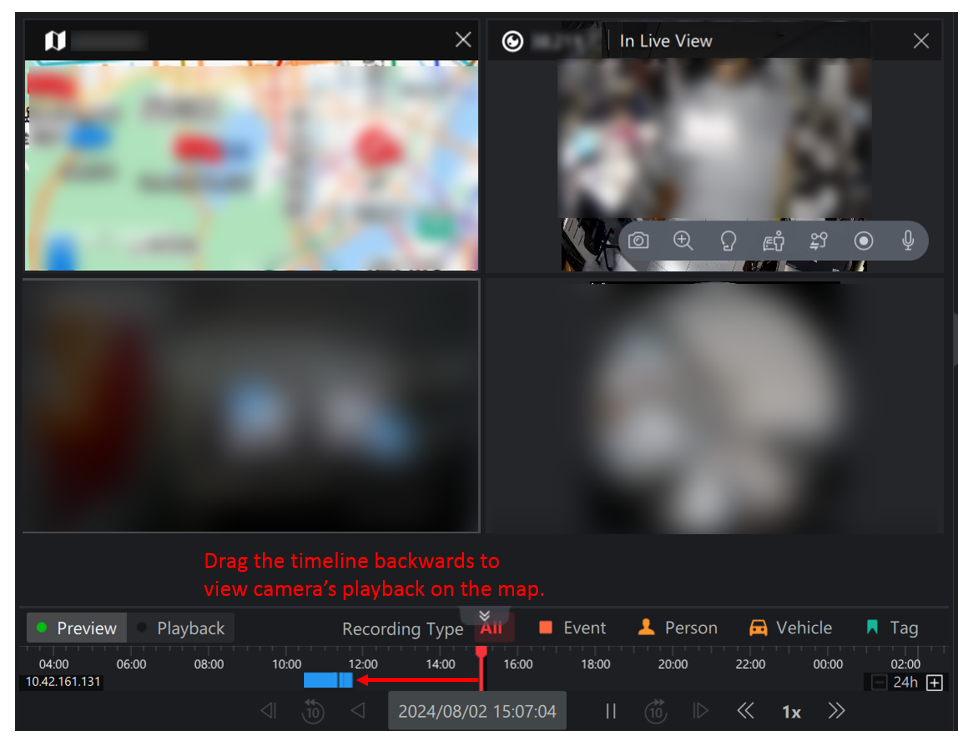
Click a camera to view the live view of the camera on the map.
Figure 4 View Camera's Live View and Playback on the Map -
Click Batch Select, draw an area to select multiple cameras, and click Batch Play to view the live view of cameras in a batch.
Press the Ctrl key, select multiple cameras, and drag them to the windows outside of the map to view the live view of cameras in a batch.
Figure 5 Batch View Cameras' Live View and Playback
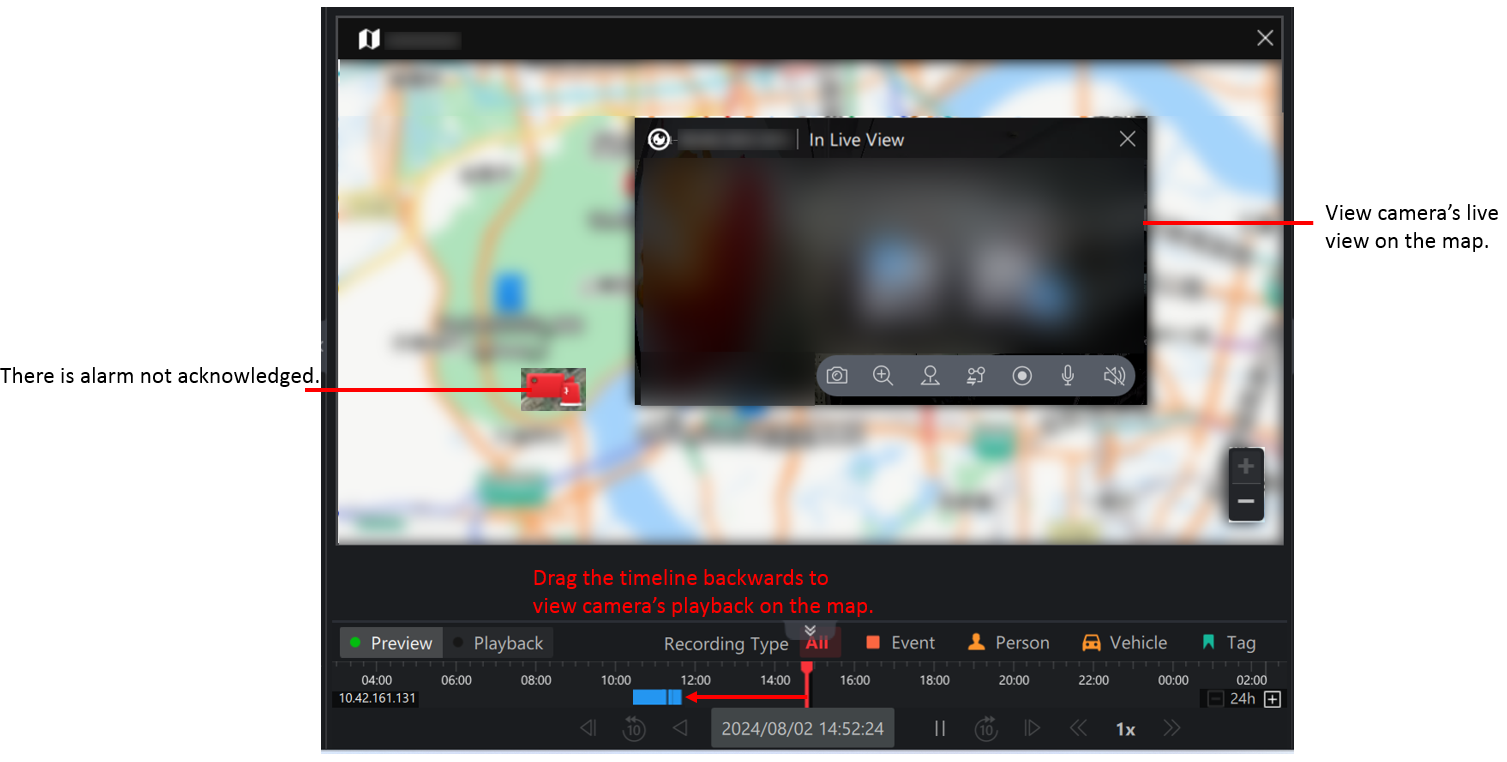
When viewing the live view or playback of the camera, right click the live view or playback image to perform more operations. Refer to Start Live View / Playback of Camera for details.