Monitor Doors and Control Door Status
After adding doors, you can control door status such as locking and unlocking doors. For the doors with build-in cameras or doors linked with cameras, you can also monitor doors and perform more operations during monitoring such as capturing and recording.
For the detailed explanations of door status, refer to Real-Time Monitoring of Doors.
-
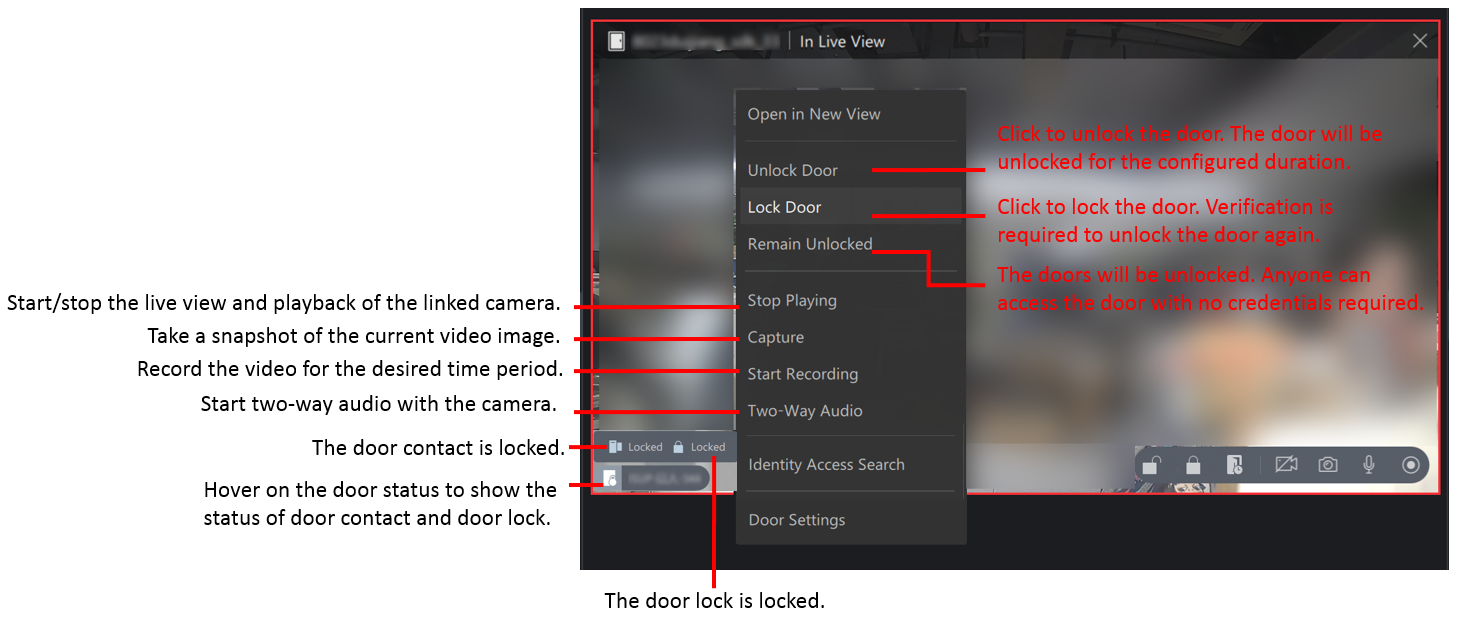
Control one door: double click a door or drag a door to the viewing grid, and then right click a door or click the icons in the lower right corner to control the door.
Figure 1 Supported Operations to Control One DoorThese operations are only available for the doors with build-in cameras or doors linked with cameras: playing / stop playing video, capturing, recording, and two-way audio.
-
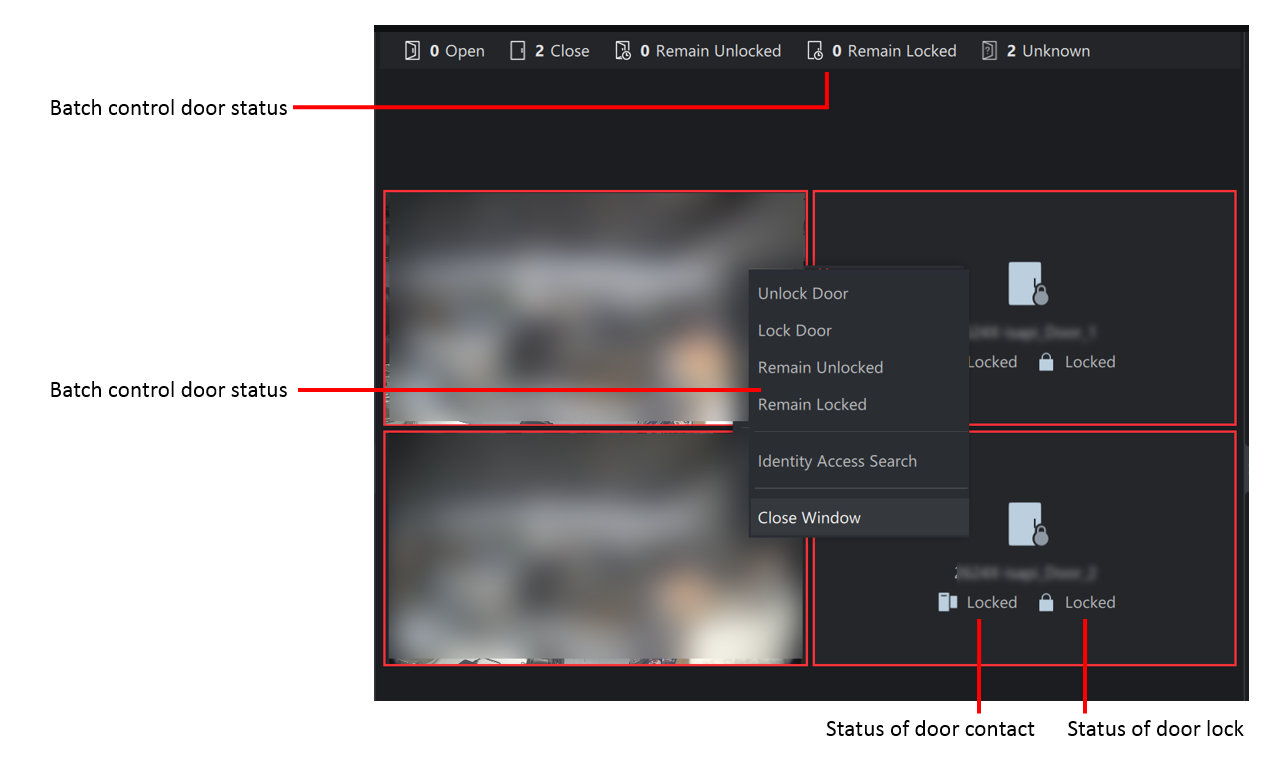
Control doors on the current view: draw a frame to select doors and then right click the window to control the selected doors, or click the door status on the top of the viewing grid to batch control door status.
Figure 2 Select a Way to Control Doors on The Current View -
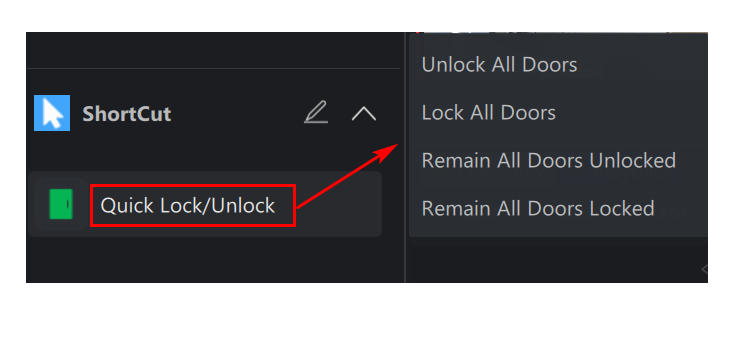
Control all the doors: in the Shortcut area, click Quick Lock/Unlock, and then you can batch unlock/lock all doors, or remain all doors unlocked/locked.
Figure 3 The Entry to Control All Doors