Configure Receiving Schedule Template
When adding events and alarms, you can select the predefined receiving schedule template to define when the event and alarm can be triggered and notifying the recipients. The platform has predefined three default receiving schedule templates: All-Day Template, Weekday Template, and Weekend Template. You can also customize a template according to actual needs.
Receiving schedule template defines the time when you can receive events or alarms. If the event schedule differs from the alarm receiving schedule, make sure the time of the event receiving schedule covers that of the alarm receiving schedule.
-
In the top left corner of Home page, select
 > Security Monitoring > Event and Alarm.
-
Click
 to enter the Add Receiving Schedule
Template page.
to enter the Add Receiving Schedule
Template page.
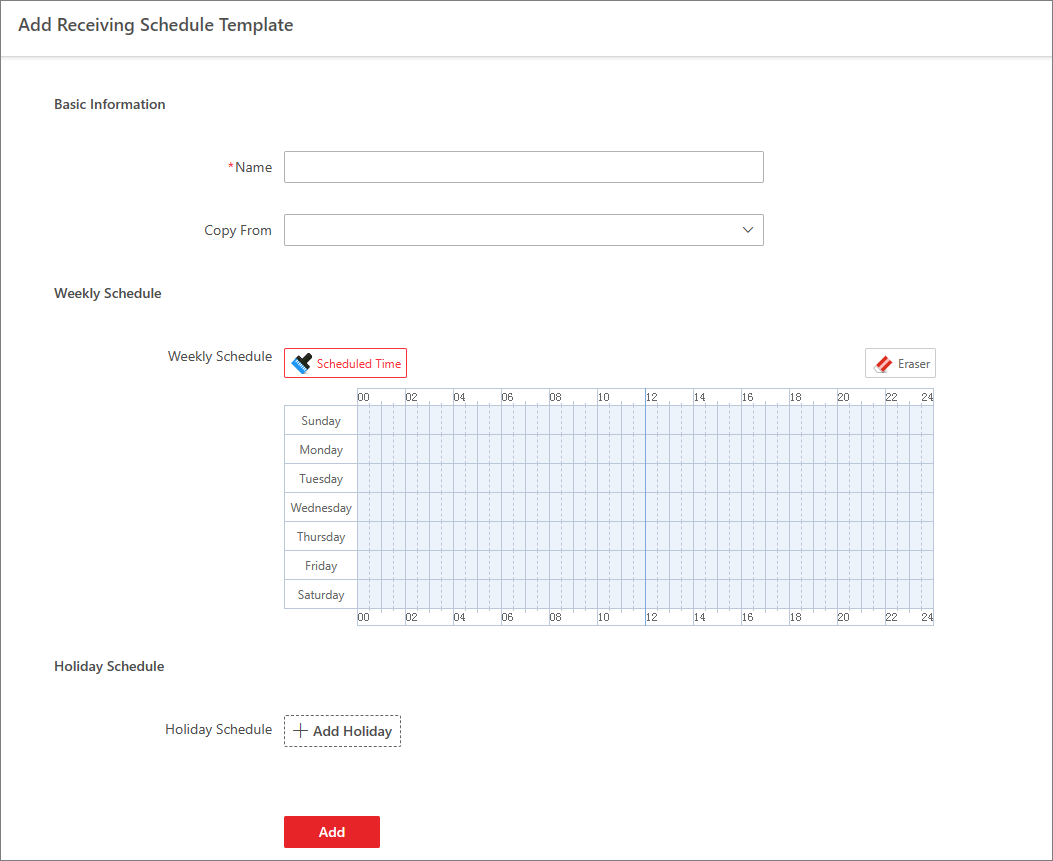 Figure 1 Add Receiving Schedule
Template
Figure 1 Add Receiving Schedule
Template - Optional:
Perform the following operations after adding the receiving schedule
template.
Option Description View Template Details
Click the template name to view its details.
Edit Template
Click the name of a custom template to edit template details.
Note:The predefined templates cannot be edited.
Delete Template
Select a template and click
 to delete the
template.Note:
to delete the
template.Note:-
The predefined templates cannot be edited.
-
If there are events/alarms configured with this template, you can replace the template with other receiving schedule. Or you can click Delete Now to delete the template, and this operation will cause exceptions of related events/alarms.
-