Custom Alarm Settings
The platform has predefined several alarm priorities, alarm categories, color template, and alarm icons for basic needs. You can edit the predefined alarm priority and alarm category, and customize alarm priority and alarm category according to actual needs.
- Alarm Priority
-
Define the importance or urgency of alarms for handling or acknowledgment.
- Alarm Category
-
Used when the user acknowledges the alarm and categories what kind of alarm it is, e,g., false alarm, or alarm to be verified. You can search for alarms by the alarm category.
- Alarm Icon When Alarm Occurs
-
The platform has predefined some icons of resources for several special alarms.
For example, it predefined the icon for the Door Opened Abnormally alarm. When this alarm is triggered, the door icon will turn to the icon displayed here to notify users.
-
In the top left corner of Home page, select
 > Security Monitoring > Event and Alarm.
-
Customize alarm priorities according to actual needs. By default, three kinds
of alarm priority exist.
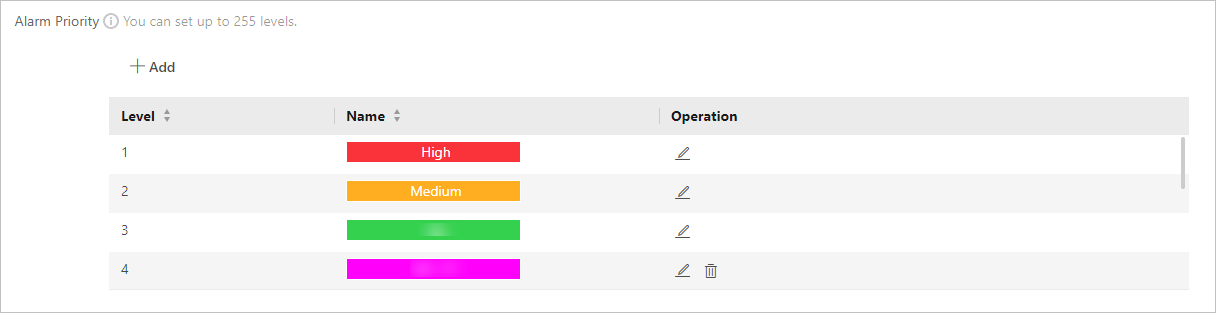 Figure 1 Alarm Priority
-
Click Add to open the adding alarm priority
pane.
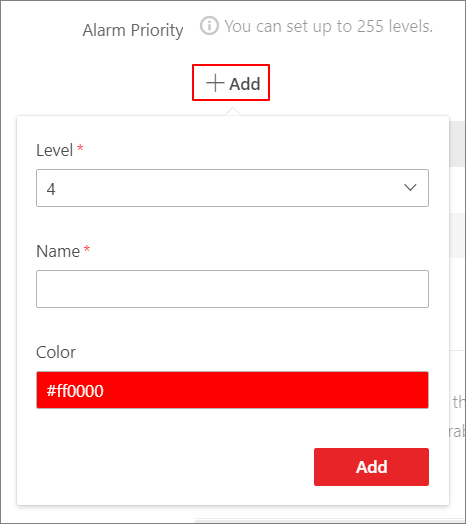 Figure 2 Add Alarm
Priority
Figure 2 Add Alarm
Priority
-
Click Add to open the adding alarm priority
pane.
-
Customize alarm categories according to actual needs. By default, four alarm
categories
exist.
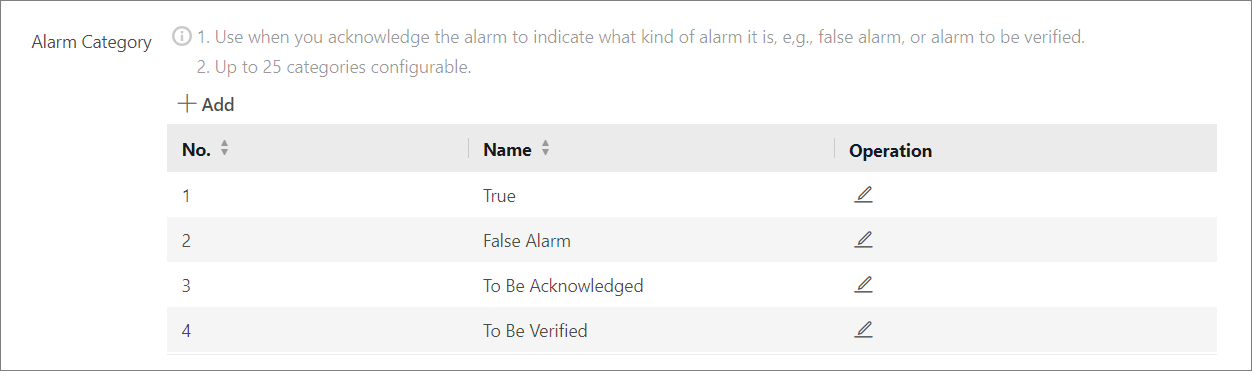 Figure 3 Alarm Category
-
Click Add to open the adding alarm category
pane.
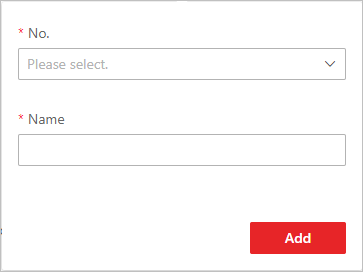 Figure 4 Add Alarm
Category
Figure 4 Add Alarm
Category
-
Click Add to open the adding alarm category
pane.
-
Customize color template according to actual needs. By default, three
alarm categories exist.
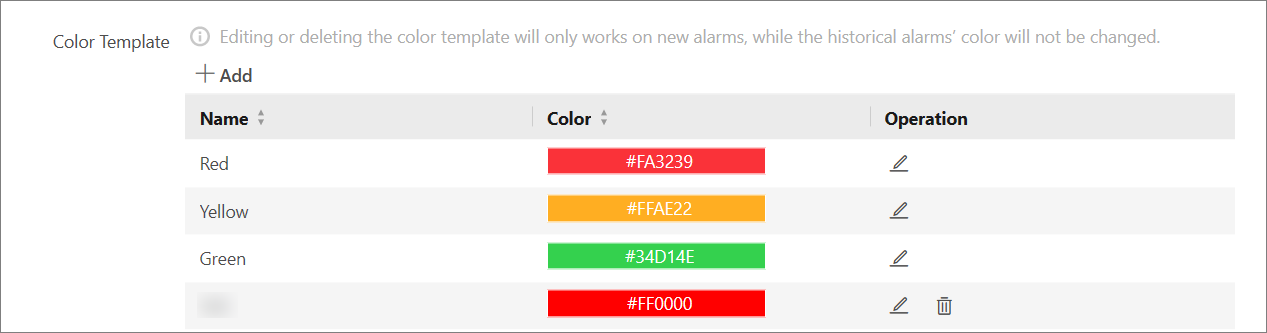 Figure 5 Color Template
-
Click Add to open the adding color template
pane.
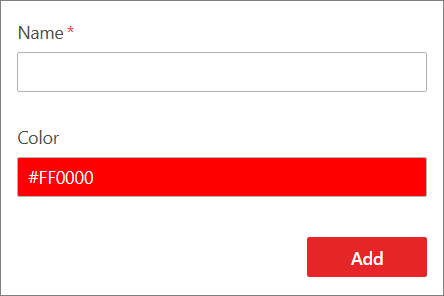 Figure 6 Add Color
Template
Figure 6 Add Color
Template
The alarm category will be displayed on the alarm category list.
-
Click Add to open the adding color template
pane.
- Optional:
Perform the following operation(s) after adding alarm priority and
category.
Option Description Edit
Click
 to edit the alarm
priority and category.Note:
to edit the alarm
priority and category.Note:You cannot edit the No. of predefined alarm priorities and categories.
Delete
Click
 to delete the alarm
priority and category.Note:
to delete the alarm
priority and category.Note:You cannot delete the predefined alarm priorities and categories.