Add Task Schedule Template
A task schedule template is used for defining the weekly time arrangement for an intelligent recognition task. An all-day template is available by default. If you apply the all-day template to an intelligent recognition task, the task will be activated 24*7 hours. If the all-day template cannot meet your demands, you can add a custom template as required.
Perform the following operations to add a custom template.
-
In the top left of the Home page, select
 > Video > Intelligent Recognition > Task Schedule Template.
-
Click
 to add a schedule
template.
to add a schedule
template.
- Create a name for the template.
- Optional: Select an existing template from the Copy to drop-down list.
-
Edit weekly schedule.
Option Description Draw Task Time
Click Draw Task Time and then click a grid or drag the cursor on the time line to draw a time period during which the task is activated.
Set Precise Time
Click Draw Task Time, move the cursor to a drawn period, and then adjust the period in the pop-up dialog shown as
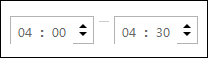 .
.Erase Task Time
Click Erase, and then click a grid or drag the cursor on the time line to erase the drawn time period.
- Click Add.
- Optional:
Select a task from the task list, and then click
 to delete it.