Manage Applications
You add and manage applications on the platform and apply them to the interactive flat panels.
-
On the top navigation bar, select
 > Integrated Service > Interactive Flat Panel to enter the interactive flat panel page.
-
Click Application Management on the left.
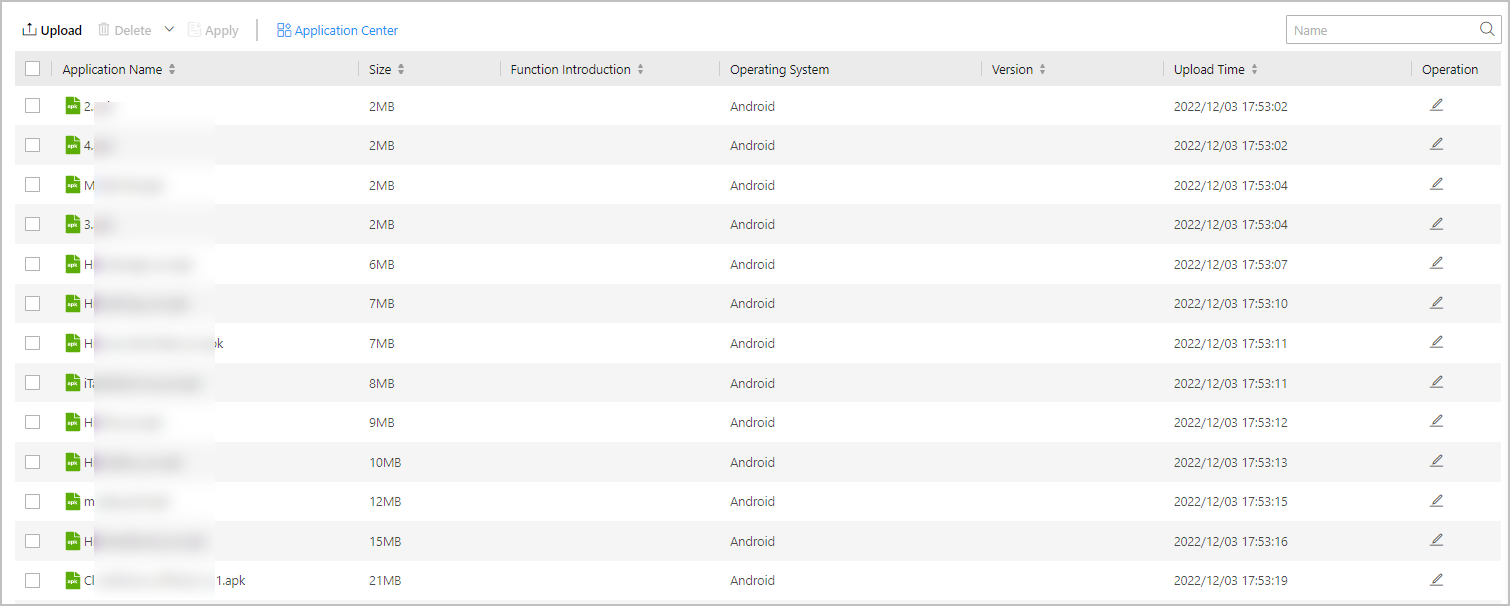 Figure 1 Applications List
 - Optional:
After adding applications, you can perform the following operations.
Option Description Edit Application
Click
 on the
operation column to edit the function introduction of the application.
on the
operation column to edit the function introduction of the application.Apply to Device
Select one or more applications, click Apply to open the Apply panel.
You can select all devices or some device(s) to apply the applications to.
Search Application
Enter keywords in the upper right corner to search for the target applications.
Sort Applications
Sort applications in the list according to the application name, size, and so on.
Delete Application
Select one or more applications, click Delete to delete the selected applications.
Move the mouse cursor to
 beside
Delete, and click Delete All to
delete all the applications in the list.
beside
Delete, and click Delete All to
delete all the applications in the list.