Control Interactive Flat Panel
After adding interactive flat panels to the platform, you can control them on the platform, such as shutting down, rebooting, and setting the screen saver password.
-
Make sure you have added interactive flat panels to the platform. See details in Manage Interactive Flat Panel.
On the top navigation bar,
select  > Integrated Service > Interactive Flat Panel to enter the interactive flat panel page, and then click Device
Control on the left navigation pane.
> Integrated Service > Interactive Flat Panel to enter the interactive flat panel page, and then click Device
Control on the left navigation pane.
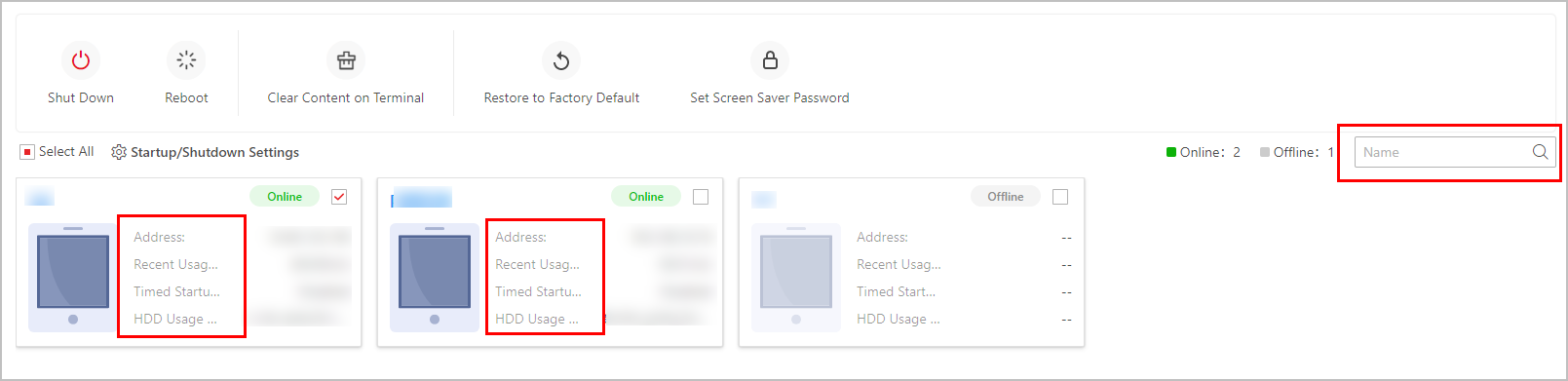 Figure 1 Control Interactive Flat Panel
You can search for the target interactive flat panels, and view the information about online interactive flat panels including IP address, recent usage time, timed startup/shutdown status, and HDD usage status.
Select one or multiple interactive flat panels and perform the following operations as needed.
- Shut Down / Reboot
-
Remotely shut down or reboot interactive flat panels.
- Clear Content on Terminal
-
Clear all the contents that have been released to the selected interactive flat panels.
- Restore Default
-
Restore the parameters of interactive flat panels to the default settings.
- Set Screen Saver Password
-
Set the screen saver password for interactive flat panels.
- Startup/Shutdown Settings
-
Set the parameters related to startup or shutdown for interactive flat panels, such as standby strategy and wakeup strategy. If you enable Timed Startup/Shutdown, you should add startup/shutdown schedule by configuring startup and/or shutdown time, and the repetition mode.
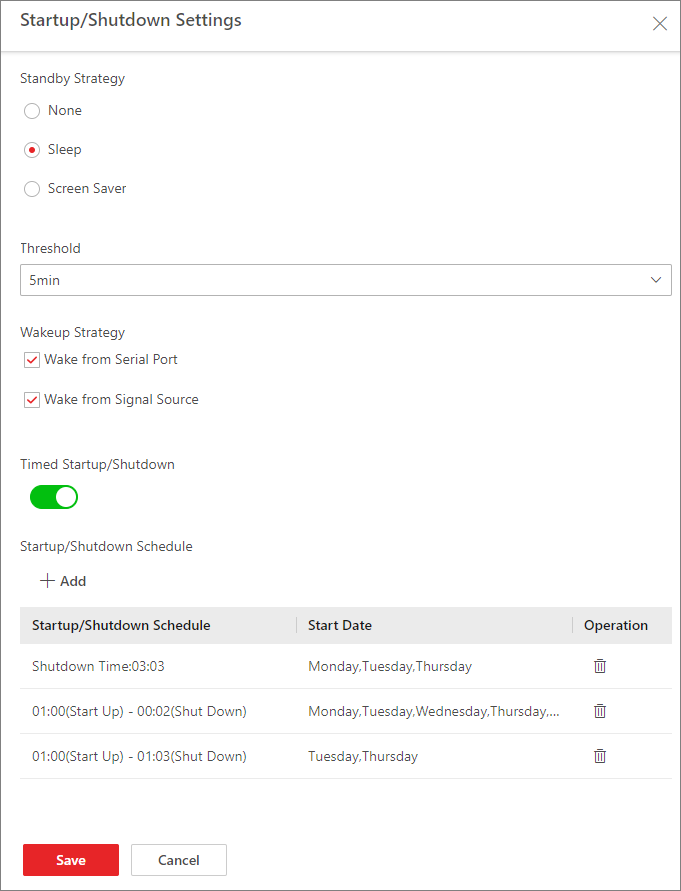 Figure 2 Startup/Shutdown Settings