Define Absence
You can define the absence rule in the global dimension or define an absence rule for a certain department or attendance group. When the employee's attendance conforms to the absence rule, the attendance record will be marked as absent or other status you define.
On the top left, select  > Integrated Service > Attendance. Select on the left. For department
rules
and attendance group rules, you need to click
Add on the Department
Rule
or Group Rule page, and then check departments
or
attendance groups. Click Attendance
Calculation on the right.
> Integrated Service > Attendance. Select on the left. For department
rules
and attendance group rules, you need to click
Add on the Department
Rule
or Group Rule page, and then check departments
or
attendance groups. Click Attendance
Calculation on the right.
In the Absence Settings area, you can define the absence rules.
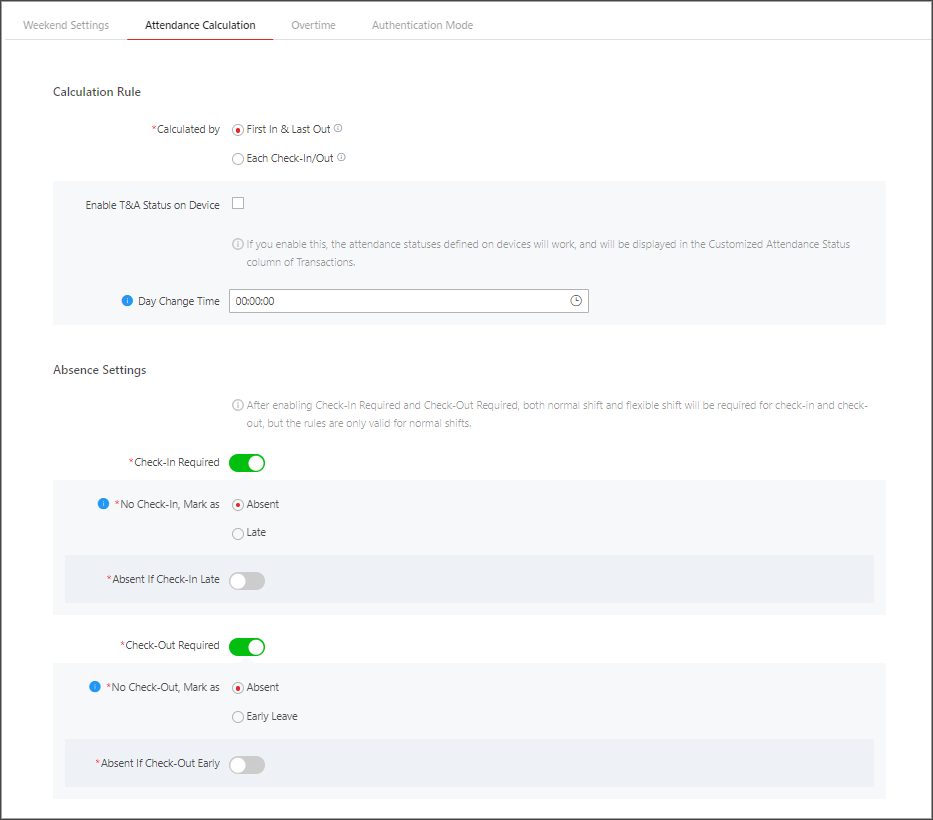 Figure 1 Absence Settings
Set Absence Rule for Check-In
Switch on Check-In Required. Once this function is disabled, employees will not be required to check in.
In No Check-In, Mark as, specify an attendance status when a person does not check in or fails to check in within the valid check-in period. If you select Late, you need to set a fixed late duration.
For example, if the scheduled start work time is 9:00, valid check-in period is 6:00-12:00 (defined in Timetable - Attendance), Late Duration is set to 60 minutes, and No Check-In, Mark as is set to Absent, the attendance status of an employee will be:
-
Normal, if the employee checks in between 6:00 and 9:00.
Note:You can set overtime rules to count the extra hours before scheduled start work time as overtime. See details in Configure Overtime Parameters.
-
Late, if the employee checks in between 9:01 and 9:59.
-
Absent, if the employee checks in after 10:00 or does not check in.
Switch on Absent If Check-In Late and set a tolerant threshold in Late for. When the employee's check-in time minus scheduled start work time is longer than the Late for value, the employee's attendance status on that day will be marked as Absent.
Set Absence Rule for Check-Out
Switch on Check-Out Required. Once this function is disabled, employees will not be required to check out.
In No Check-Out, Mark as, specify an attendance status when a person does not check out or fails to check out within the valid check-out period. If you select Early Leave, you need to set a fixed late duration.
For example, if the scheduled end work time is 18:00 and valid check-out period is 17:00-21:00 (defined in Timetable - Attendance), and Early for is set to 60 minutes, the attendance status of an employee will be:
-
Absent, if the employee checks out before 17:00 or does not check out.
-
Early Leave, if the employee checks out between 17:01 and 17:59.
-
Normal, if the employee checks out between 18:00 and 21:00.
Note:You can set overtime rules to count the extra hours after scheduled end work time as overtime. See details in Configure Overtime Parameters.
Switch on Absent If Check-Out Early and set a tolerant threshold in Early for. When the scheduled end work time minus employee's check-out time is longer than the Early for value, the employee's attendance status on that day will be marked as Absent.