Control Digital Signage Terminal
After adding digital signage terminals to the platform, you can control the terminals on the platform, such as starting up, shutting down, playing programs, setting the volume, etc.
-
Make sure you have added digital signage terminals to the platform. See details in Add Digital Signage Terminal.
On the top navigation
bar, select  > Integrated Service > Digital Signage, and then click Digital Signage Control on the
left navigation pane.
> Integrated Service > Digital Signage, and then click Digital Signage Control on the
left navigation pane.
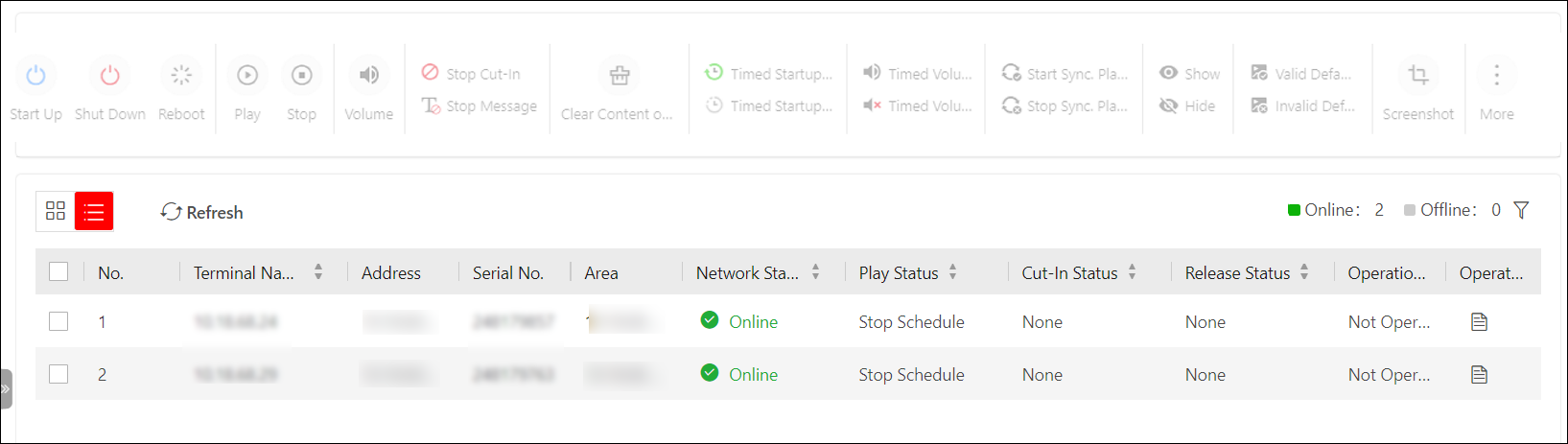
Operations When No Terminal Is Selected
- Switch Display Mode
-
Click
 /
/ to display the added
terminals in thumbnail/list mode.
to display the added
terminals in thumbnail/list mode. - Refresh Terminal List
-
Click Refresh to refresh the terminal list.
- View Terminal Details
-
Click
 in the Operation column
to view the details of the terminal, such as software version, system
version, IP address, MAC address, CPU usage, HDD usage, etc.
in the Operation column
to view the details of the terminal, such as software version, system
version, IP address, MAC address, CPU usage, HDD usage, etc. - Search Terminals
-
Click
 , set the search
conditions (such as network status, play status, cut-in status, and
release status), and click Search to search for
the target terminals.
, set the search
conditions (such as network status, play status, cut-in status, and
release status), and click Search to search for
the target terminals.
Operations After Selecting Terminal(s)
- Start Up / Shut Down / Reboot
-
Remotely start up / shut down / reboot the terminal(s).
- Play/Stop
-
Play/stop the programs on the terminal(s).
- Set Volume
-
Set the output volume of the terminal.
- Stop Cut-In / Stop Message
-
Stop cutting in programs. / Stop cutting in messages.
- Clear Content on Terminal
-
Clear all the contents to be played on the terminal(s), including programs, cut-in programs, etc.
- Timed Startup/Shutdown Enabled/Disabled
-
The terminal(s) will start up / shut down according to the schedule.
The terminal(s) will not start up / shut down according to the schedule.
Note:For details about timed startup/shutdown, refer to Configure Device Display Settings.
- Timed Volume On/Off
-
Turn on/off the volume of the terminal(s) based on the schedule you set.
Note:For details about timed volume on/off, refer to Configure Device Display Settings.
- Start/Stop Sync. Playing on Terminal
-
Start or stop synchronous playing on terminals.
- Show/Hide
-
Show or hide the release progress.
- Valid/Invalid Default Schedule
-
If you create default video schedule for the terminal(s), you can manually control the schedule valid or invalid.
Note:For details about creating default video schedule, refer to Create a Default Schedule.
- Screenshot
-
Take the screenshot(s) of the terminal(s), which is/are in JPG format.
- More
-
- NTP Time Sync
-
The time synchronization of NTP server should be enabled when starting synchronous playing on the terminals. See details in Set NTP.
- Restore Default Settings
-
Restore the parameters of the terminal(s) to the default settings.
- Display Offline Status
-
If it is enabled, the offline information will be displayed in the down right corner when the device is offline.
- Remote Debugging
-
Enable the Android debug bridge for the terminal(s), and enter the debugging contents.
- Log Export
-
Export the logs of the terminal(s) in ZIP format.