The people counting group is used to group the doors, people counting
cameras, queue management cameras, and fisheye cameras of certain region. You can set some
doors and cameras as the region border. Only the persons accessing these doors or detected
by the cameras are calculated, and other doors and cameras outside the region are ignored.
By grouping these doors and cameras, the platform provides counting functions based on the
detected records on these doors and cameras.
-
In
the top left corner of the platform, select .
-
Click Add.
-
Set basic configurations.
-
Create a name for the group.
-
Select a site.
-
(Optional) Switch on the Maximum Number of
Persons and enter the maximum number of persons that can
enter the area monitored by this group.
-
(Optional) Switch on the Regularly Clear All and
set a time for clearing all data regularly.
-
(Optional) Switch on the Staff-Excluded People
Count to count people excluding those such as store
staff to get more accurate people counting statistics.
Note:
You can click Configure to go to Customer
Traffic Excluding Staff page.
-
Click Save and Continue.
-
Configure resources for counting people.
-
In the Resource for Counting People
part, click
Add
to select the resources (including doors and people counting cameras)
for calculating the number of people stayed in this
region.
-
Click Edit to select statistics type, and In/Out
Direction, and click
Save.
Note:
-
You can set Statistics
Type as Total
Entries, Total
People Passed By, and Total People Entered/Passed
By. The reports will display and only
display the data concerning the statistics type that you
select.
-
For doors, the access records on the entry
reader will be calculated as person entered this region
while the access records on the exit one will be
calculated as person exited this region.
-
For cameras, the people crossing along the
entry direction will be calculated as person entered
this region while the people crossing along the exit one
will be calculated as person exited this region.
-
Click Save and Continue.
-
Add the people counting group to a map.
-
Drag the people counting group from the Resource Group list on the
right to the map.
The region as well as the doors and cameras in the group
will be added on the map.
-
Drag to draw the region according to actual needs.
-
Drag the icons of the doors and cameras onto the map to set the their
locations on the map.
-
Right click to finish.
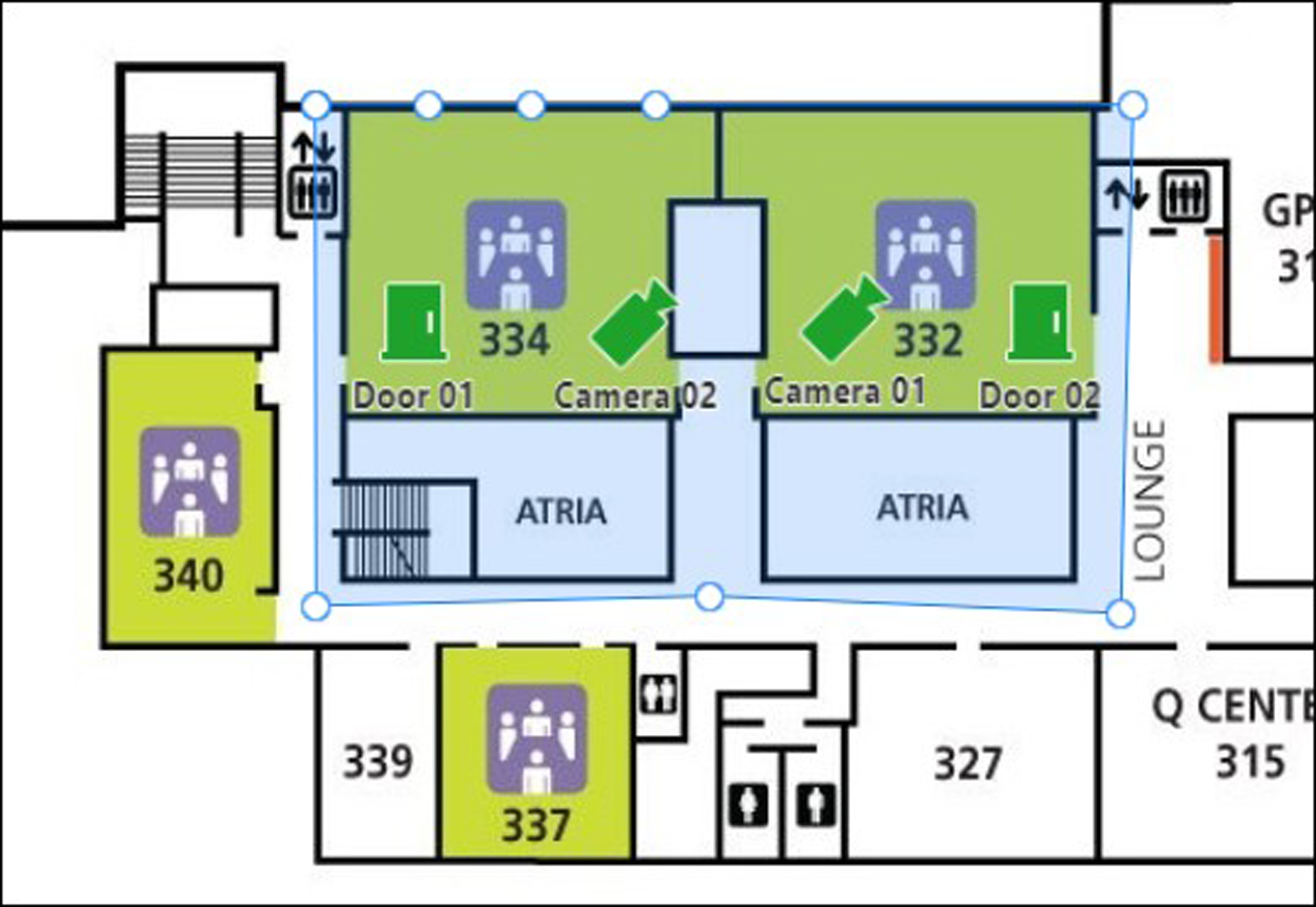 Figure 1 Draw People
Counting Group on Map
Figure 1 Draw People
Counting Group on Map
-
Click Finish.
The people counting group is displayed on the list.
 > Intelligent Analysis > Analysis Group > People Counting Group.