Set Live View Permission on Lock Screen
The admin user can set live view permission for specific cameras in the screen lock status of device.
-
The admin user can set this permission for user accounts.
-
When the normal user (Operator or Guest) has no local live view permission for specific camera (s), the live view permission for such camera (s) on lock screen status cannot be configured (live view not allowed by default).
-
Input admin password and click Next.
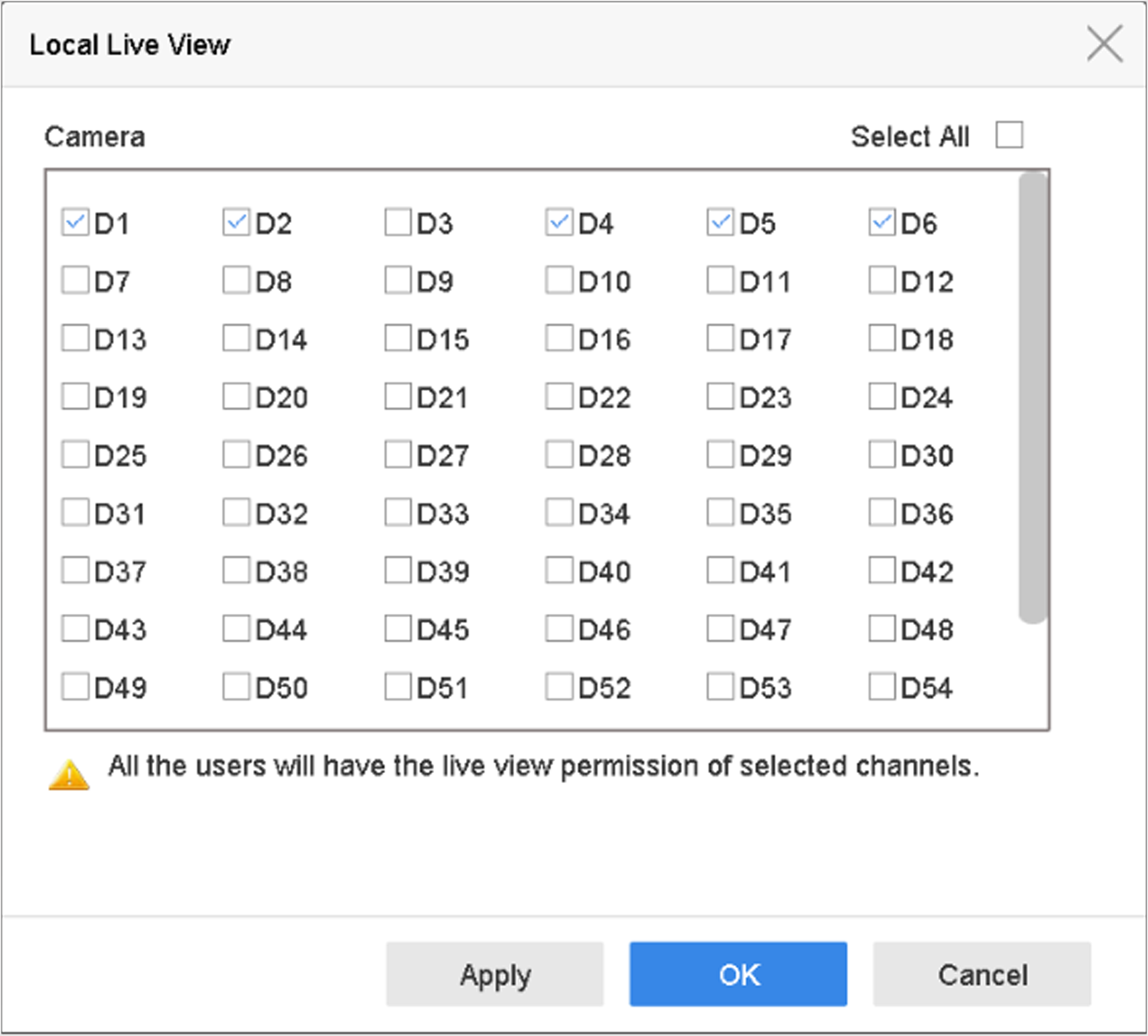 Figure 1 Set Live View
Permissions on Lock Screen