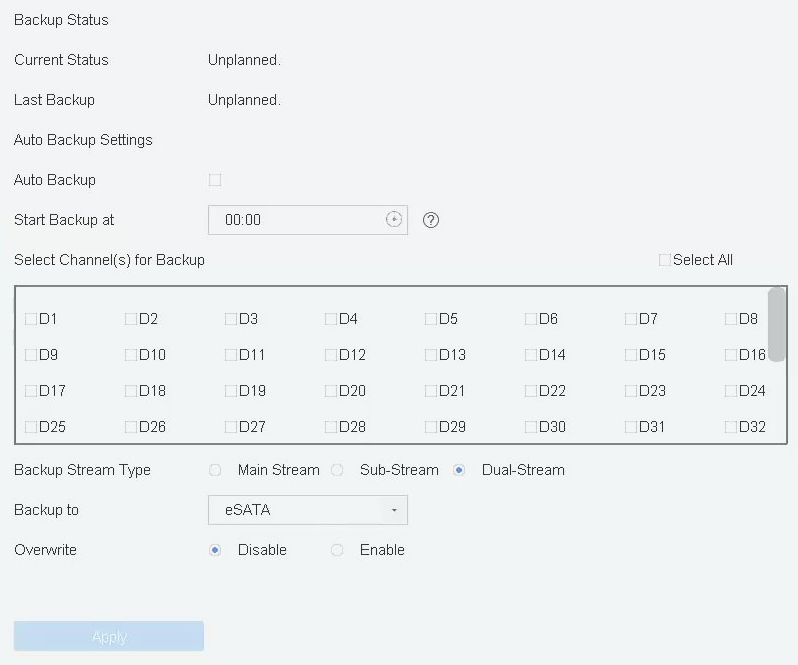
Configure eSATA for Auto Backup

If you made an automatic backup plan, the video recorder will back up the local videos of 24 hours ahead of the backup start time to eSATA.

Ensure the device has correctly connected with an external eSATA hard drive, and its usage type is set as Export. Refer to Manage eSATA for details.

  1. Go to Storage > Auto Backup.
  2. Check Auto Backup.
  3. Set the backup start time in Start Backup at.
    Note:

    If the day experiences a failed backup, the video recorder will back up the videos 48 hours ahead of the backup start time in the next day.

  4. Select channels for backup.
  5. Select Backup Stream Type as your desire.
  6. Select Overwrite type.
    • Disable: When HDD is full, it will stop writing.

    • Enable: When HDD is full, it will continue to write new files by deleting the oldest files.

  7. Click Apply.
    Figure 1 Configure eSATA for Auto Backup