How to Return Defected Products for Exchange or Repair (RMA)
Return material authorization (RMA) is an arrangement in which you can ship an item back for an exchange or repair due to a product defect or malfunction.
The function is only available in certain countries and regions. For details about whether your country or region supports the function, refer to the after-sales or local distributor.
|
Your Role |
Description |
Related Topics |
|---|---|---|
|
Installer |
|
|
|
Distributor |
|
/ |
Submit RMA Requests
You can register an RMA request for exchanging or repairing products. After registration, you can check real-time status of the RMA requests.
Submit RMA Requests Using the Portal
-
Go to .
-
Click Add to add products, and choose from:
-
Input the serial number of the products of interest, click Add, and enter fault description and reference. Click Add Attachment to add attachments if there are any.
-
Click Download Template, enter information of multiple products, and click Upload Serial List to batch upload products.
NoteIt should be a Hikvision product sold in the current country or region.
-
-
After all products are added, click Next to set shipping information.
-
Set shipping information. The distributor is identified and auto-selected according to the product serial number, and the nearest repair station will be selected by default. The distributor and product info will show up in the list.
If the distributor is not auto-identified:
Whether Your Country/Region Supports Trans-distributor Repair or Not
Description
Yes
-
Click Change Shipping Address to choose a distributor by yourself.
-
You can also select among all stations of all distributors in the country.
No
The product cannot be added.
-
-
Check the information in the list, and click Submit.
Submit RMA Requests Using the Mobile Client
-
Tap Me > (at the top right) > RMA, or tap .
-
Tap , and enter the product serial No. or scan the product QR code to start the application.
Figure 1 Add Products to Be RepairedNoteIt should be a Hikvision product sold in the current country or region.
-
Set shipping information. The distributor is identified and auto-selected according to the product serial number, and the nearest repair station will be selected by default. The distributor and product info will show up in the list.
If the distributor is not auto-identified:
Whether Your Country/Region Supports Trans-distributor Repair or Not
Description
Yes
-
Tap to choose a distributor by yourself.
-
You can also select among all stations of all distributors in the country.
No
The product cannot be added.
-
-
If there are more devices to be repaired, tap +Add to add more devices, or you can tap Confirm to enter shipping information.
-
Tap Add a New Address to add a new shipping address or select an existing address, then tap Submit, and the status of the RMA request will turn to Requested.
Shipping Method
Description
Shipping Carrier
Tap Ship to Distributor to enter the shipping carrier and shipping order No.
By Myself
Confirm that the product is shipped, and then the status of the RMA request will turn to Shipped to Distributor.
 (at the top
right)
(at the top
right)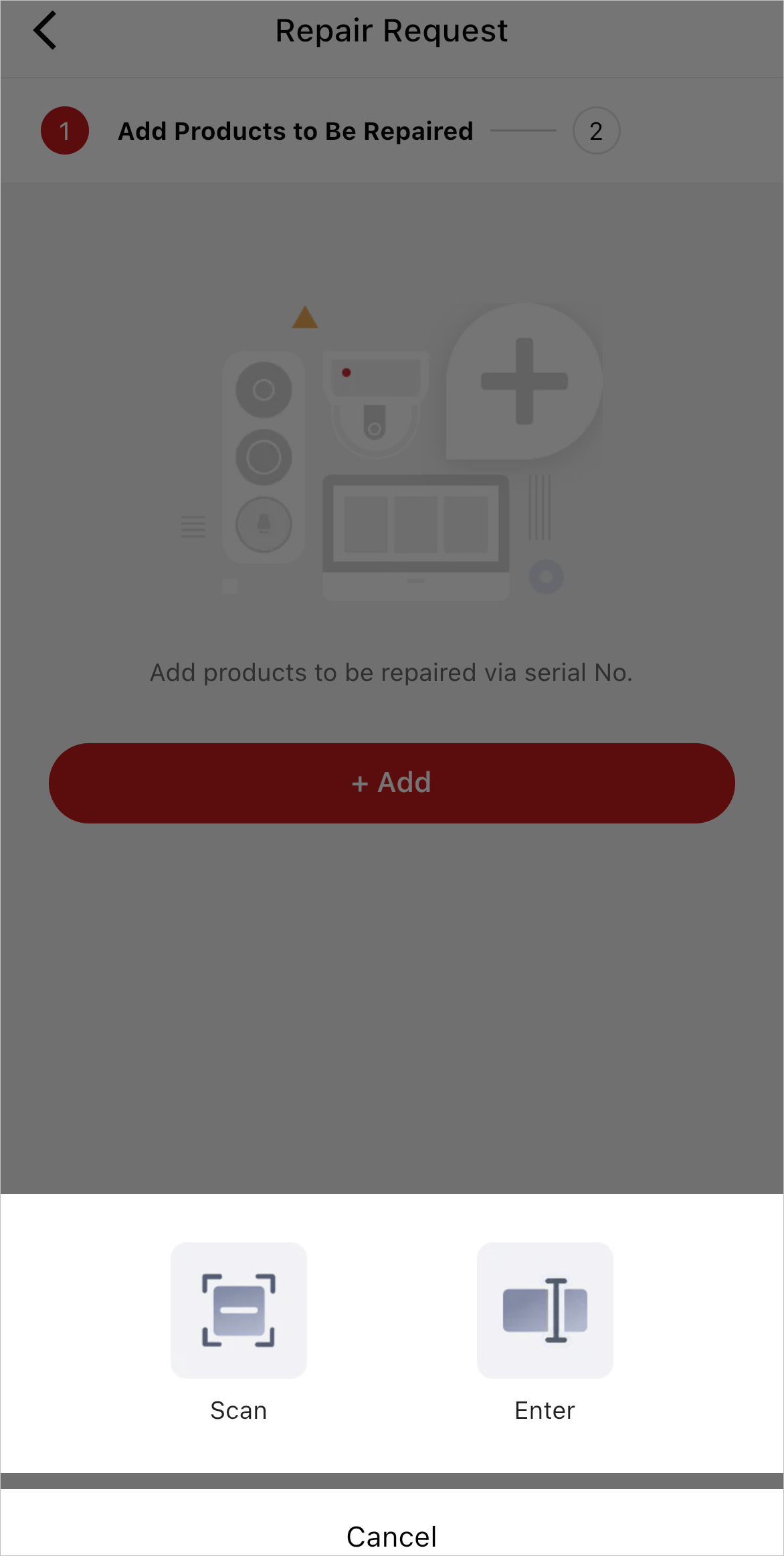
 to
choose a distributor by yourself.
to
choose a distributor by yourself.Track RMA Requests
After an RMA request is submitted, you can track its status and perform further operations.
Track RMA Requests Using the Portal
Go to .
|
Operation |
Description |
|---|---|
|
Filter by Status |
Click , and select among Saved, Unreceived, In Repair, Waiting For Customer Response, Ready for Shipment, and Completed. |
|
View Details |
Click Detail to view application details. |
|
Download Document |
Click Download Document to download the application file. |
 , and select
among Saved, Unreceived, In Repair, Waiting For Customer
Response, Ready for Shipment, and Completed.
, and select
among Saved, Unreceived, In Repair, Waiting For Customer
Response, Ready for Shipment, and Completed.Track RMA Requests Using the Mobile Client
Tap Me > (at the top right) > RMA or tap .
-
When the status is Requested:
-
If you select shipping carrier as the shipping method, you need to tap Ship to Distributor to enter shipping information (including shipping Carrier or shipping order No.).
-
If you select ship by myself as the shipping method, confirm that you have shipped the product.
-
You can tap Cancel Request to cancel the request.
-
-
If the status is Repaired & Shipped, you can tap Complete to finish the request.
Find Repair Stations
You can view repair stations and their distances from you on the map, so you can choose which repair station you want to ship your products to.
Find Repair Stations Using the Mobile Client
-
Tap Me > (at the top right) > RMA, or tap .
-
Tap Repair Station Query.
-
-
On the map, your location and nearby repair stations are displayed.
-
In the list, the available repair stations are displayed according to their distances from your location.
-
The information about repair stations includes the station name, contributor name, station address, distance from you location to the station, and station phone number (Tap or tap Make a Call on the details page to make a phone call to the station staff for asking more information.)
-
 or tap