How to Join Partner Programs
Partner programs are rebate and incentive programs that help resellers (DPPs) grow their businesses and encourage resellers to sell products, and rebates will be offered to resellers on their achieving the sales targets.
-
Contract agreements of partner programs where sales targets are set need to be signed by three parties (the reseller, distributor, and Hikvision).
-
This function is not supported by some accounts or in some countries/regions.
|
Your Role |
Description |
Related Topics |
|---|---|---|
|
Reseller (DPP) |
|
|
|
Distributor |
Manage and sign the program agreements on Hik-Partner Pro. |
Resellers (DPPs) Submit Program Applications
As a reseller, you can apply for partner programs to get rebates on Hik-Partner Pro with the contract agreements signed either offline or online.
Submit Program Application Using the Portal
-
Go to , and click a program in the Program Application section.
-
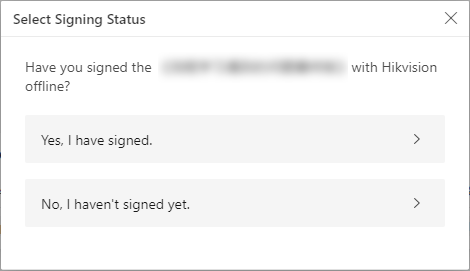
Select your signing status in the pop-up window according to whether you have signed the agreement with Hikvision offline or not.
The details and introduction about the partner program you are applying for will be shown.
Figure 1 Select Signing Status -
Click Next to continue.
-
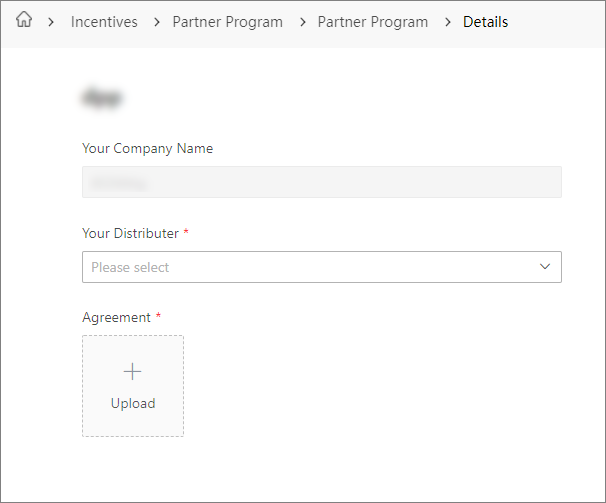
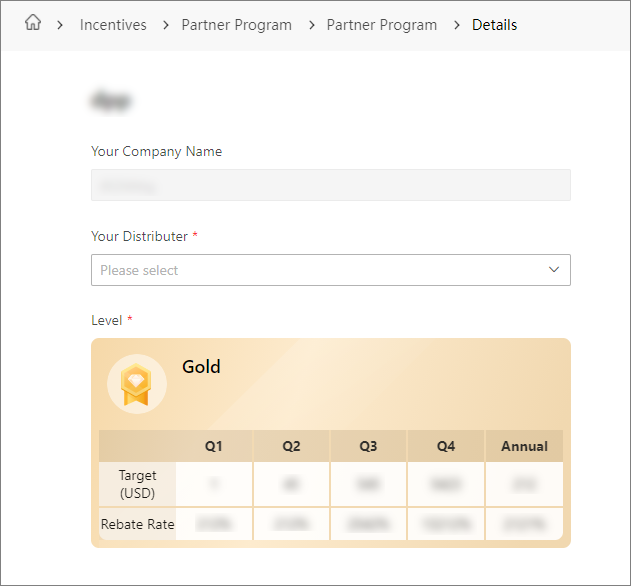
If you have signed the contract agreement with Hikvision offline, upload the signed contract agreement. If not, select the level you want to apply for.
Application Page (Contract Agreement Already Signed Offline)Application Page (Contract Agreement Not Signed) -
Click Submit.
-
If you have uploaded the signed agreement, the application process is completed after you click Submit. If not, you may enter one of the following processes:
-
If the level you select does not require you to communicate with Hikvision to confirm the targets offline, you will enter the Details page of the contract agreement. Check I agree with and accept this agreement and click Submit to submit the application.
-
If the level you select requires you to communicate with Hikvision to confirm the targets offline, choose one of the followings:
-
Communicate with the Hikvision sales representative offline, sign your contract agreement with them offline, and submit the application again online by yourself (you need to upload your signed contract agreement).
-
Communicate with the Hikvision sales representative offline, and they will initiate the signing process online for you. You need to sign the contract agreement online.
-
-
Submit Program Application Using the Mobile Client
-
Go to , and tap a program in the Program Application section.
-
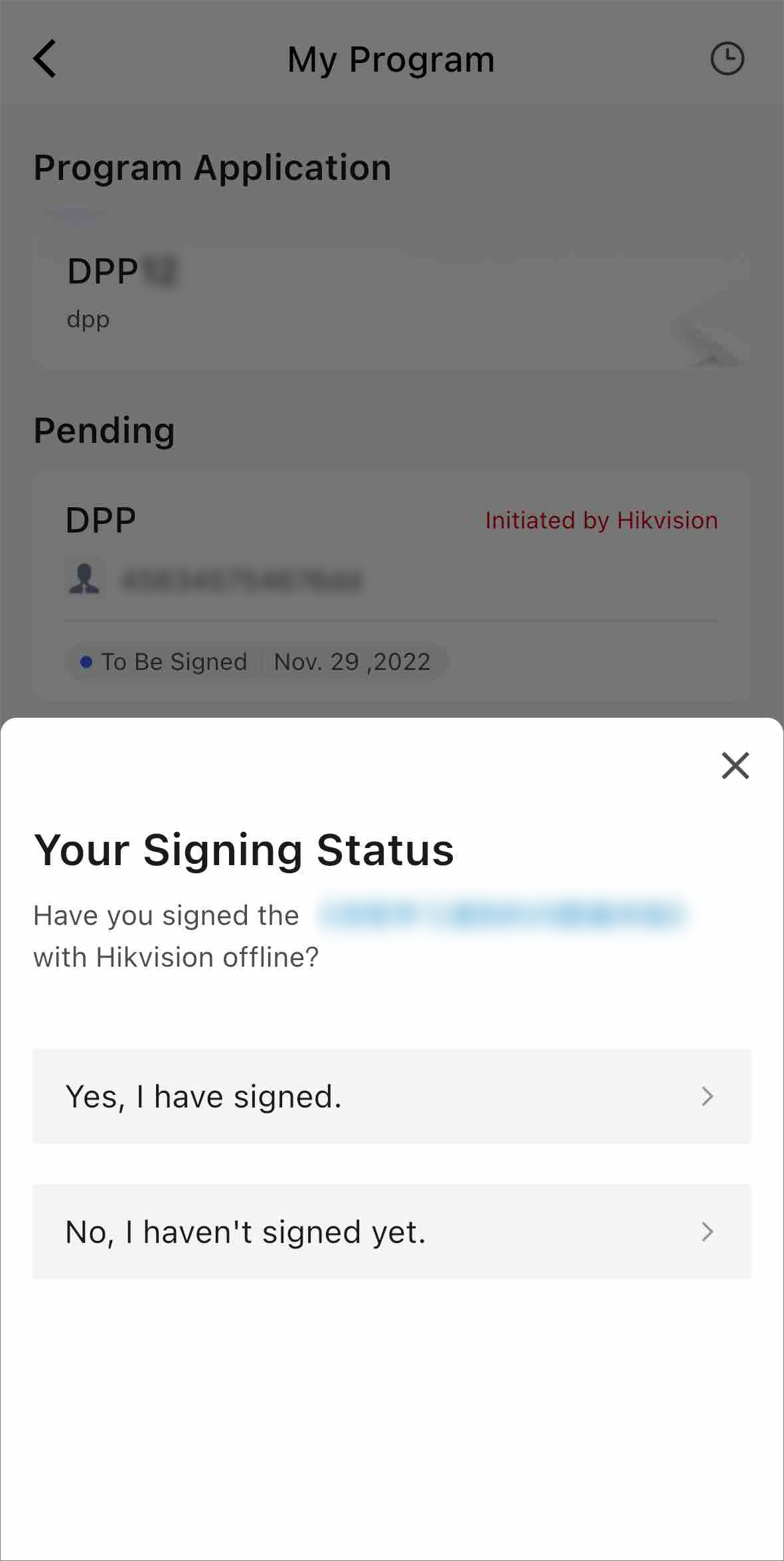
Select your signing status in the pop-up window according to whether you have signed the agreement with Hikvision offline or not.
The details and introduction about the partner program you are applying for will be shown.
Figure 2 Select Signing Status -
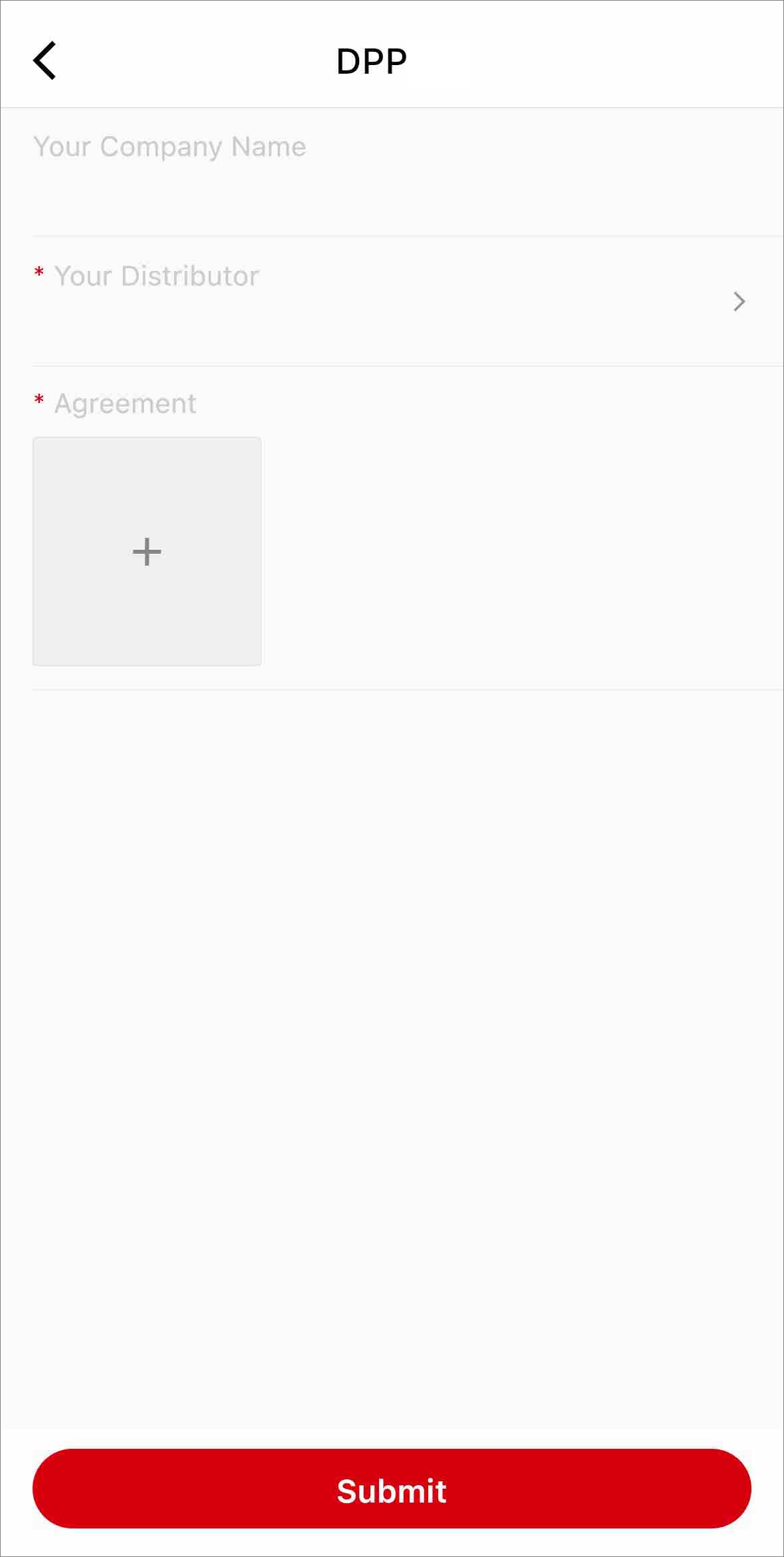
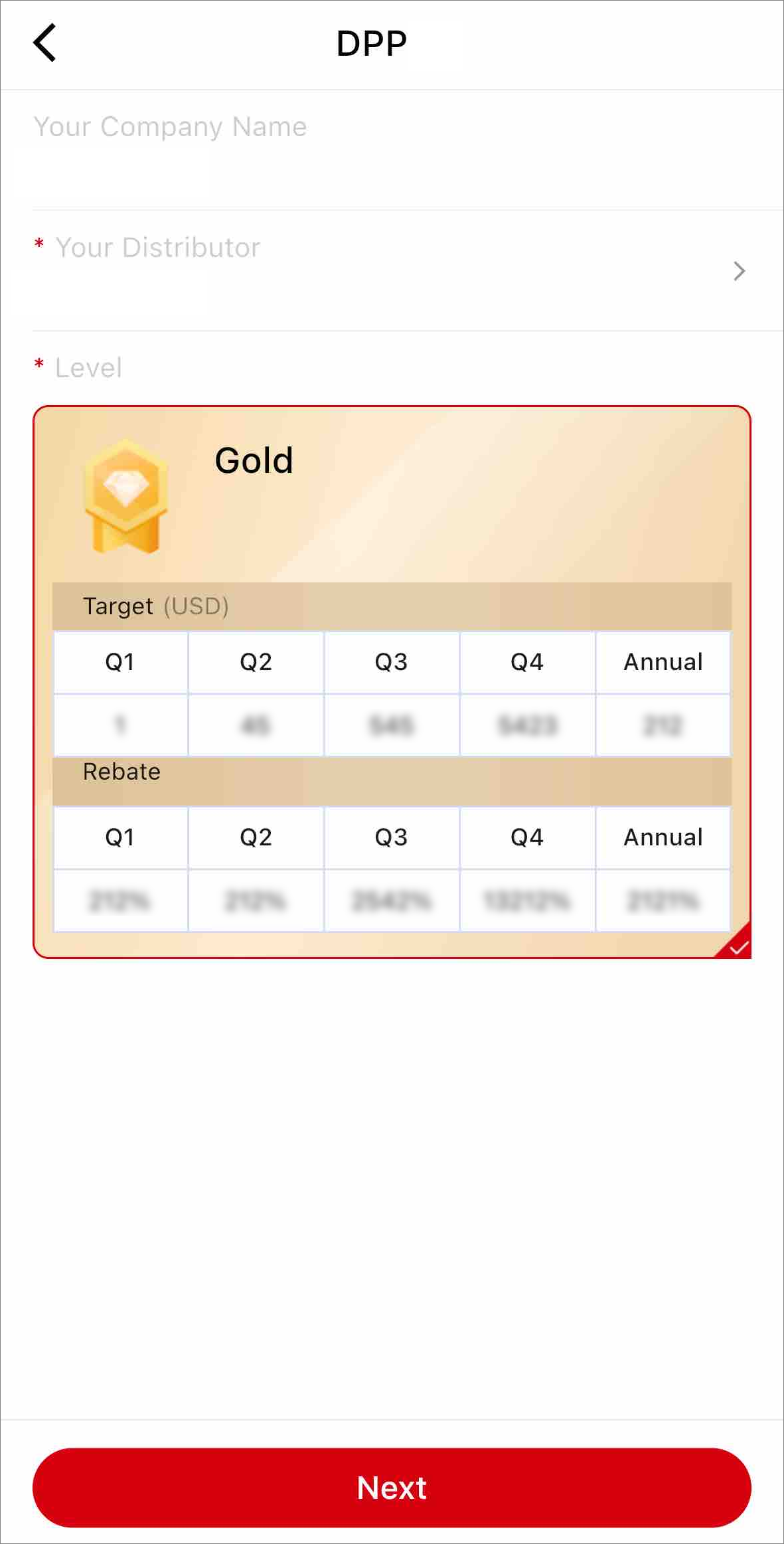
If you have signed the contract agreement with Hikvision offline, upload the signed contract agreement. If not, select the level you want to apply for.
Application Page (Contract Agreement Already Signed Offline)Application Page (Contract Agreement Not Signed) -
Tap Submit or Next.
-
If you have uploaded the signed agreement, the application process is completed after you tap Submit. If not, you may enter one of the following processes:
-
If the level you select does not require you to communicate with Hikvision to confirm the targets offline, you will enter the Details page of the contract agreement. Check I agree with and accept this agreement and tap Next to submit the application.
-
If the level you select requires you to communicate with Hikvision to confirm the targets offline, choose one of the followings:
-
Communicate with the Hikvision sales representative offline, sign your contract agreement with them offline, and submit the application again online by yourself (you need to upload your signed contract agreement).
-
Communicate with the Hikvision sales representative offline, and they will initiate the signing process online for you. You need to sign the contract agreement online.
-
-
Resellers (DPPs) Manage Certificates
As a reseller, after your program application is approved and the contract agreement is signed by all the three parties, the program certificate will be issued to you. You can view the details of all your certificates in My Certificate.
View Certificates Using the Portal
Go to .
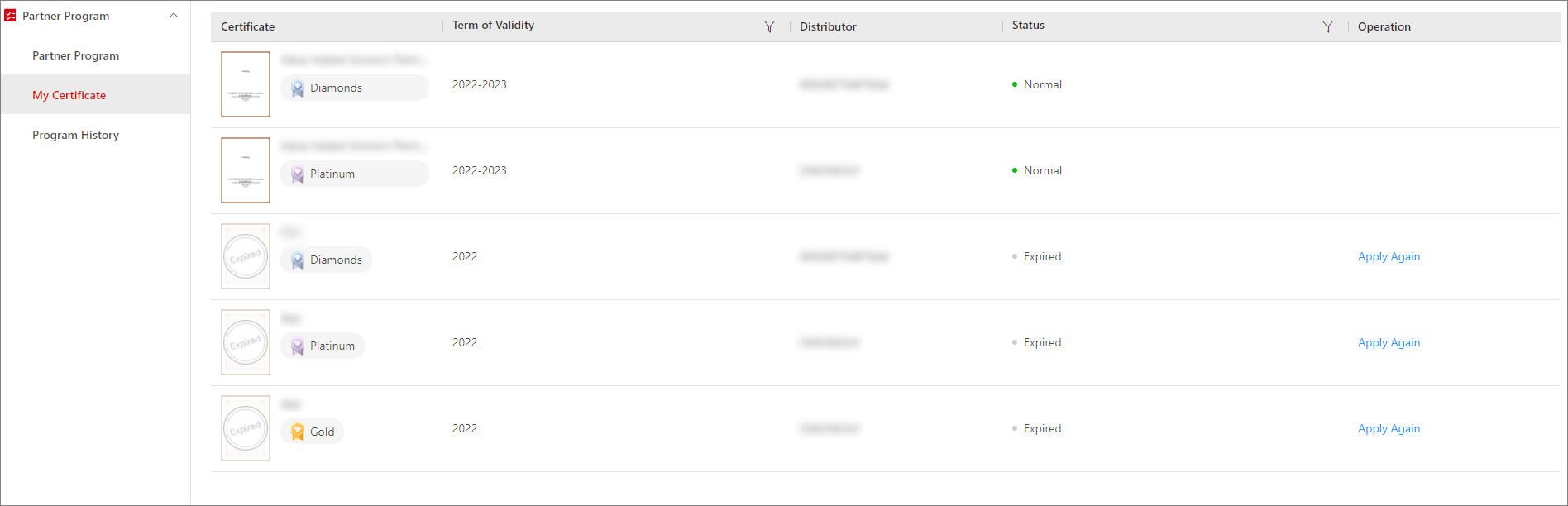
On the certificate list, you can view the program certificate name, certificate thumbnail, level, term of validity, distributor, and status (normal or expired).
Click Apply Again in the Operation column to apply for the partner program for which your certificate has expired.
Click the certificate thumbnail or name to enter the Certificate Details page. You can download the certificate and the contract agreement you signed on this page.
View Your Certificates Using the Mobile Client
Go to , you can swipe left and right to view the certificates in the My Certificate section, or tap More to enter the My Certificate page for more details and to perform more operations.
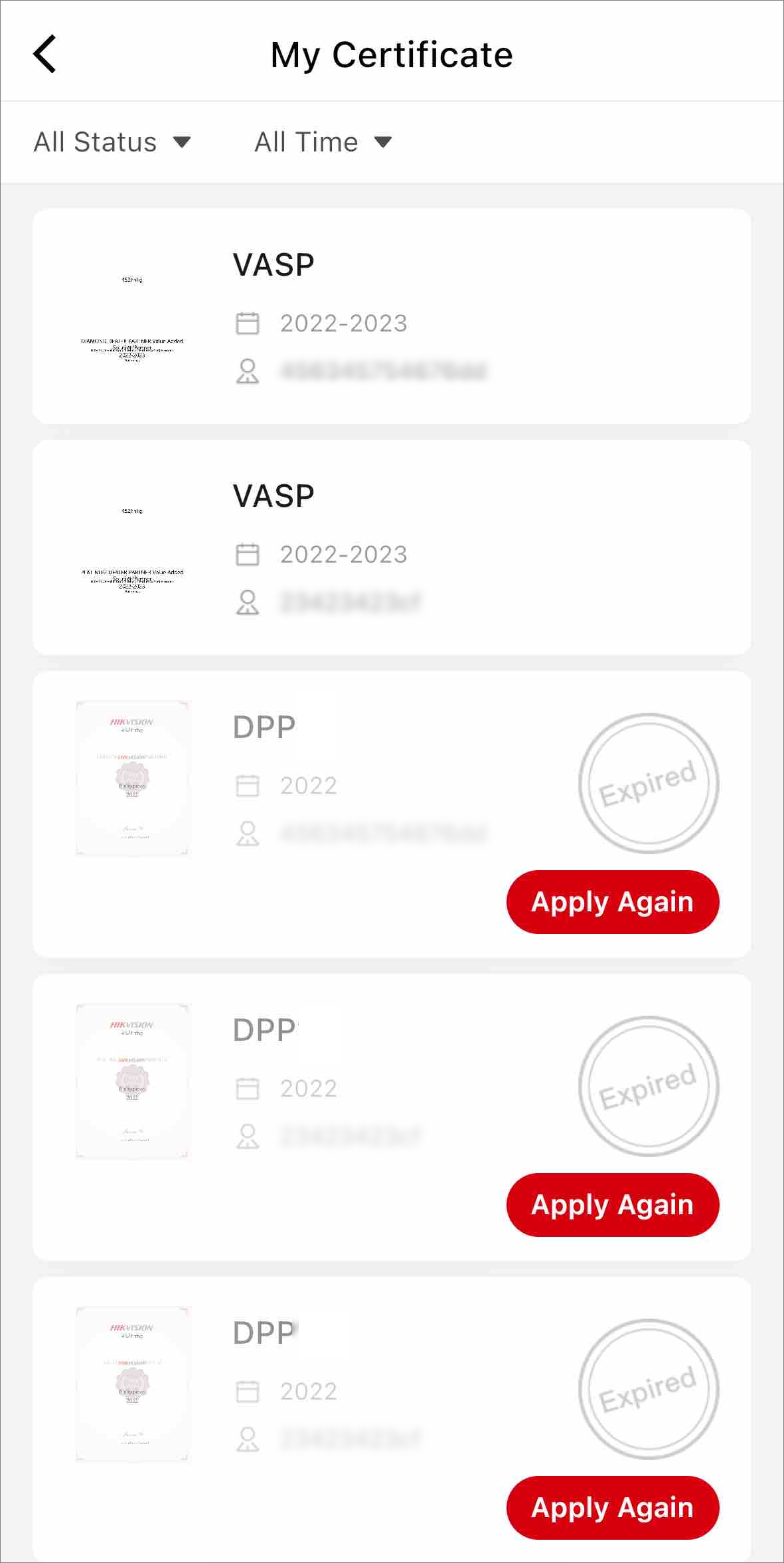
On the certificate list, you can view the program certificate name, certificate thumbnail, level, term of validity, distributor, and status (expired or not).
Tap Apply Again to apply for the partner program for which your certificate has expired.
Tap a certificate in the list to enter the Certificate Details page. You can download the contract agreement you signed on this page.
Resellers (DPPs) Manage Programs
As a reseller, after you submit your program application or if there are programs initiated by Hikvision for you, you can view all these programs in Program History.
Manage Programs Using the Portal
Go to .
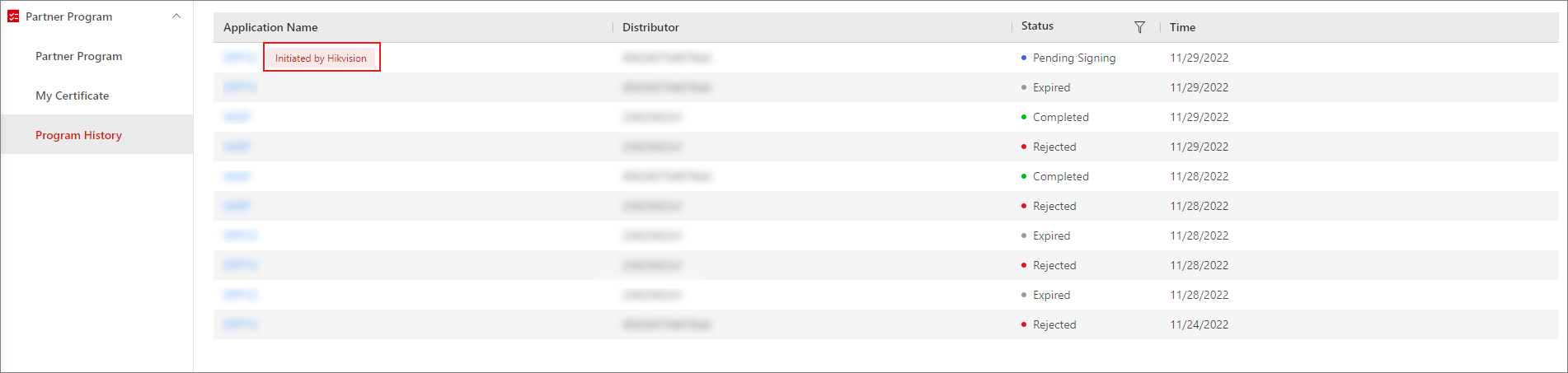
You can view the program name, application status (pending signing, completed, expired, and rejected), application time, and the distributor on the list.
Click an application record to enter the Details page. You can view the application status, program name, distributor name, level, and contract agreement.
For the program application of which the status is Pending Signing, click Sign on the right bottom of the Details page to sign the agreement online.
Manage Programs Using the Mobile Client
Go to Me > Partner Program > .

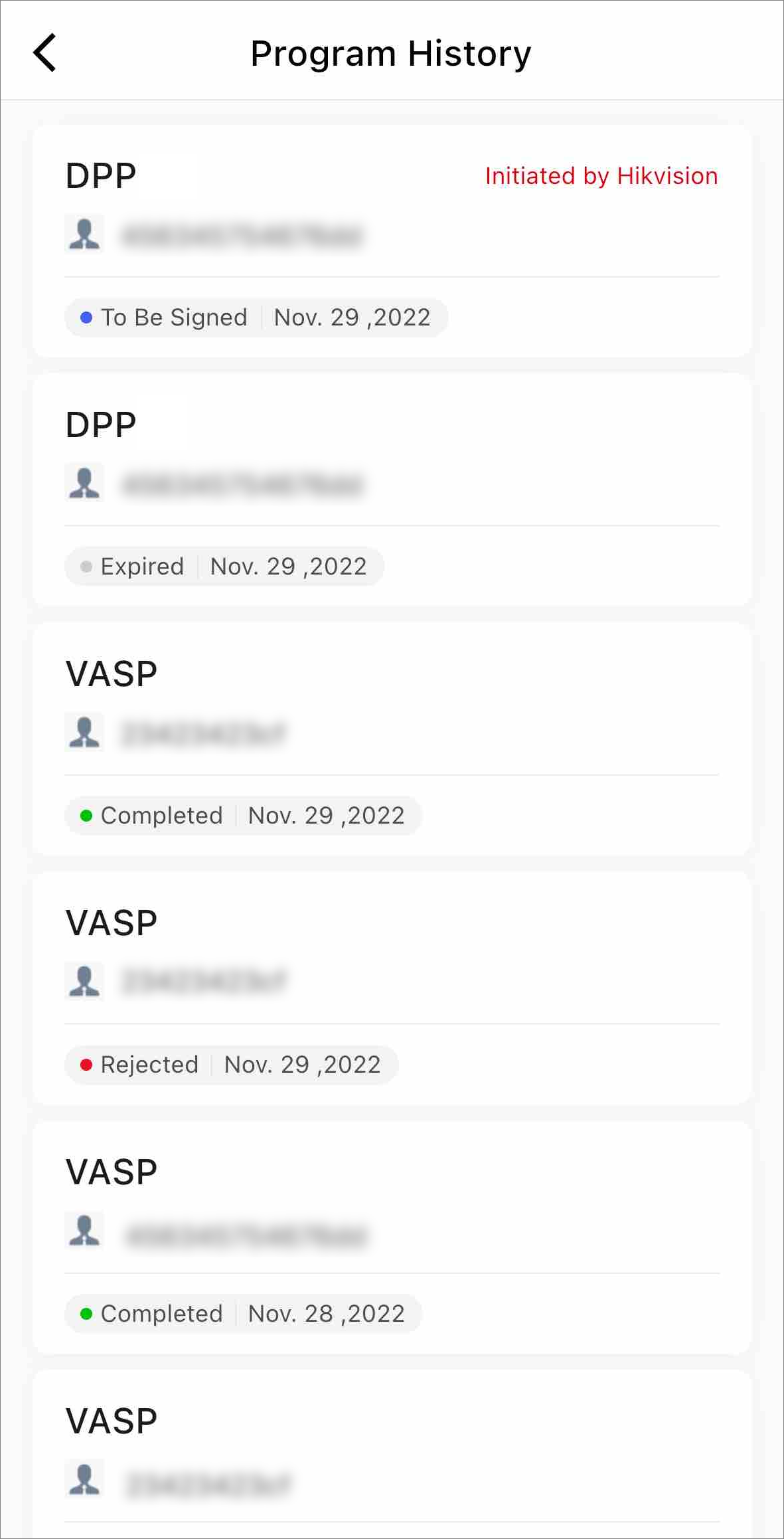
You can view the program name, application status (pending signing, completed, expired, and rejected), application time, and the distributor on the list.
Tap an application record to enter the details page of the program application. You can view the application status, program name, distributor name, level, and contract agreement.
For the program application of which the status is Pending Signing, tap Sign on the bottom of the details page to sign the agreement online.
Distributors Manage Agreements
As a distributor, you can manage and sign your contract agreements of partner programs with resellers and Hikvision on Hik-Partner Pro.
Manage Agreements Using the Portal
Go to .

You can view the program name, customer (i.e., reseller) name, agreement name, signing status (signed / to be signed), and the date when the signing process is initiated.
Click Sign to sign the contract agreement online.
Manage My Agreements Using the Mobile Client
Go to to view your agreements.
You can view the program name, customer (i.e., reseller) name, agreement name, signing status (signed / to be signed), and the date when the signing process is initiated.
Tap Sign to sign the contract agreement online.