Remote Maintenance Pro Service: Better Maintenance for Your Customers
The remote maintenance Pro service is available to only the United Kingdom and Ireland.
Pain Points and What Customers Want From Installers
|
Pain Points of Customers & Installers |
What Customers Want from Installers |
|---|---|
|
Customers:
Installers:
|
|
What You Can Sell & Offer to Your Customers
Hik-Partner Pro offers a free package containing a suite of features such as device online/offline status. In some cases, these free features are insufficient for you to satisfy higher level needs of your customers. Compared with the free package, the remote maintenance Pro package offers much more as follows.
|
Functionality |
Free Package |
Remote Maintenance Pro Package |
|---|---|---|
|
Site and Customer Management |
Supported |
Supported |
|
Site Map |
Supported |
Supported |
|
Add Devices to Hik-Partner Pro |
Supported Capacity: 1024 Devices |
Supported Capacity: Unlimited Devices |
|
On-Site Config |
Supported |
Supported |
|
On-Site Batch Upgrade |
Supported |
Supported |
|
Device Status |
Supported |
Supported |
|
Batch Arm and Disarm Alarm Devices |
Supported |
Supported |
|
Employee Account |
Supported Unlimited Number of Employee Accounts Employee accounts with permission to manage devices shall be purchased additionally. |
Supported Unlimited Number of Employee Accounts Employee accounts with permission to manage devices shall be purchased additionally. |
|
Maintenance Quotation |
Supported Capacity: 3 Maintenance Quotations |
Supported Capacity: Unlimited Maintenance Quotations |
|
Remote Configuration |
NOT Supported |
Supported |
|
Remote Live View, Playback, and Video Download |
NOT Supported |
Supported |
|
Remote Device Upgrade |
NOT Supported |
Supported |
|
Remote Batch Upgrade |
NOT Supported |
Supported |
|
Real-Time Health Monitoring |
NOT Supported |
Supported |
|
Device Exception Notification |
NOT Supported |
Supported |
|
Exception Handling |
NOT Supported |
Supported |
|
Scheduled Health Check Reports |
NOT Supported |
Supported |
|
Linkage Rule |
NOT Supported |
Supported |
Step 1: Get Remote Maintenance Pro Packages
You can purchase the remote maintenance Pro packages online in the Service Market in Hik-Partner Pro, or purchase a service key from the local distributor first and then activate by the service key to get the purchased service packages.
The supported purchase methods vary depending on your country/region. Contact the local distributor for details.
Purchase Online Using the Portal
-
Go to .
-
In the Remote Maintenance Pro Service area, click Online Purchase to enter the Purchase Remote Maintenance Pro Package page.
-
Select service packages and set the number of service packages that you want to purchase.
- Back-End Recorder Monthly Package
-
One package for one device of nearly any type. And the activated service lasts one month.
Applicable to DVRs, NVRs, network cameras, PTZ cameras, access control devices, alarm devices, video intercom devices, doorbells, Hik-ProConnect boxes, thermal devices, and network switches.
- Back-End Recorder Annual Package
-
One package for one device of nearly any type. And the activated service lasts one year.
Applicable to DVRs, NVRs, network cameras, PTZ cameras, access control devices, alarm devices, video intercom devices, doorbells, Hik-ProConnect boxes, thermal devices, and network switches.
- Back-End Recorder Annual Package * 20
-
20 back-end recorder annual packages sold as a batch. Set the number of batches to purchase.
- Back-End Recorder Annual Package * 100
-
100 back-end recorder annual package sold as a batch. Set the number of batches to purchase.
- Camera Monthly Package
-
One package for one camera. And the activated service lasts one month.
- Camera Annual Package
-
One package for one camera. And the activated service lasts one year.
- Camera Annal Package * 20
-
20 camera annual packages sold as a batch. Set the number of batches to purchase.
- Camera Annual Package * 100
-
100 camera annual packages sold as a batch. Set the number of batches to purchase.
-
Enter the distributor invitation code and the code from Hikvision sales.
NoteBy entering the codes when you purchase services online, you may get some discounts and the distributor/reseller can earn some rebates. For details, refer to How to Earn Commissions as a Distributor/Reseller.
-
Enter your VAT number. The VAT number will be displayed in the payment receipt.
-
Select Credit/Debit Cards as the payment method.
-
Click Checkout to enter the payment page and finish the payment.
Purchase Online Using the Mobile Client
-
Go to .
-
In the Remote Maintenance Pro Service area, tap Buy Now.
-
Select service packages and set the number of service packages that you want to purchase.
- Back-End Recorder Monthly Package
-
One package for one device of nearly any type. And the activated service lasts one month.
Applicable to DVRs, NVRs, network cameras, PTZ cameras, access control devices, alarm devices, video intercom devices, doorbells, Hik-ProConnect boxes, thermal devices, and network switches.
- Back-End Recorder Annual Package
-
One package for one device of nearly any type. And the activated service lasts one year.
Applicable to DVRs, NVRs, network cameras, PTZ cameras, access control devices, alarm devices, video intercom devices, doorbells, Hik-ProConnect boxes, thermal devices, and network switches.
- Back-End Recorder Annual Package * 20
-
20 back-end recorder annual packages sold as a batch. Set the number of batches to purchase.
- Back-End Recorder Annual Package * 100
-
100 back-end recorder annual package sold as a batch. Set the number of batches to purchase.
- Camera Monthly Package
-
One package for one camera. And the activated service lasts one month.
- Camera Annual Package
-
One package for one camera. And the activated service lasts one year.
- Camera Annal Package * 20
-
20 camera annual packages sold as a batch. Set the number of batches to purchase.
- Camera Annual Package * 100
-
100 camera annual packages sold as a batch. Set the number of batches to purchase.
-
Enter the distributor invitation code and the code from Hikvision sales.
NoteBy entering the codes when you purchase services online, you may get some discounts and the distributor/reseller can earn some rebates. For details, refer to How to Earn Commissions as a Distributor/Reseller.
-
Tap Payment Agreement at the bottom to read the agreement and check Before paying, please agree to Payment Agreement if you agree with the terms.
-
Tap Checkout to enter the payment page and finish the payment.
Get Packages by Service Key Using the Portal
-
Contact your local distributor and purchase a service key from them.
-
Go to .
-
In the Remote Maintenance Pro Service area, click Activate by Service Key.
-
In the Service Key field, enter the service key.
-
Click OK.
Get Packages by Service Key Using the Mobile Client
-
Contact your local distributor and purchase a service key from them.
-
Go to .
-
In the Remote Maintenance Pro Service area, tap Activate by Service Key.
-
In the Service Key field, enter the service key.
-
Tap OK.
Step 2: Activate Remote Maintenance Pro Service for Customers' Devices
After you get the remote maintenance pro packages, you can activate the service for devices. Once the service is activated, features such as device health monitoring and device exception notifications will be available for these devices.
Activate the Service for Devices Using the Portal
-
Go to . Select the devices and the activation type to activate the service.
-
Go to , find the device, hover the cursor onto on the device card, and then click Activate Service.
-
When you add devices successfully, on the adding result page, click Activate Service.
 on the device card,
and then click
on the device card,
and then click If the firmware version of a device is obsolete, or its device type cannot be recognized by Hik-Partner Pro, activating remote maintenance Pro service for the device is not supported.
Activate the Service for Devices Using the Mobile Client
-
Go to , and tap Detail in the Remote Maintenance Pro Service section. Tap Activate Service, and select the devices and activation type to activate the service.
-
Tap Site, tap a site, tap a device, and tap Remote Maintenance Pro Service to activate the service for it.
-
When you add devices successfully, on the adding result page, tap Activate Service.
If the firmware version of a device is obsolete, or its device type cannot be recognized by Hik-Partner Pro, activating remote maintenance Pro service for the device is not supported.
Step 3: Manage Remote Maintenance Pro Packages
Manage Remote Maintenance Pro Service Using the Portal
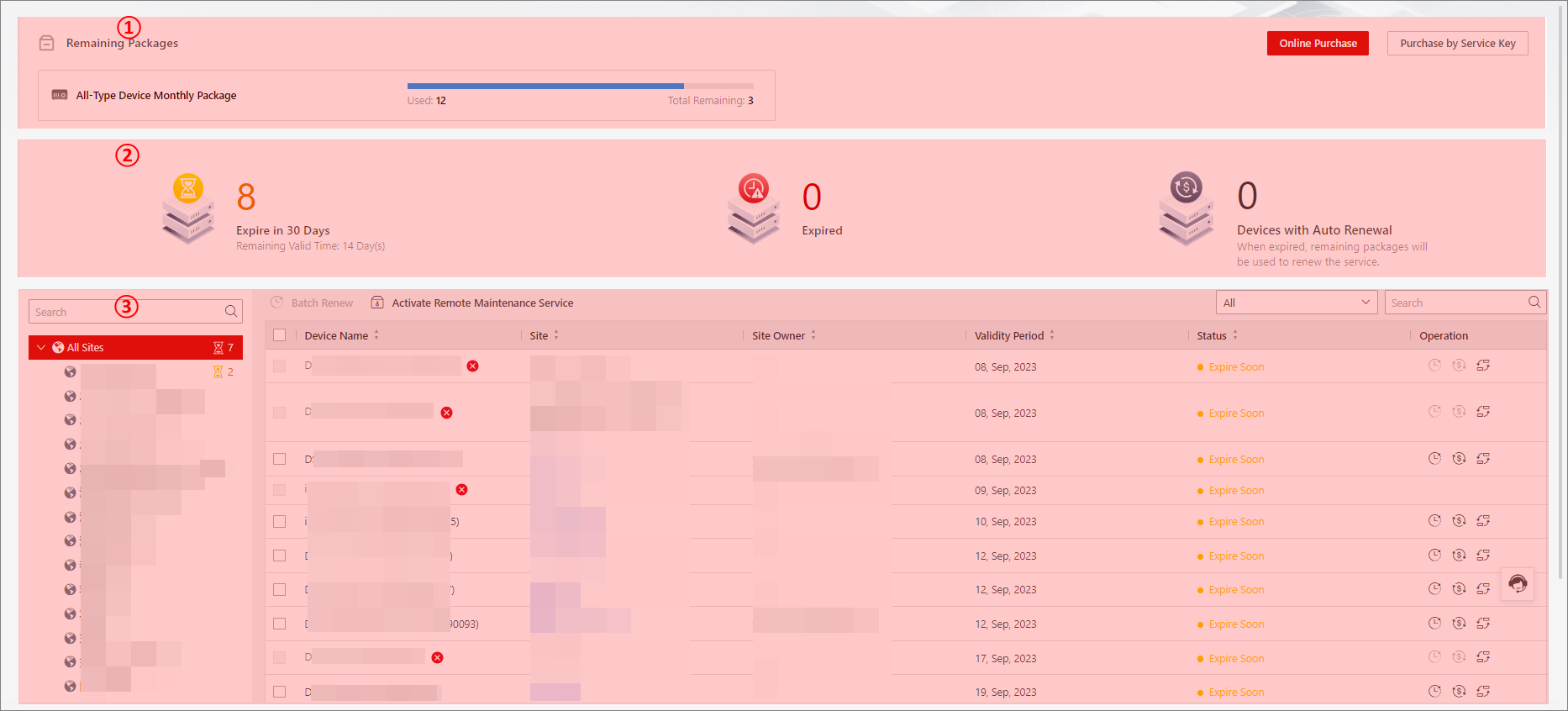
Go to .
|
Area No. |
Operation |
Description |
|---|---|---|
|
1 |
View Remaining Packages & Purchase More |
View the used number and remaining numbers of each type of remote maintenance Pro packages. Click Activate by Service Key or Online Purchase to get more packages. |
|
2 |
View Expiration and Auto Renewal Information |
View numbers of devices whose services are expiring in 30 days, expired, and with enabled auto renewal. |
|
3 |
Activate Service |
Click Activate Remote Maintenance Pro Service to activate the service for selected devices. |
|
3 |
Renew Service |
Select devices and then click Batch Renew, or click in the Operation column. |
|
3 |
Transfer Service |
Click in the Operation column to transfer the remaining service time from the current device to another. |
|
3 |
Enable Service Auto Renewal |
Click in the Operation column, switch on Auto Renewal, and then select a type of service packages for auto renewing the service. |
 in the
Operation column.
in the
Operation column. in the
Operation column to transfer the remaining service time from
the current device to another.
in the
Operation column to transfer the remaining service time from
the current device to another. in the
Operation column, switch on
in the
Operation column, switch on Manage Remote Maintenance Pro Service Using the Mobile Client
Tap Me at the bottom right, tap My Service, and tap Detail in the Remote Maintenance Pro Service section.
|
Operation |
Description |
|---|---|
|
View Remaining Packages & Purchase More |
Check the usage details of your remote maintenance Pro packages. Tap Activate by Service Key or Buy Now to get more packages. |
|
View Expiration and Auto Renewal Information |
View numbers of devices whose services are expiring in 30 days, expired, and with enabled auto renewal. |
|
Activate Service |
Tap Activate Service, and select multiple devices to activate. |
|
Renew Service |
Tap Batch Renew, and select devices to renew. Or tap on the device card. |
|
Transfer Service |
Tap on the device card to transfer the remaining service time from the current device to another. |
|
Enable Service Auto Renewal |
Tap on the device card, and select a type of service packages for auto renewing the service. |