How to Apply for Site Authorization & Device Permissions from Customers?
After handing over a site to your customer, you can apply for the permission from the customer to view the live view or playback of devices added to the site or configure the added devices. If you do not need the permissions of configuration and live view for devices, or you finish the device configuration task earlier than the planned time, you can release the permissions manually
Apply for Permission
Ensure that you hand over a site to your customer.
After you apply for permissions for your devices and your customer approves your application, you will be able to view the live view, playback of the device and configure device.
-
Apply for device permissions.
Your Situation
Solution
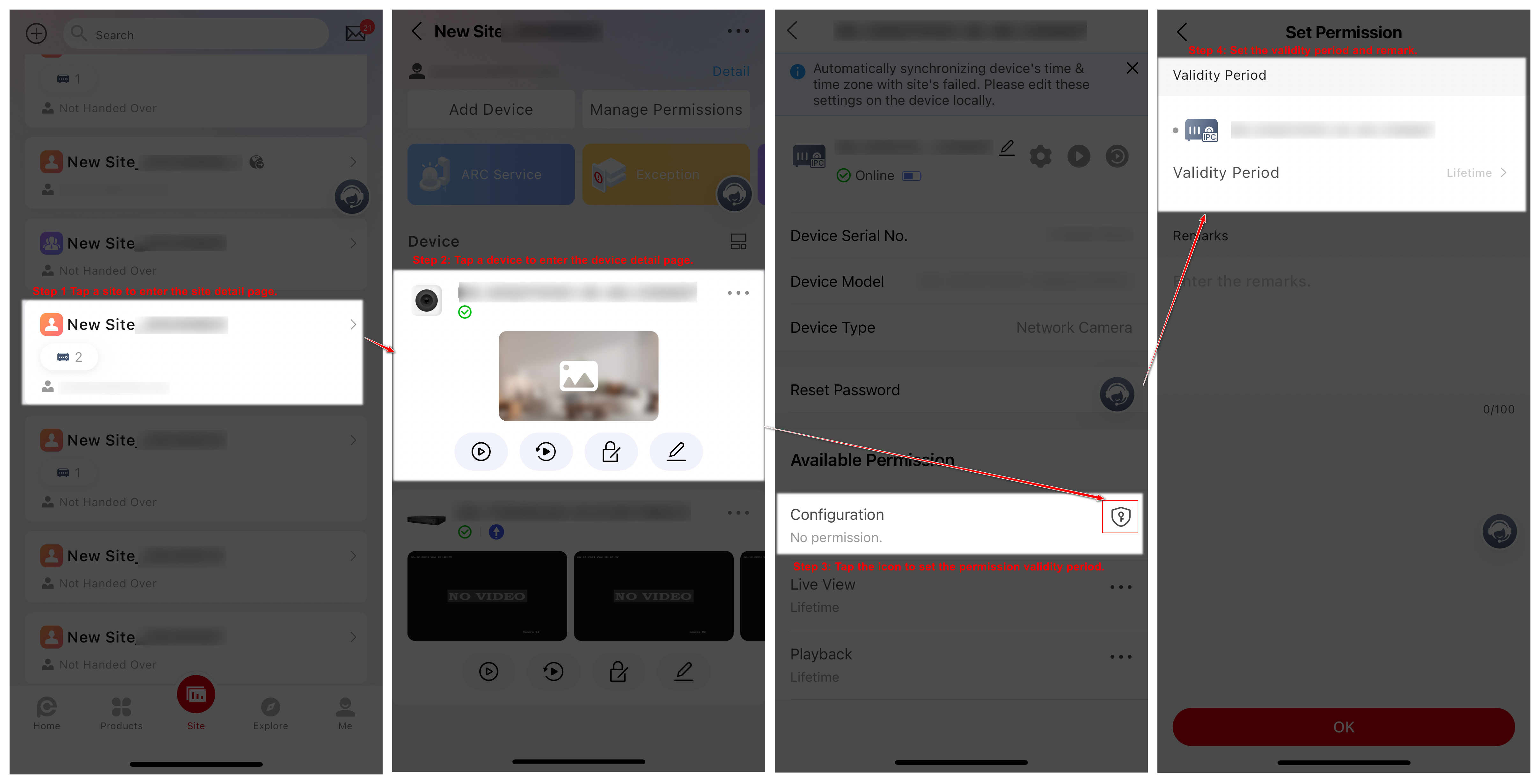
Apply for permission for one device.
-
Tap a device to enter the device details page.
-
In the Available Permission area, tap beside Configuration, Live View, or Playback to enter the Set Permission page.
-
(Optional) Enter a remark.
-
Tap OK to send the application to the customer.
Apply for permissions for multiple devices.
-
Tap Manage Permission on the top.
-
Select the needed permissions (Configuration, Live View, and Playback) and set the validity periods ((Permanent, 1 Hour, 2 Hours, 4 Hours, or 8 Hours) respectively for different devices.
NoteYou can tap Permission and Validity Period to batch set permissions and validity periods for all devices.
-
(Optional) Enter a remark.
-
Tap OK to send the application to the customer.
Figure 1 Apply for Permission for a Single Device -
 beside
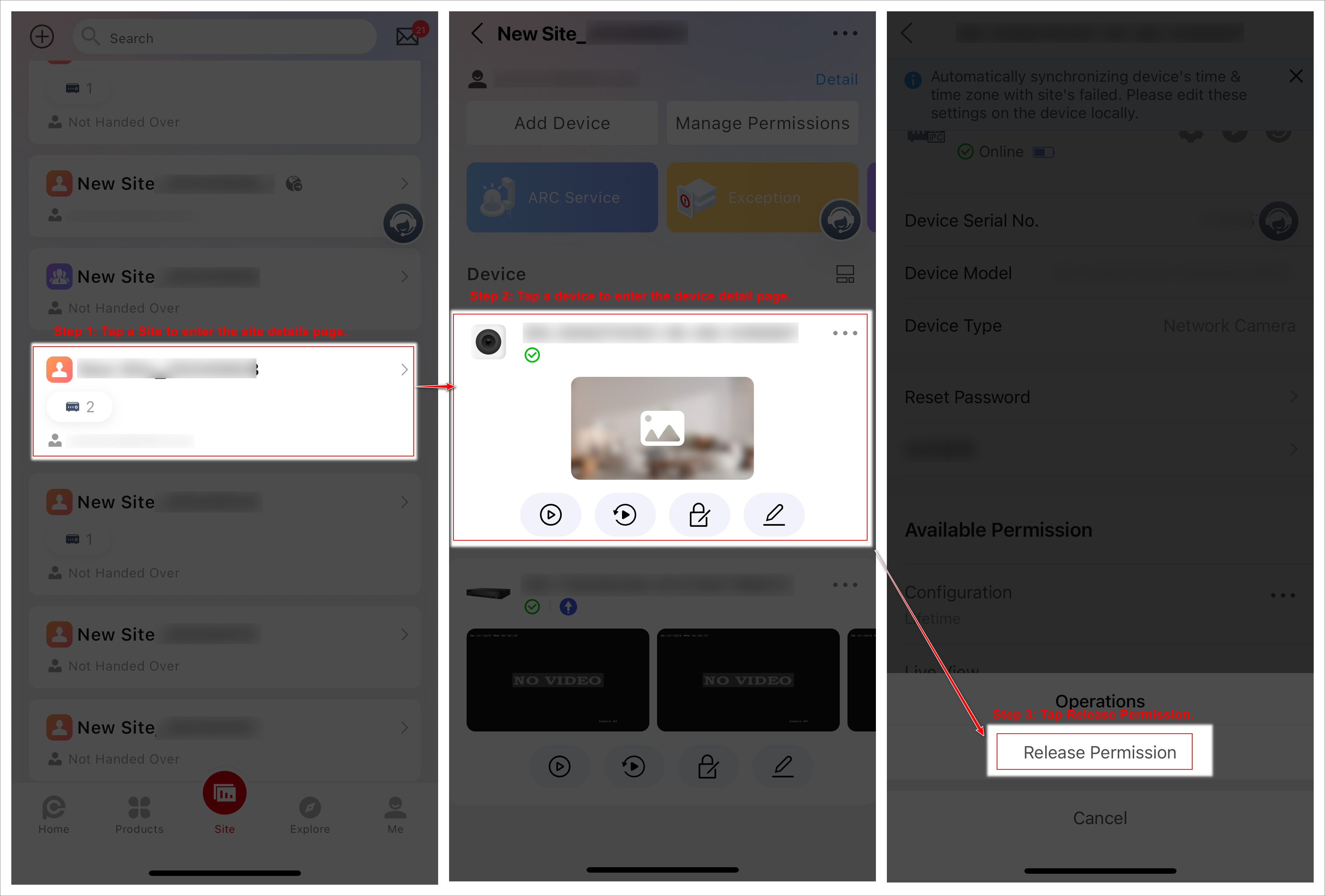
Release Permission
After being released, the permission will be unavailable for you. You need to apply for it again if needed. You do not have to release permission if the permission validity is Permanent.
-
In the Permission area, select a permission, and tap > Release Permission > Release Permission
Figure 2 Release Permission