View Network Topology with Smart Managed Switches
Introduction
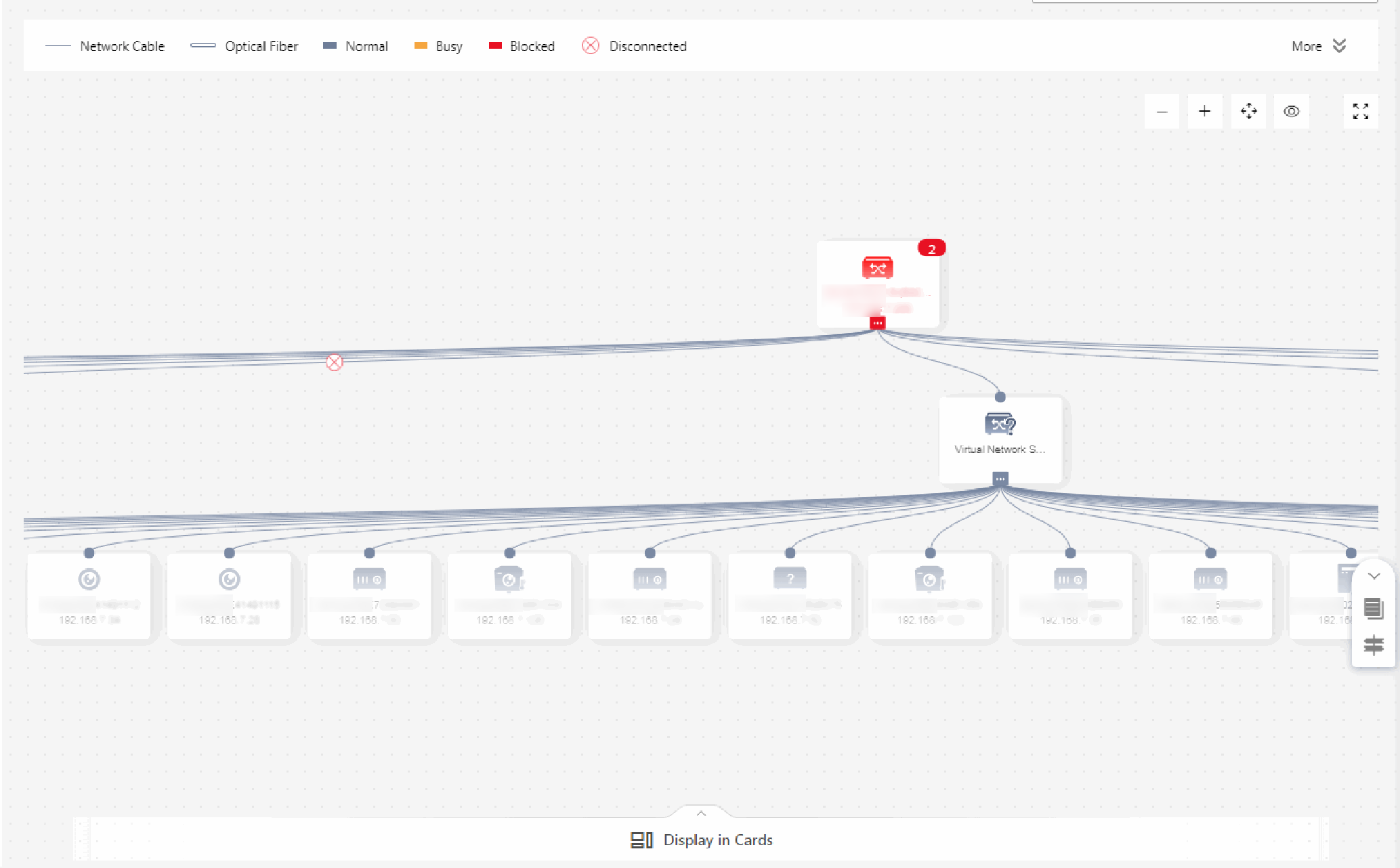
After adding network devices like AC, AP and switches to a site and connected devices to the network switch, you can view these devices' network topology. A network topology displays network links between devices and shows the link exceptions and abnormal devices, allowing you to locate exception source and troubleshoot faults in a visualized way.
Prerequisite
-
Make sure you have configuration permission for the network switch, otherwise network topology is unavailable. For details about applying for the permission, see How to Apply for Site Authorization & Device Permissions from Customers?.
-
If you have not activated the health monitoring service for the network switch, some topology functions (e.g., viewing device status on the topology) will be unavailable.
Operations
The following table show the entries of network topology on the Portal and the Mobile Client.
|
Client |
Entry |
|---|---|
|
Portal |
|
|
Mobile |
Tap a site on the site list to enter the site page, and then tap Topology to view the network topology. You can perform the following operations on the network topology. |
The following table show the available operations on the Portal and the Mobile Client.
|
Operation |
Description |
|---|---|
|
Set Root Node (Portal/Mobile) |
Note
You can set a third-party switch to the root node. |
|
View Network Device Details (Portal/Mobile) |
Select an AC device on the topology to view its details, including the number of AP devices and clients, and the WAN port status. |
|
View Details of Other Device (Portal/Mobile) |
Select a device to view its details, such as device model and network status. Note
|
|
View More Information (Portal/Mobile) |
|
|
Switch Display Mode (Mobile) |
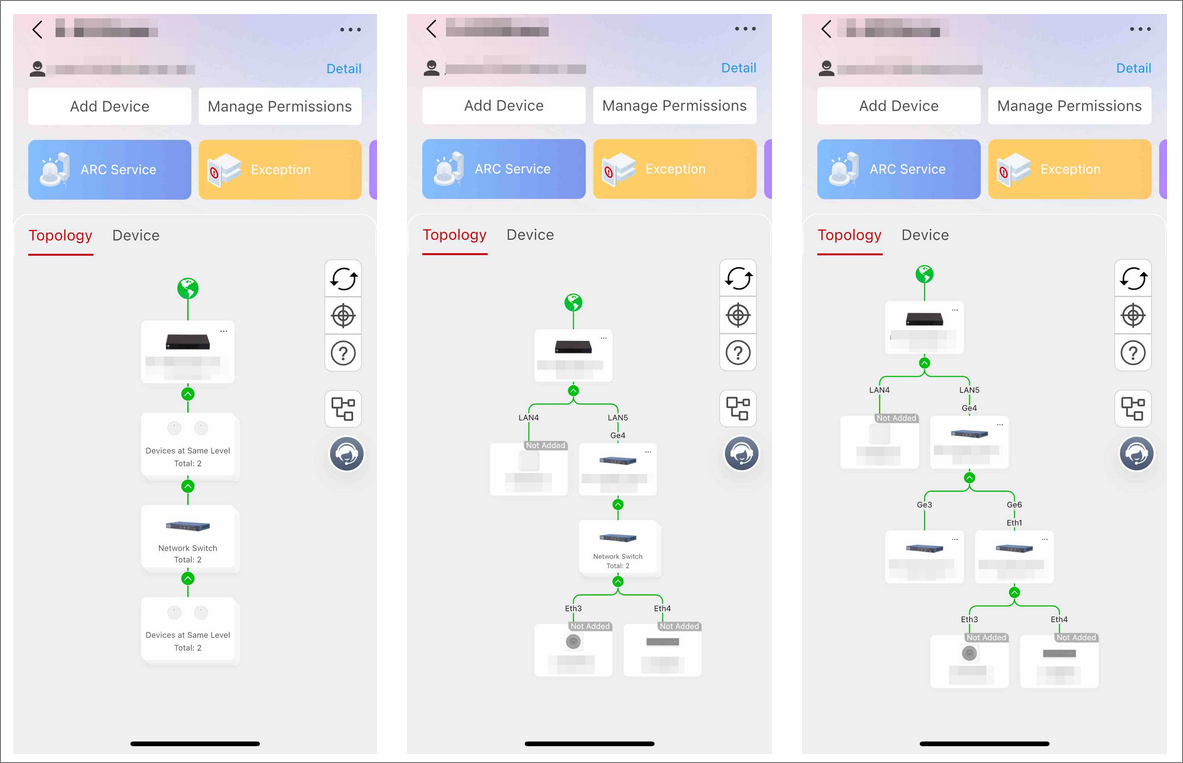
There are three display modes of the topology (see the following images). You can tap to switch the mode. For details, see the following picture (Topology Mode 1, 2 and 3).
|
 to set a device to a root
node.
to set a device to a root
node.
 to view
the connection type, connection status, and device
status.
to view
the connection type, connection status, and device
status. to switch the
mode. For details, see the following picture (Topology Mode 1, 2
and 3).
to switch the
mode. For details, see the following picture (Topology Mode 1, 2
and 3).