1. Home Page
  2. Get Support & Incentives to Stay Connected with Hikvision
  3. How to Submit Online Support Cases to Get Help from Hikvision

How to Submit Online Support Cases to Get Help from Hikvision

If you have any issues related to hardware, software, device password reset, etc., you can get professional help from our technical support via Online Support Case. You can submit cases to report your issues to us and follow up on the cases you submit.

Note
Table 1 Case Types

Case Type

Description

Required Info

Where to Submit

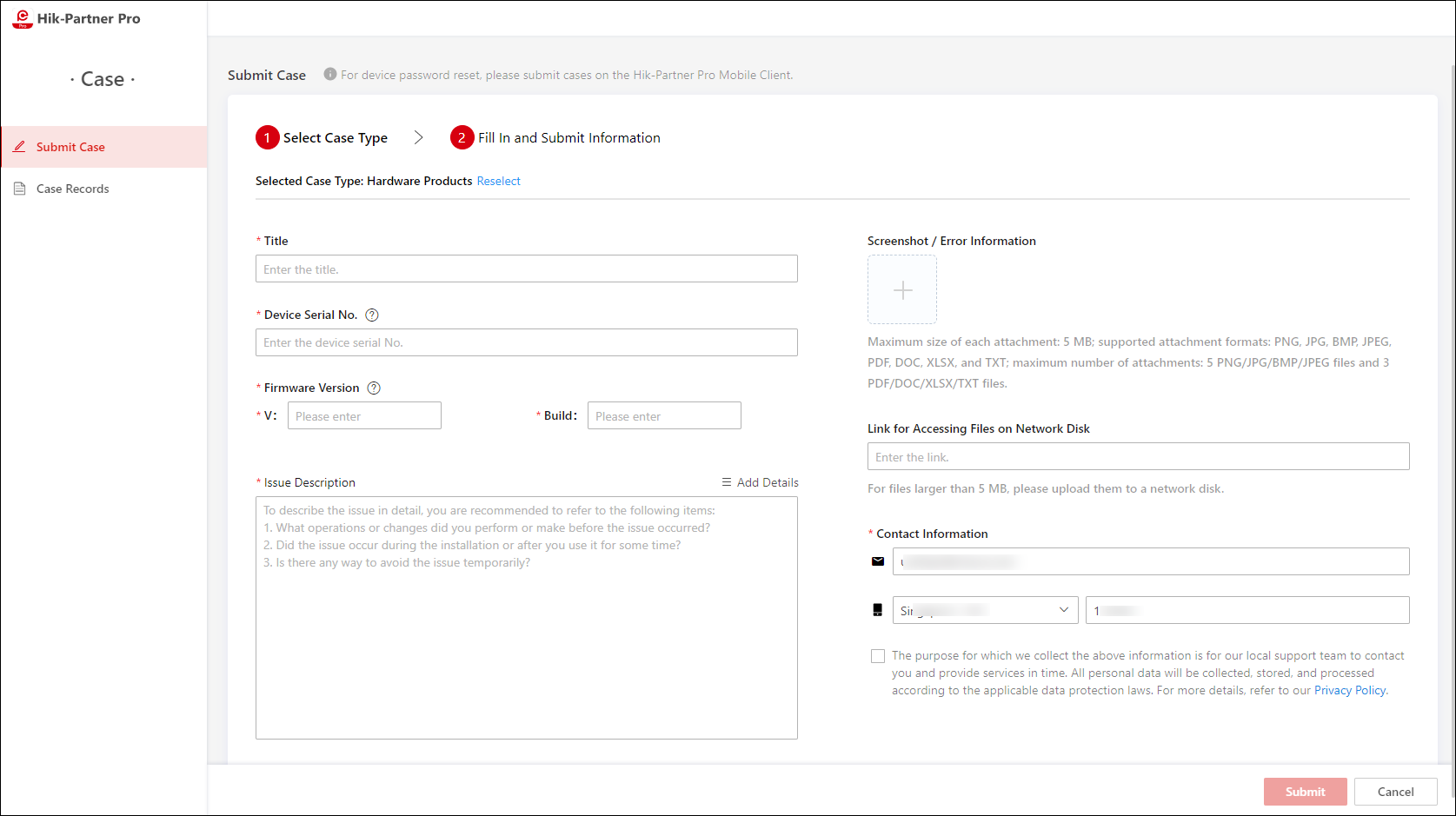
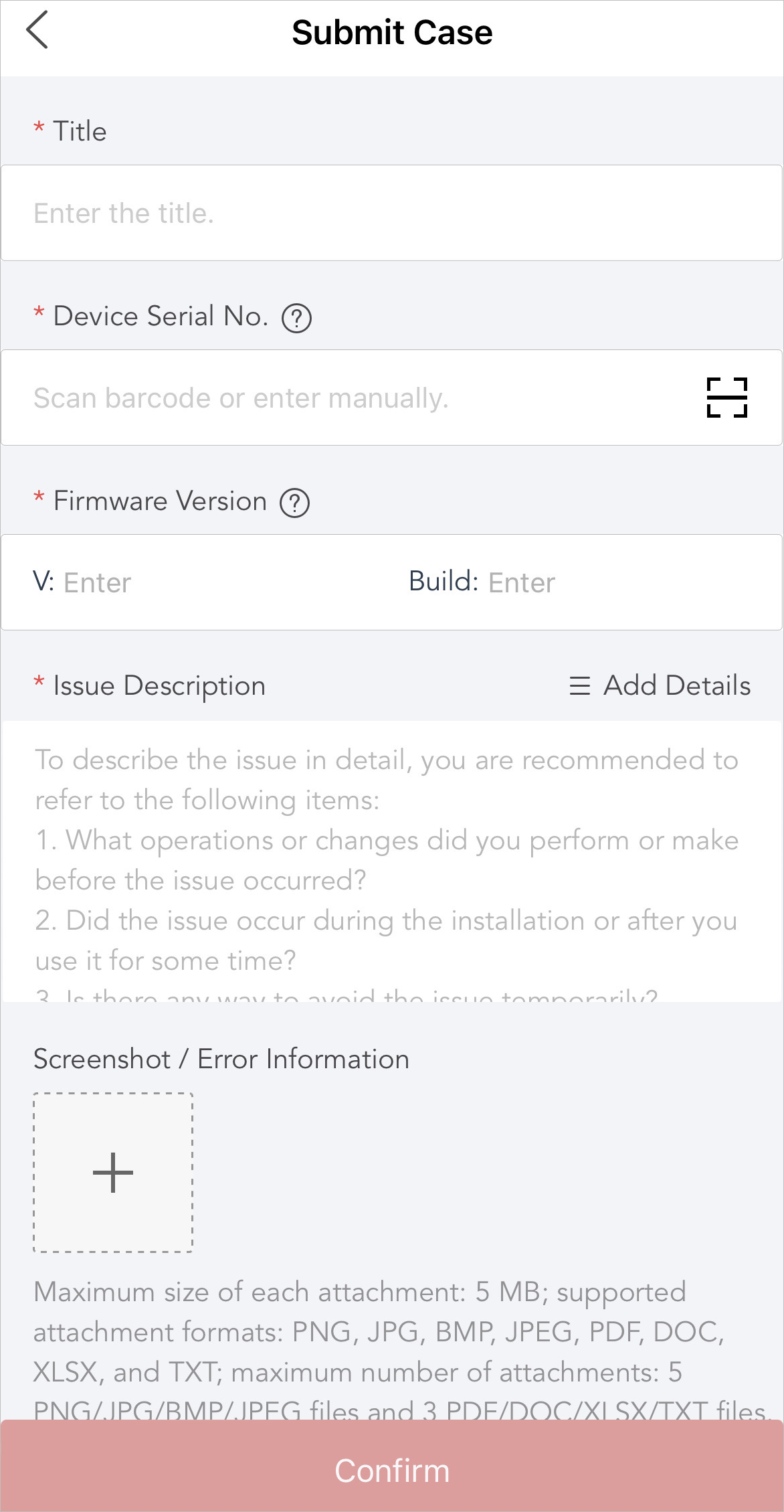
Hardware Products

For issues related to device operations, configurations, or faults.

  • Device Serial No.

  • Firmware Version

  • Issue Description

Portal / Mobile Client

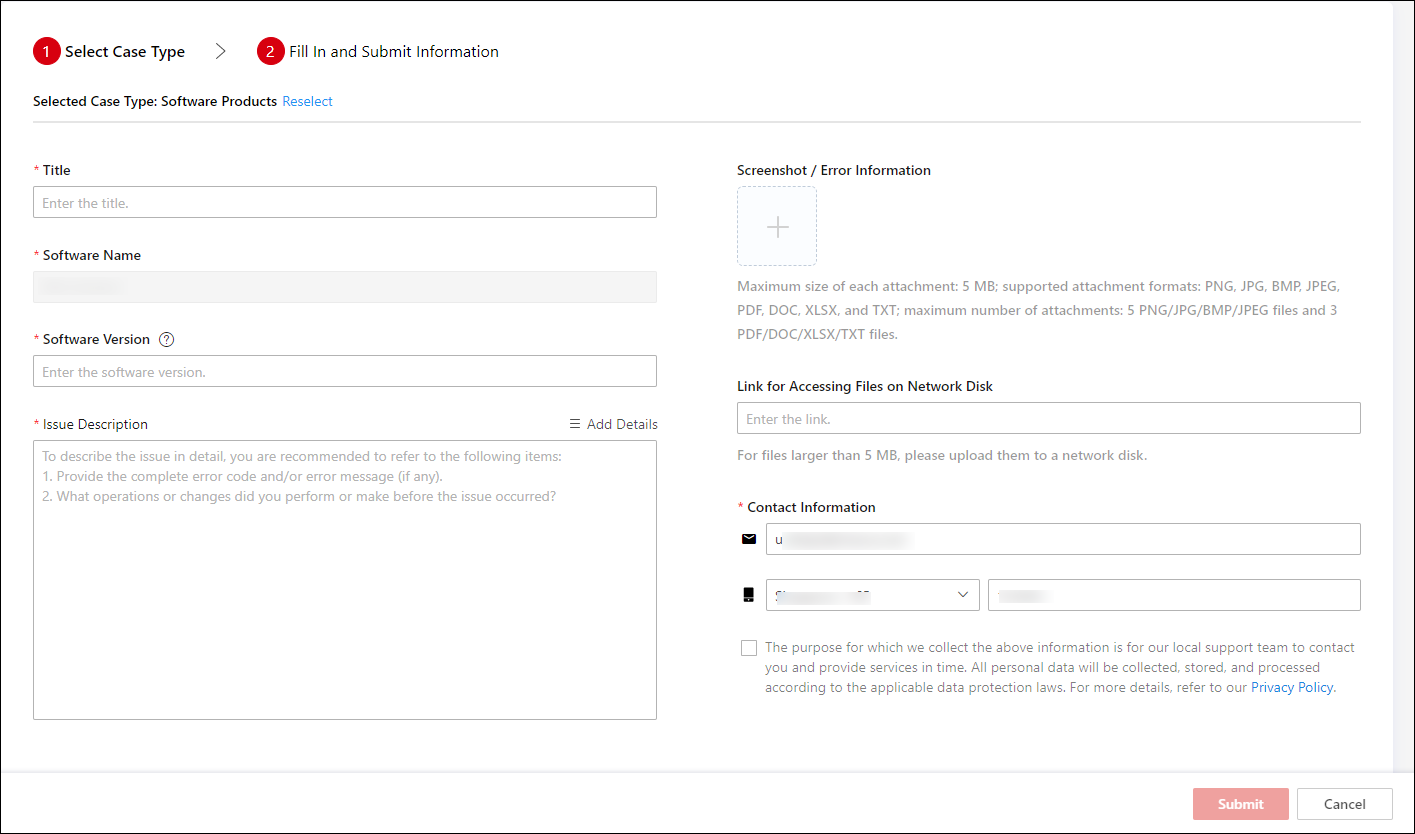
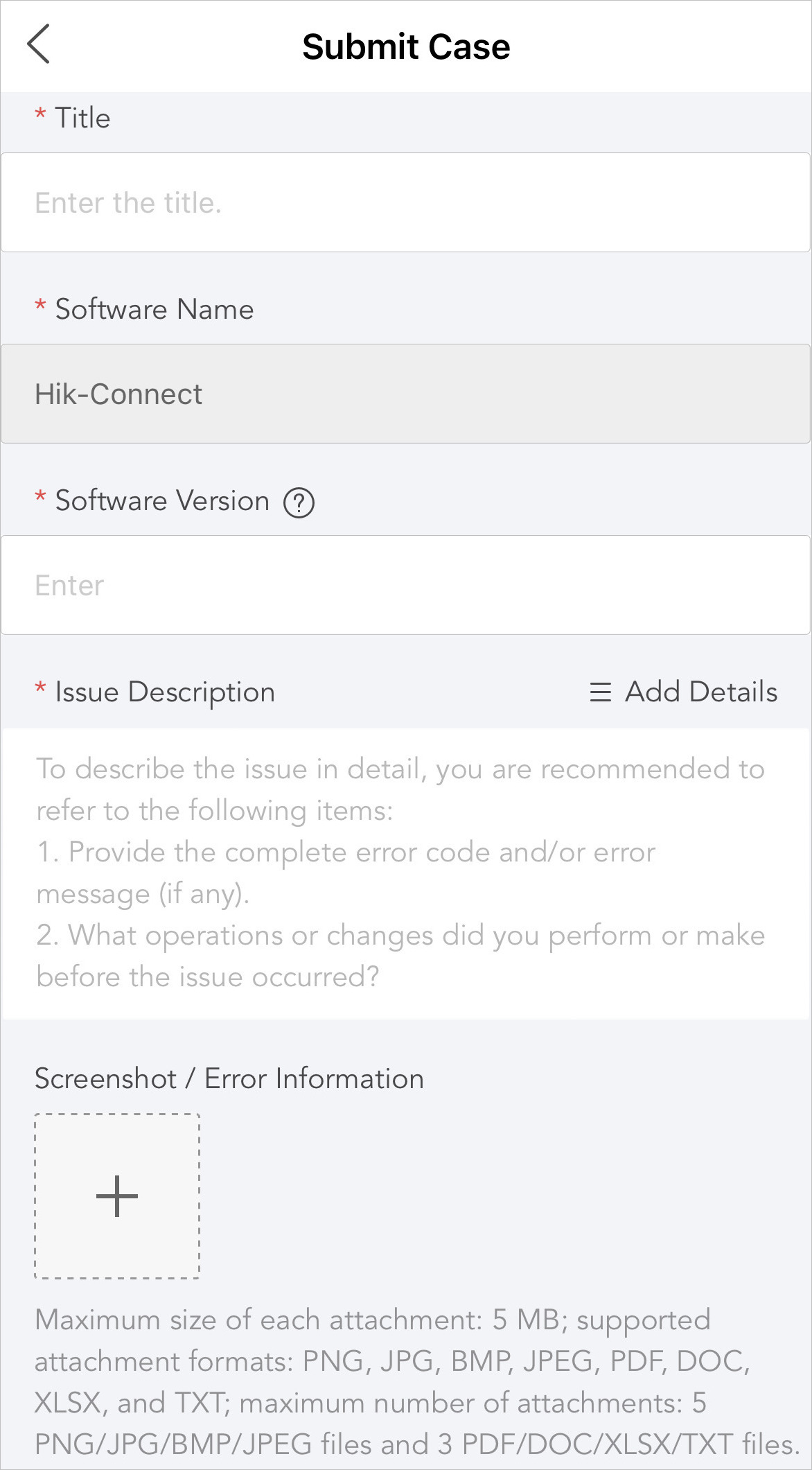
Software Products

For issues related to Hik-Connect and iVMS-4200.

  • Software Name

  • Software Version

  • Issue Description

Portal / Mobile Client

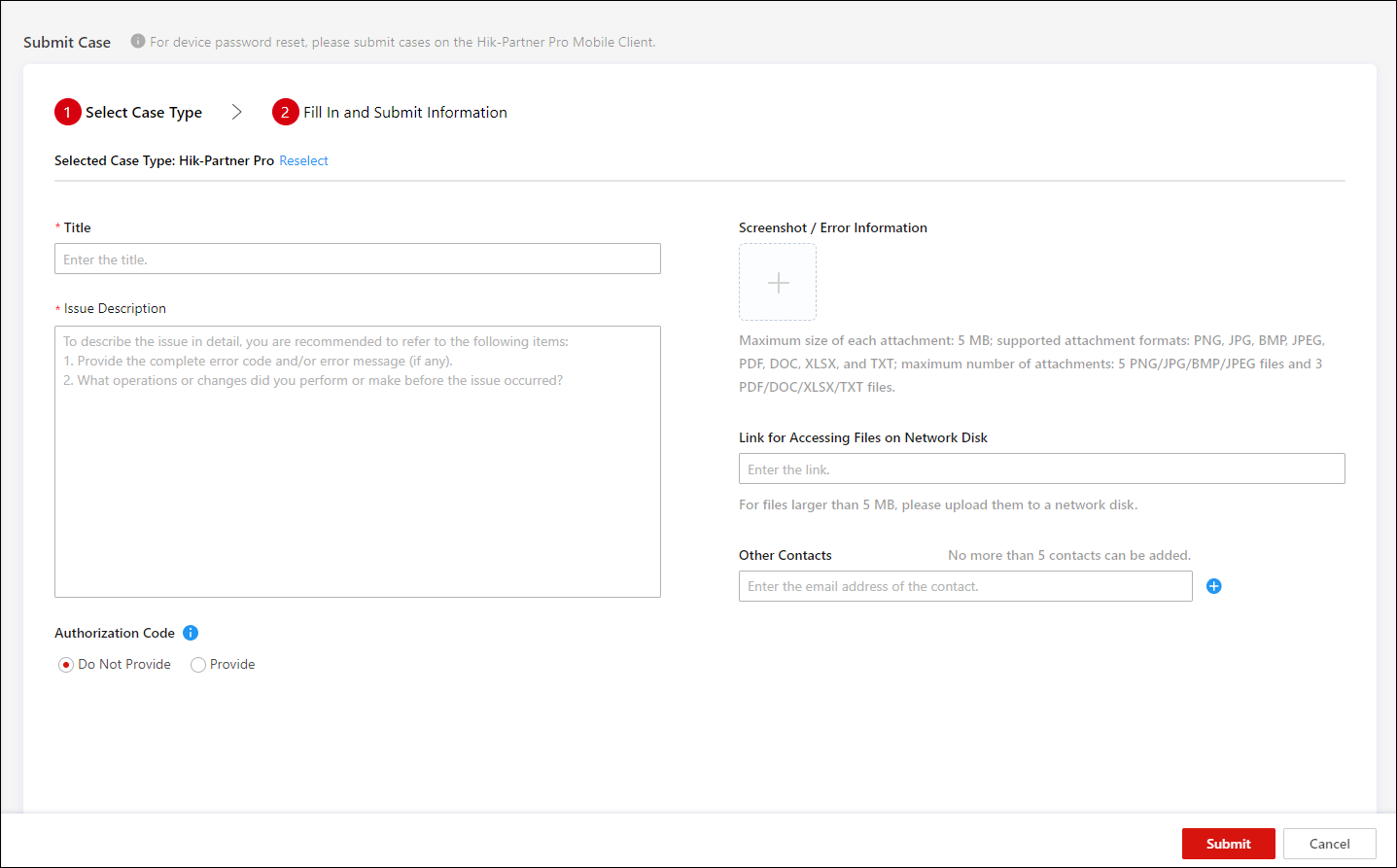
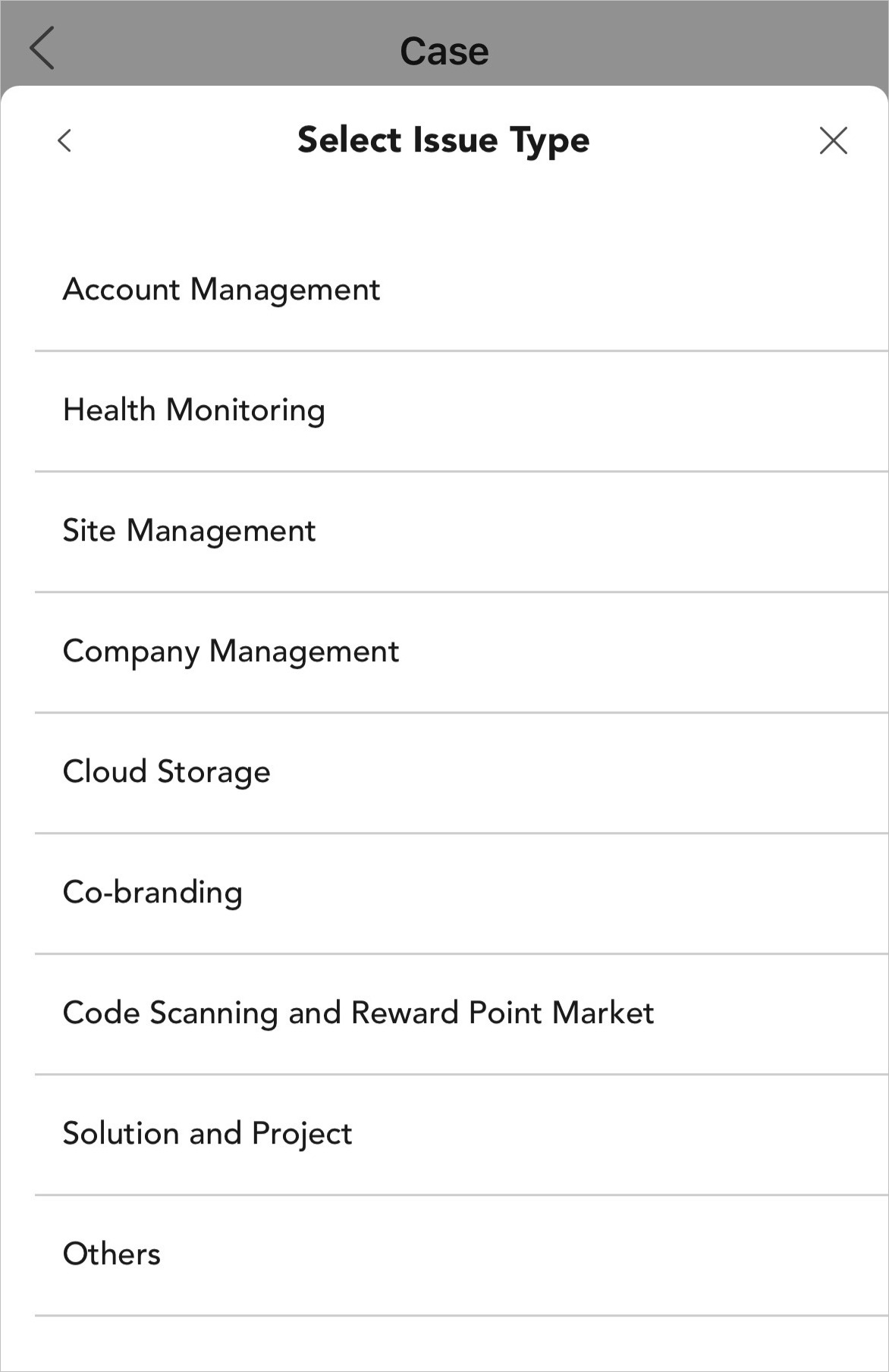
Hik-Partner Pro

For issues related to Hik-Partner Pro

  • Account Management

  • Health Monitoring

  • Site Management

  • Cloud Storage

  • Co-Branding

  • Code Scanning and Reward Point Market

  • Solution and Projects

  • Others

  • Issue Description

  • After-Sales Authorization Code

    Required when it is necessary for technical support to use the code to log in to your account for troubleshooting.

Portal / Mobile Client

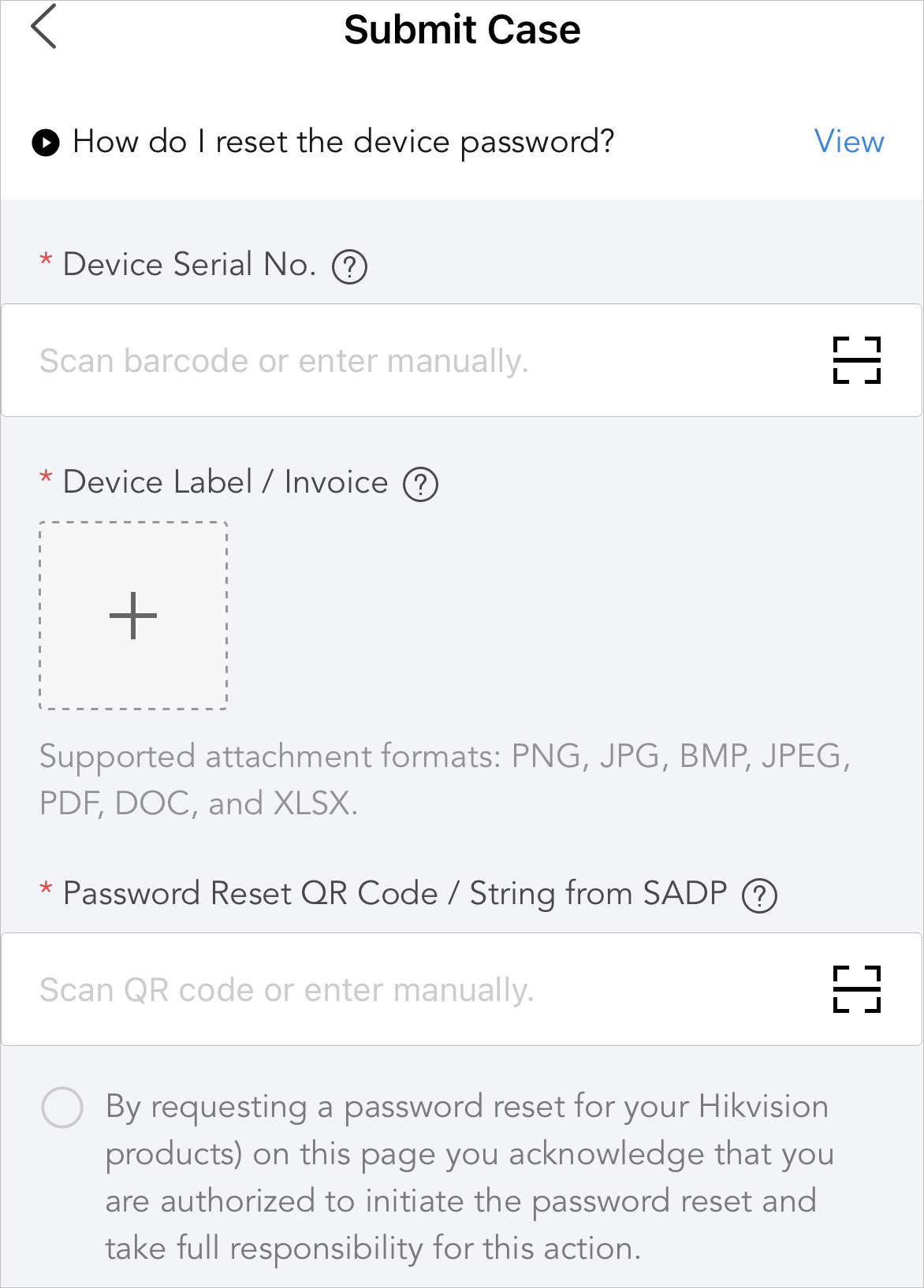
Device Password Reset

Submit cases to reset device passwords according to the replies from the support team.

  • Device Serial No.

  • Device Label / Invoice

    Upload label pictures or invoice files.

  • Password Reset QR Code / String from SADP

    Scan QR code or enter manually.

Mobile Client

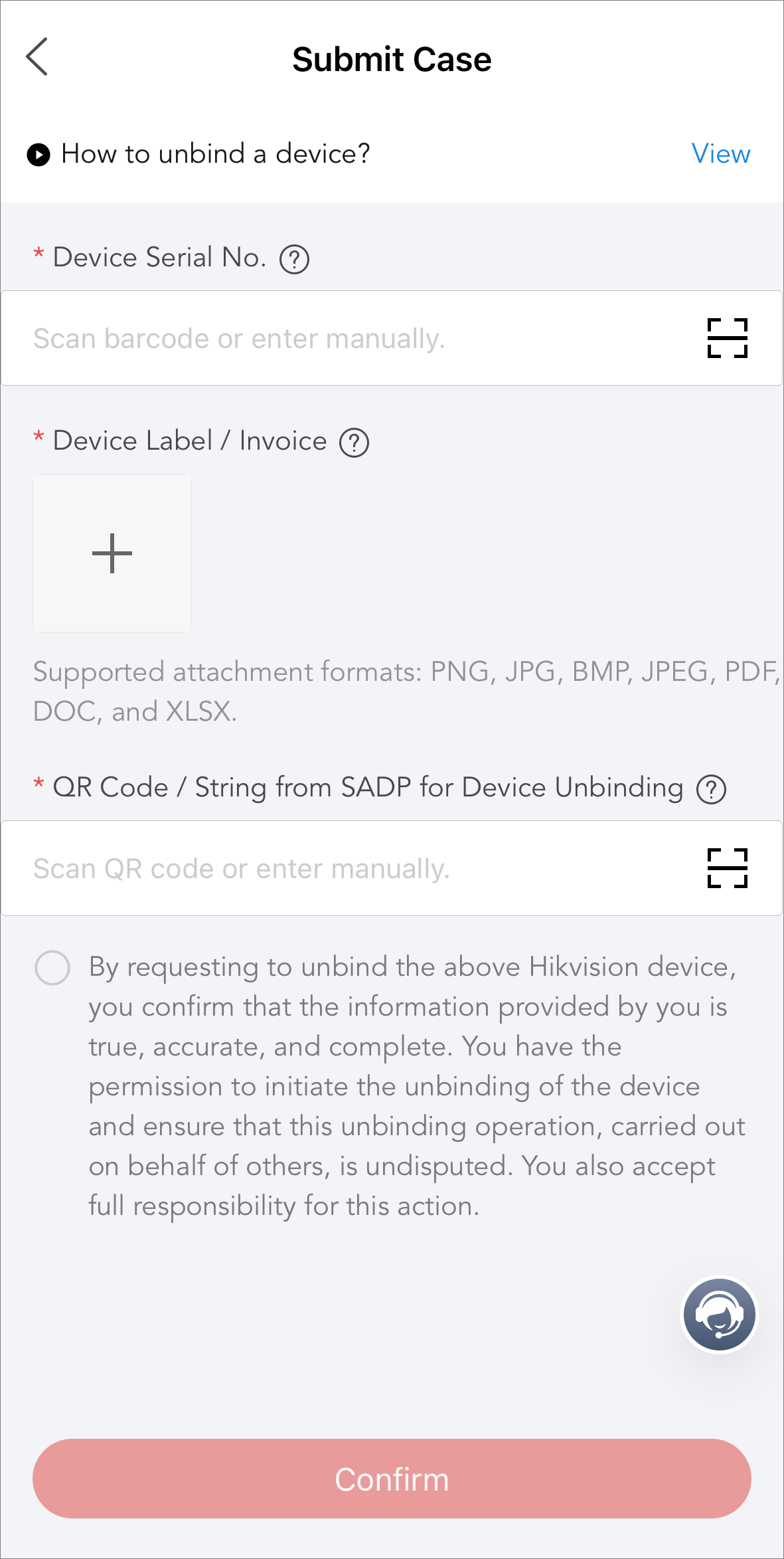
Device Unbinding

Submit cases to unbind your devices from Hik-Connect according to the replies from the support team.

  • Network Status (LAN device or not.)

    Serial No. and QR code / string from SADP are auto filled for LAN devices.

  • Device Serial No.

  • Device Label / Invoice

    Upload label pictures or invoice files.

  • Password Reset QR Code / String from SADP

    Scan/enter the QR code / string provided by SADP.

Mobile Client

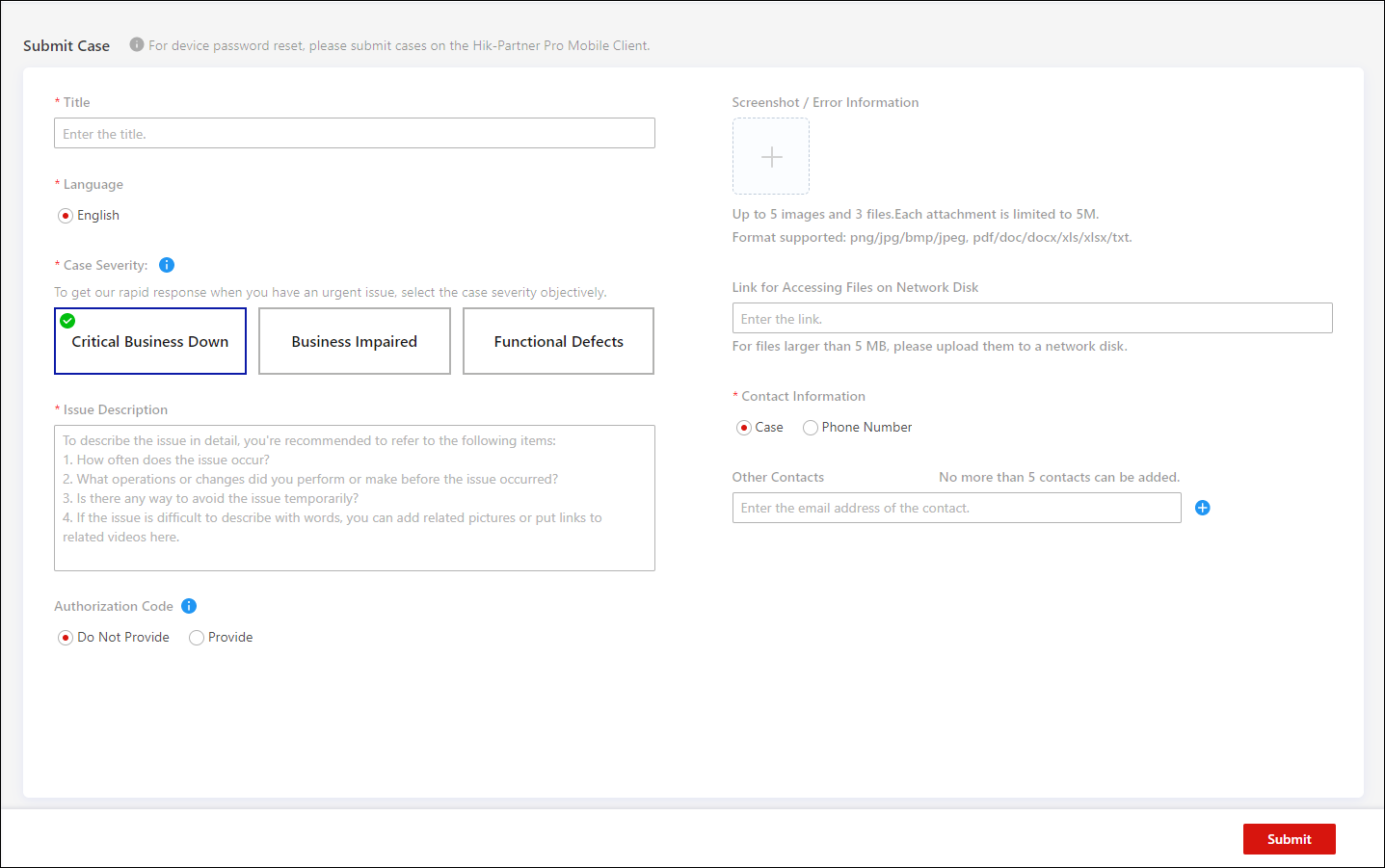
Dedicated Customer Service

Only available for some installers, for focused troubleshooting from technical support.

  • Language

  • Case Severity

    Critical Business Down

    Main functions which are critical to your business, such as logging in to the platform, creating sites, adding devices, receiving alarms, and handing over sites, are unavailable.

    Business Impaired

    Main functions work properly, but there are other function-related issues such as batch LAN configuration not working, probabilistic failure of remote configuration, and connection failure of some devices.

    Functional Defects

    There are some functional defects which do not affect your business or only affect your business slightly, such as wrong words on the page and high response latency.

  • Issue Description

Portal / Mobile Client

Submit and Track Online Support Cases

Submit and Track Online Support Cases Using the Portal

  1. Access the Online Support Case module. Choose from:

    • Click Support > Case.

    • Click Case on the right side of the Home page.

    • Click > floating on the bottom right.

  2. Click Submit Case.

  3. Select a case type, and enter required information.

  4. Click Submit to submit the case.

  5. Go to Case Records to track all your submitted cases. You can track the replies from technical support, reply to them to provide more info, and close the cases if the issues are solved.

    Note

    The case will be closed automatically if you do not reply within 14 days.

Submit and Track Online Support Cases Using the Mobile Client

  1. Access the Online Support Case module. Choose from:

    • Tap Me > (at the top right) > Case.

    • Tap Home > More > Support > Case.

    • Tap (floating on the Mobile Client) > Support > Case.

  2. Tap New Case.

  3. Select a case type, and enter required information.

  4. Tap Confirm to submit the case.

  5. On the case list, you can track all your submitted cases. You can track the replies from technical support, reply to them to provide more info, and close the cases if the issues are solved.

    Note

    The case will be closed automatically if you do not reply within 14 days.

On This Page
  • Submit and Track Online Support Cases
  • Submit and Track Online Support Cases Using the Portal
  • Submit and Track Online Support Cases Using the Mobile Client