Activate Device via HiTools Delivery
HiTools Delivery aims to streamline and enhance the activation, networking, and batch configuration for various devices. You can use the software to detect, activate, and modify the IP addresses of multiple devices over the LAN.
-
Set the device and the computer that runs the software to the same network segment.
-
Access the official website (https://www.hikvision.com/en) and enter Support → Download → Software →HiTools → HiTools Delivery to download HiTools Delivery and install it according to the prompts.
-
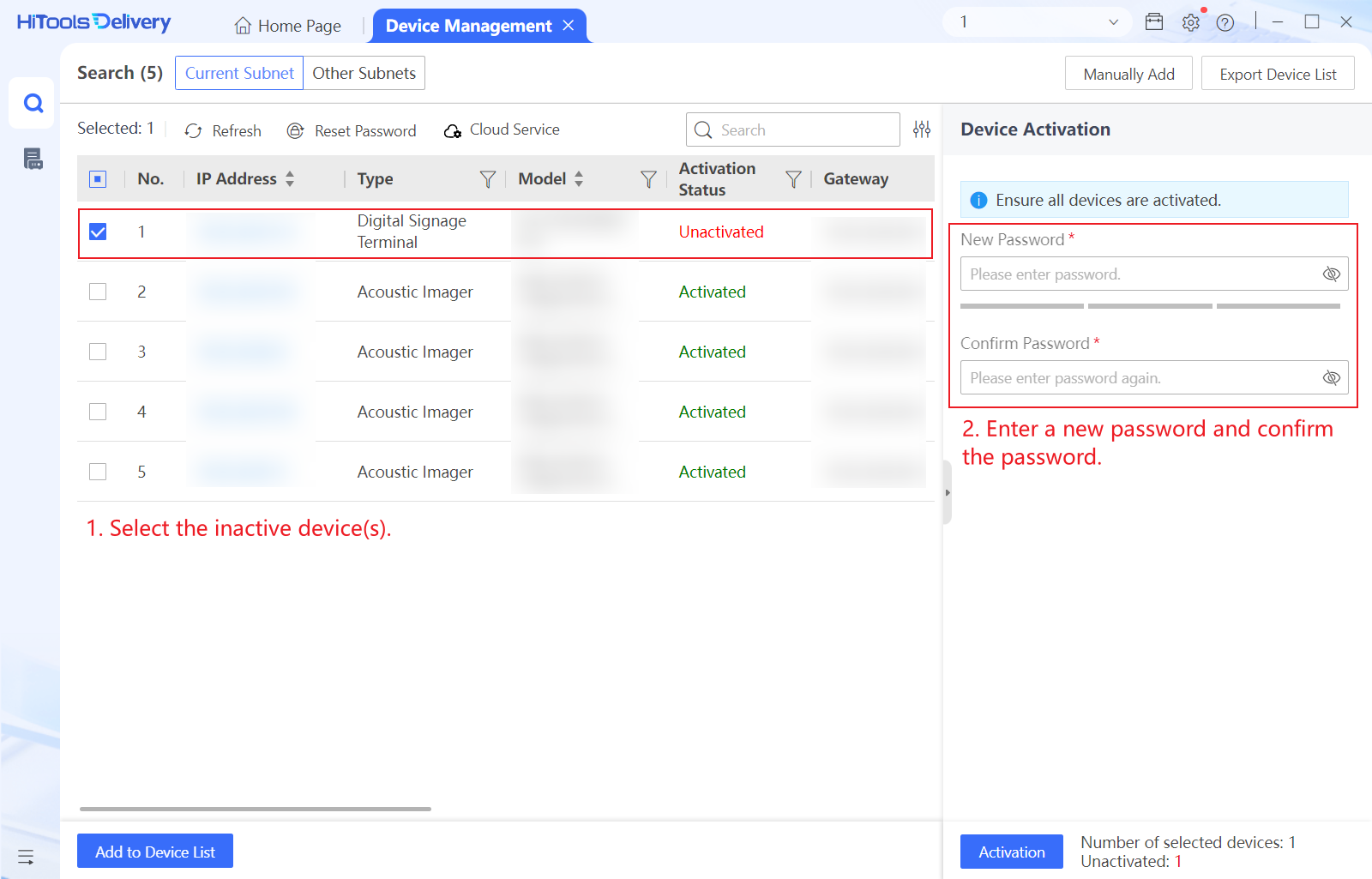
Click Activation. The device activation status will
change to Activated after successful activation.
Figure 1 Activation
- Optional:
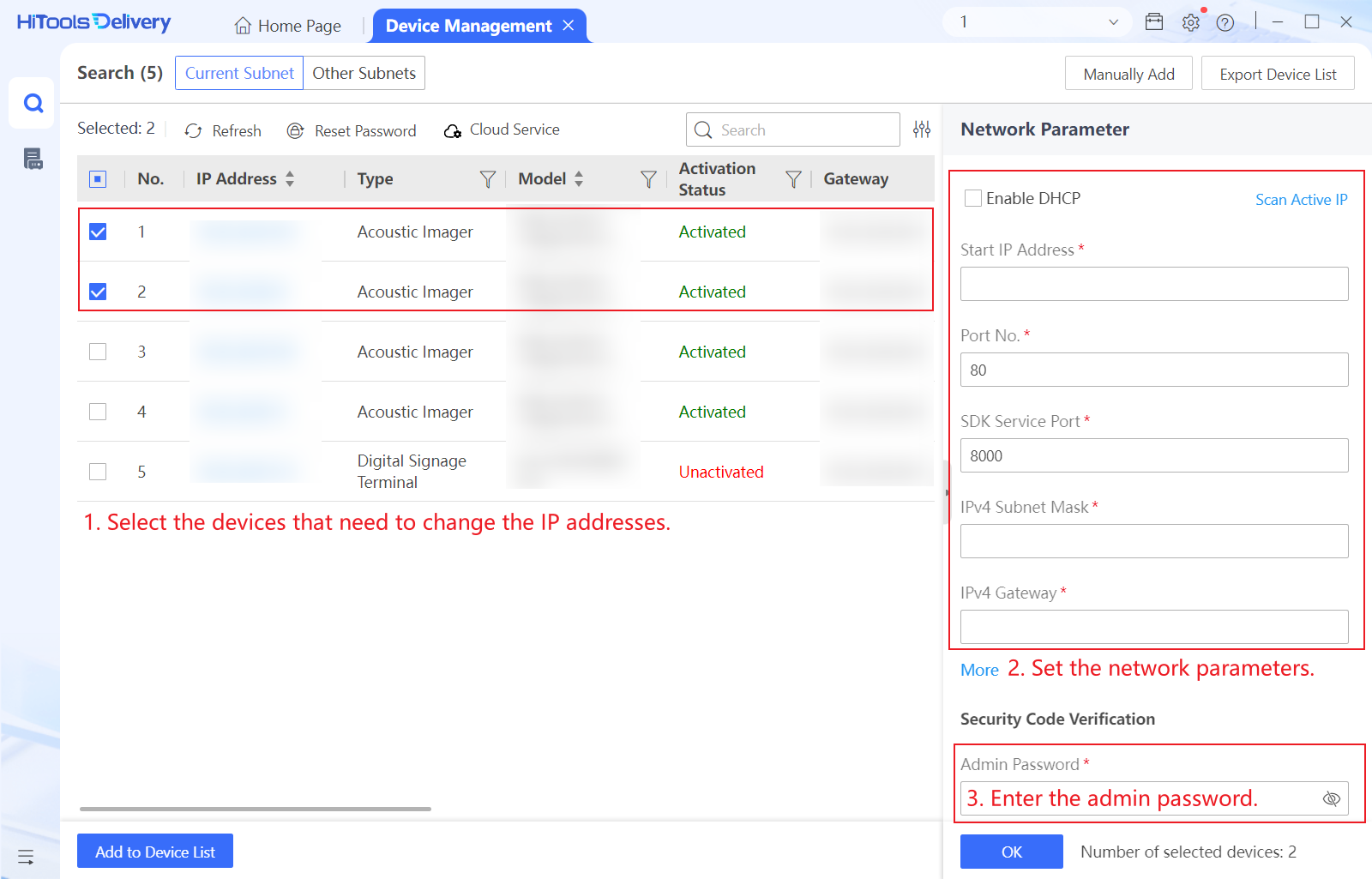
Change the IP address of the device.
-
Enter the admin password and click OK.
Figure 2 Modify Network Parameters
Note:-
Set the device IP address to the same network segment with that of your computer.
-
You can click Scan Active IP to detect and view the available IP addresses. Refer to the help of HiTools Delivery for details.
-
You can also click Home Page → Maintenance → Change IP to change the IP addresses in batch by exporting and importing the template. Refer to the help of HiTools Delivery for details.
-
Enter the admin password and click OK.