Add and Assign Access Levels
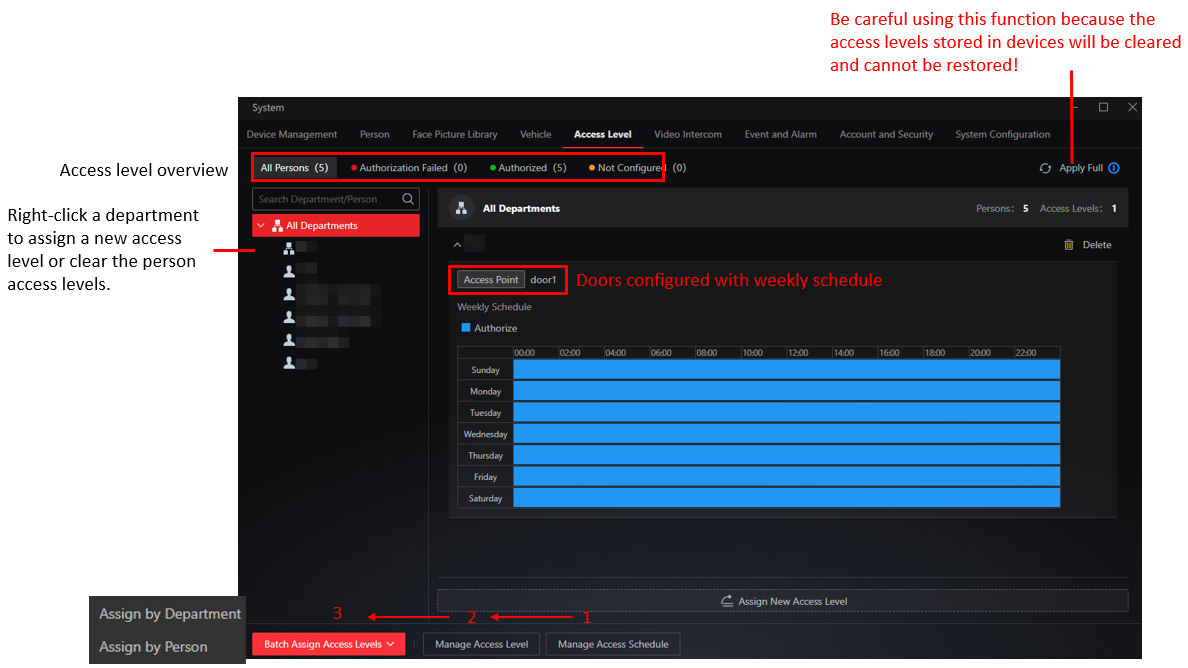
By selecting doors and an access schedule, you can add an access level. After this, you can assign the access level to persons or departments. In this way, the persons can authenticate and open the selected doors during the defined time periods.
What is the Access Level?
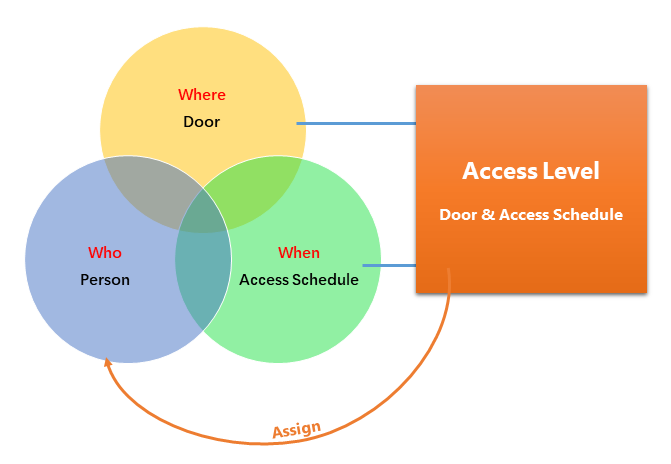
The access level is a group of doors sharing the same access schedule. Assigning access level to persons or departments can define the access permission that which persons can get access to which doors during the authorized time period.
Add an Access Schedule
An access schedule defines when people can open the door. Three default access schedule templates are provided: all-day template, workday template, and weekend template.
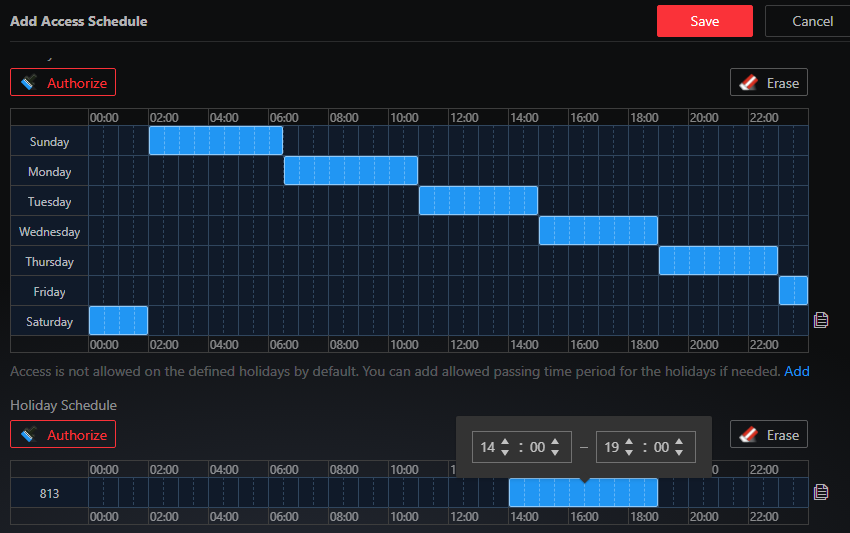
Click Authorize, and then drag on the time bar to draw authorized time periods. After drawing, you can hover the cursor on the blue area and enter a time or adjust the time by clicking the arrows in the box popped up. For details about adding or editing a holiday, see Add or Edit a Holiday.
Add an Access Level
When creating an access level, users can select multiple doors. A door can be added to different access levels.
About the Assignment of Access Levels
- Assign Access Level by Department
-
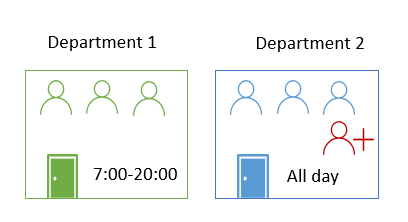
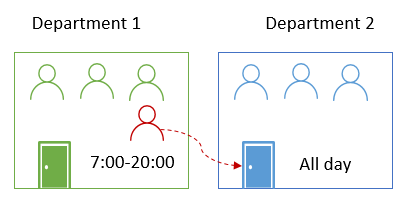
Used for scenarios where persons need to authenticate for entering fixed places (such as offices). After assigning an access level to a department, newly-added persons will be automatically assigned with the same access level.
Figure 4 Assign Access Level by Department - Assign Access Level by Person
-
Used for scenarios where a person needs the access level of a special door, or a person needs a temporary access level of a door.
Figure 5 Assign Access Level by Person
Apply Assigned Access Levels to Devices
After assigning access levels to persons via the client, the assignment will be automatically applied to devices. The following reasons may cause the failure of access level assignment:
-
The device to which the access level is applied is offline.
-
The network connection is unstable.