View Remote Site Alarm
If you have added a remote site on a GIS map, you can view the information of alarms triggered on the remote site. Even if there is no alarm triggered at the current time, you can also view history alarms of the site.
Make sure you have added a remote site on the GIS map. See Add Remote Site on GIS Map for details.
-
In the top left corner of Home page, select
 > Visual Map > Map > Map Monitoring to enter the Map Monitoring page.
-
Click the site icon to open the site details page.
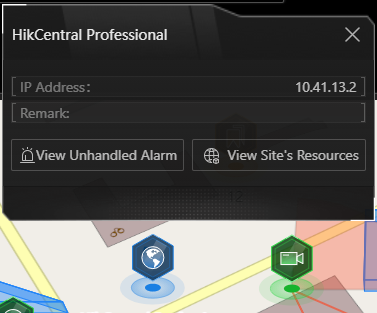 Figure 1 Site Details
The color of site icon will turn blue.
- Optional:
Perform the following operation(s).
Option Description Filter Alarm by Priority
Click
 on the Alarm
Priority column to filter alarms by alarm priority.
on the Alarm
Priority column to filter alarms by alarm priority.Filter Alarm by Status
Click
on the Alarm Status
column to filter alarms by alarm status.