Configure Promotion Day

After setting promotion days, you can get the customer traffic on promotion day so as to analyze how many customers the promotions bring more than the days without a promotion.

  1. In the top left corner of Home page, select > All Modules > Intelligent Analysis > Store Management > Configure Promotion Day.
  2. Click Add to open the promotion day configuration page.
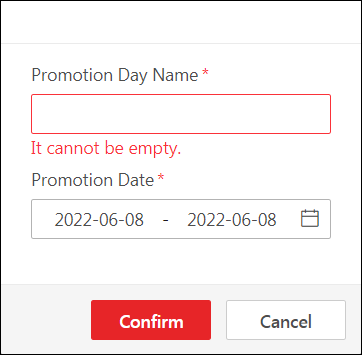
    Figure 1 Promotion Day Configuration
  3. Enter the promotion day name.
  4. Set the promotion duration.
    Note:

    The promotion time period should be within 30 days.

  5. Click Confirm to finish adding a promotion day.
  6. Optional: Perform the following operations after adding promotion days.
    Option Description

    Edit a Promotion Day

    Click the promotion day name to open the promotion day configuration page, and edit the promotion day information.

    Delete Promotion Days

    Check one or multiple promotion days, and click Delete to delete the selected promotion days.

    Search Promotion Days

    Enter a keyword in the search field to search for promotion days.