V7.0.0 Team Mode
Article Published Date: September 15, 2026
Scheduled Release Date: September 20, 2026
New UI & Navigation
New Sidebar
The main navigation has moved to the left, with faster access to your authorized modules and an optimized menu structure.
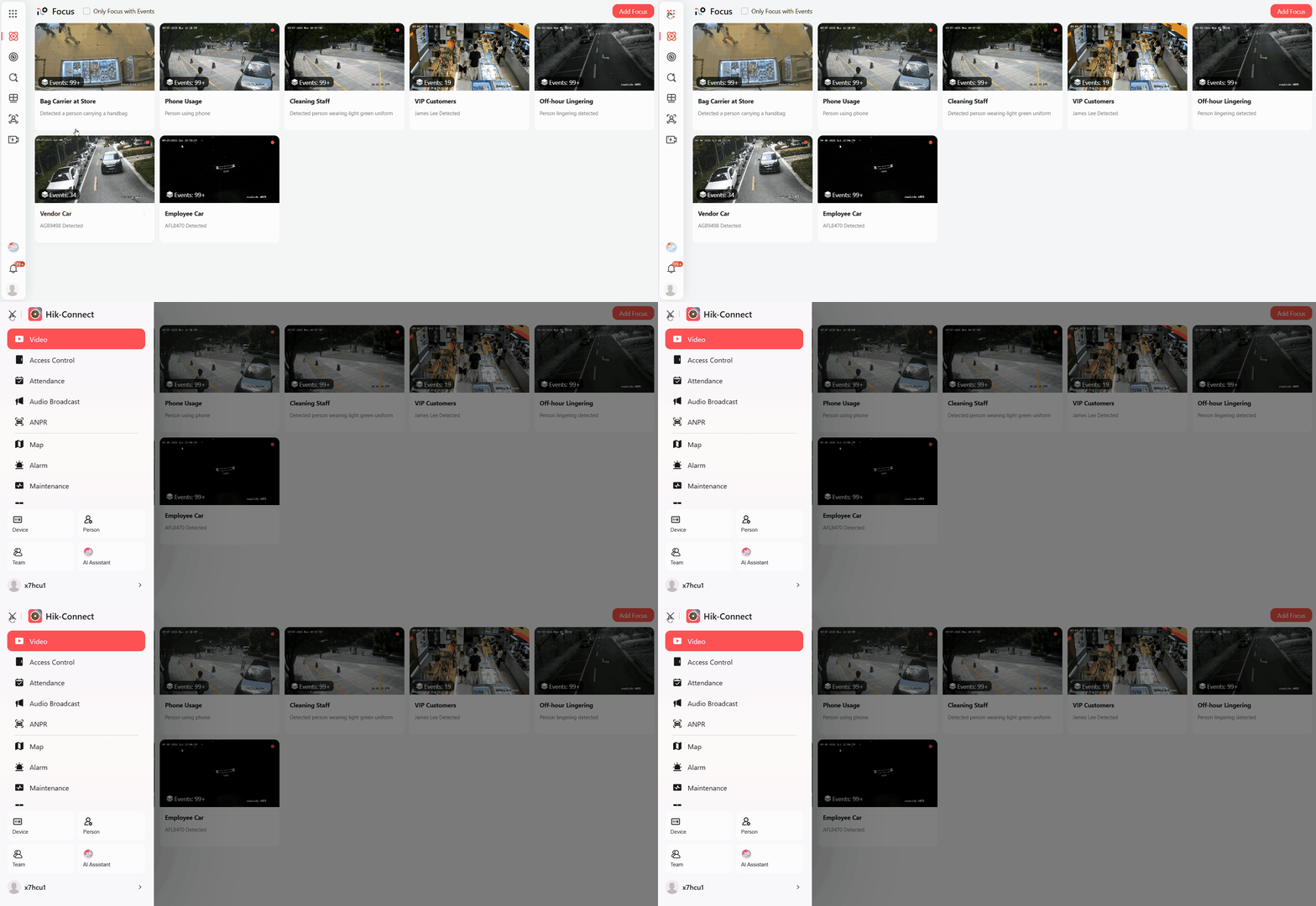
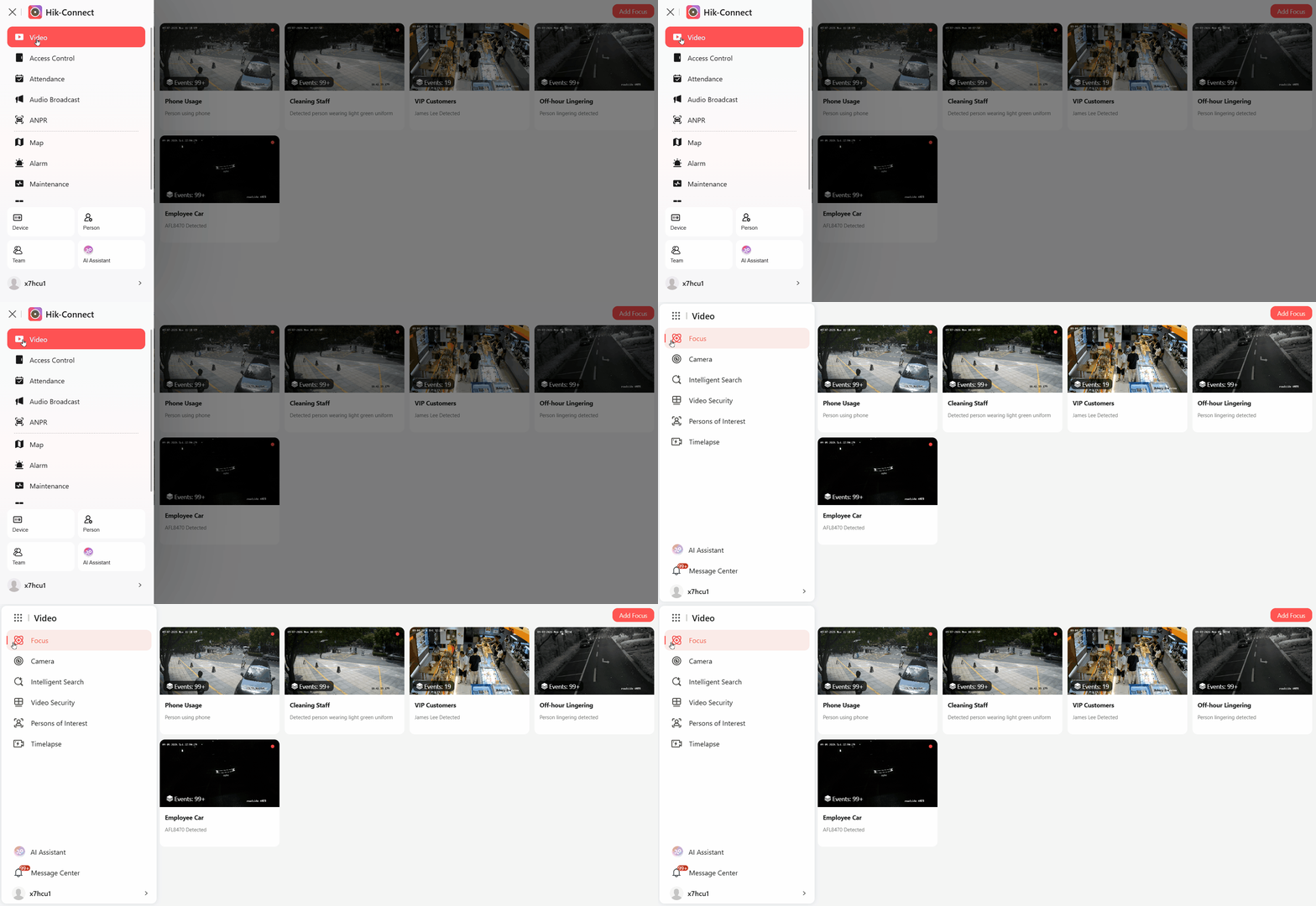
New Video Navigation
The video module now features an all-new navigation.
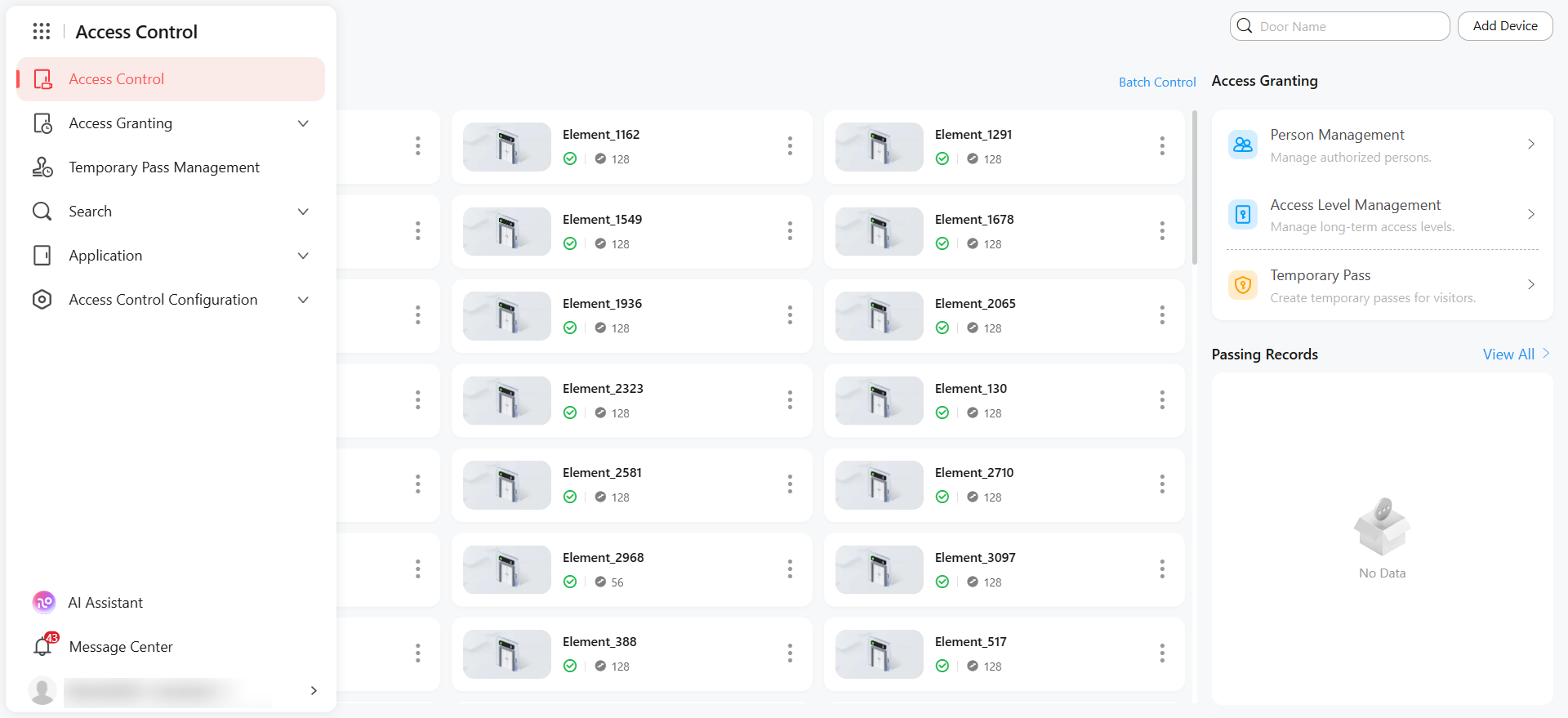
New Access Control Navigation
The access control module now features an all-new navigation.
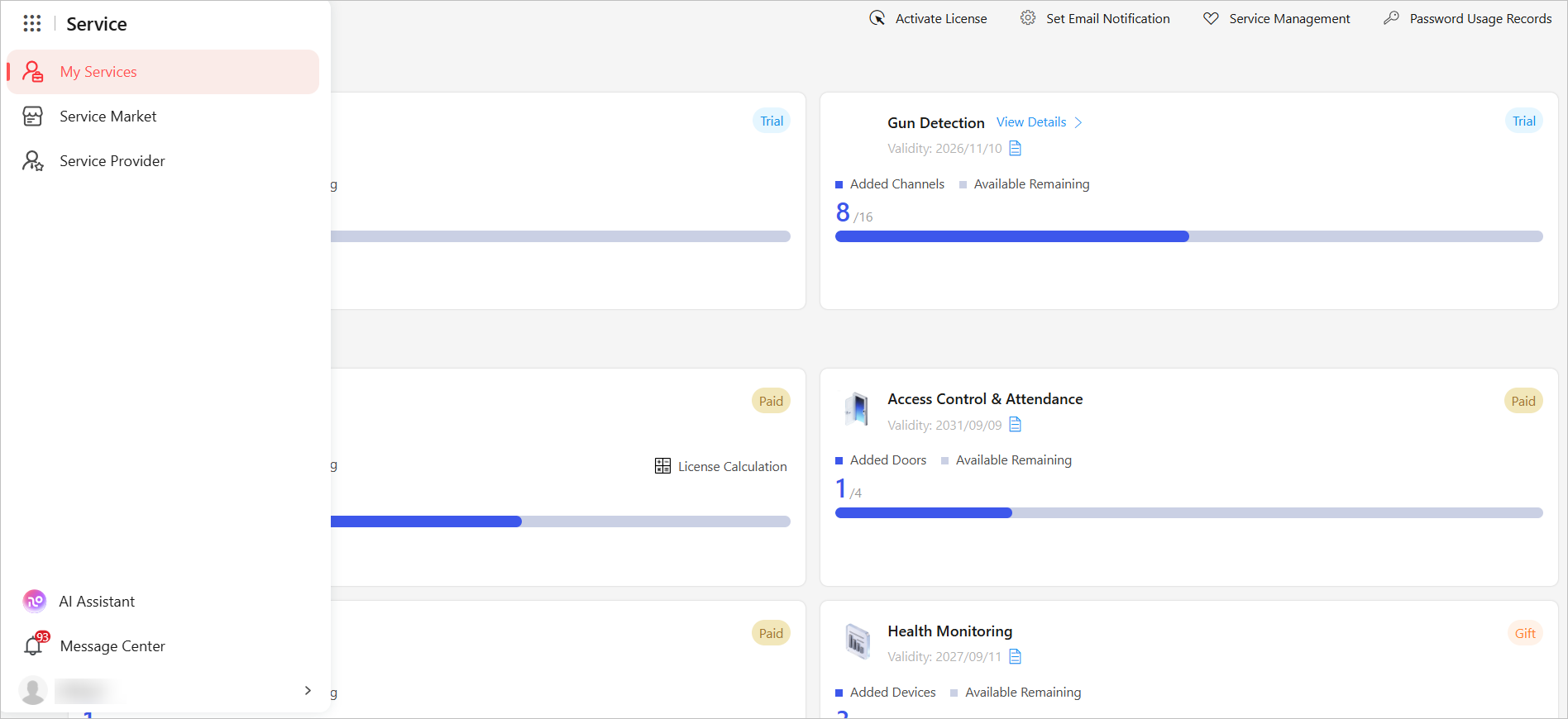
New Service Module
The original "Service Details" has been split into an independent module with three sub-pages:
-
My Services: Management of activated services, license activation, email notification settings.
-
Service Marketplace: List of services available for activation and trial.
-
Service Providers: Service provider information display and hosting functions.
AI Services
-
For the Video AI service, you can activate a maximum of 64 channels for each system. For the gun detection service, you can activate a maximum of 16 channels.
-
The video AI service is an independent service with the video service. Make sure to activate the video service before activating the Video AI service for your channels.
-
The AI features are only available in certain countries or regions.
Focus
Follow specific people, vehicles, unknown targets, or describe what you're looking for in natural language. Matching events are automatically delivered to you.
Go to .
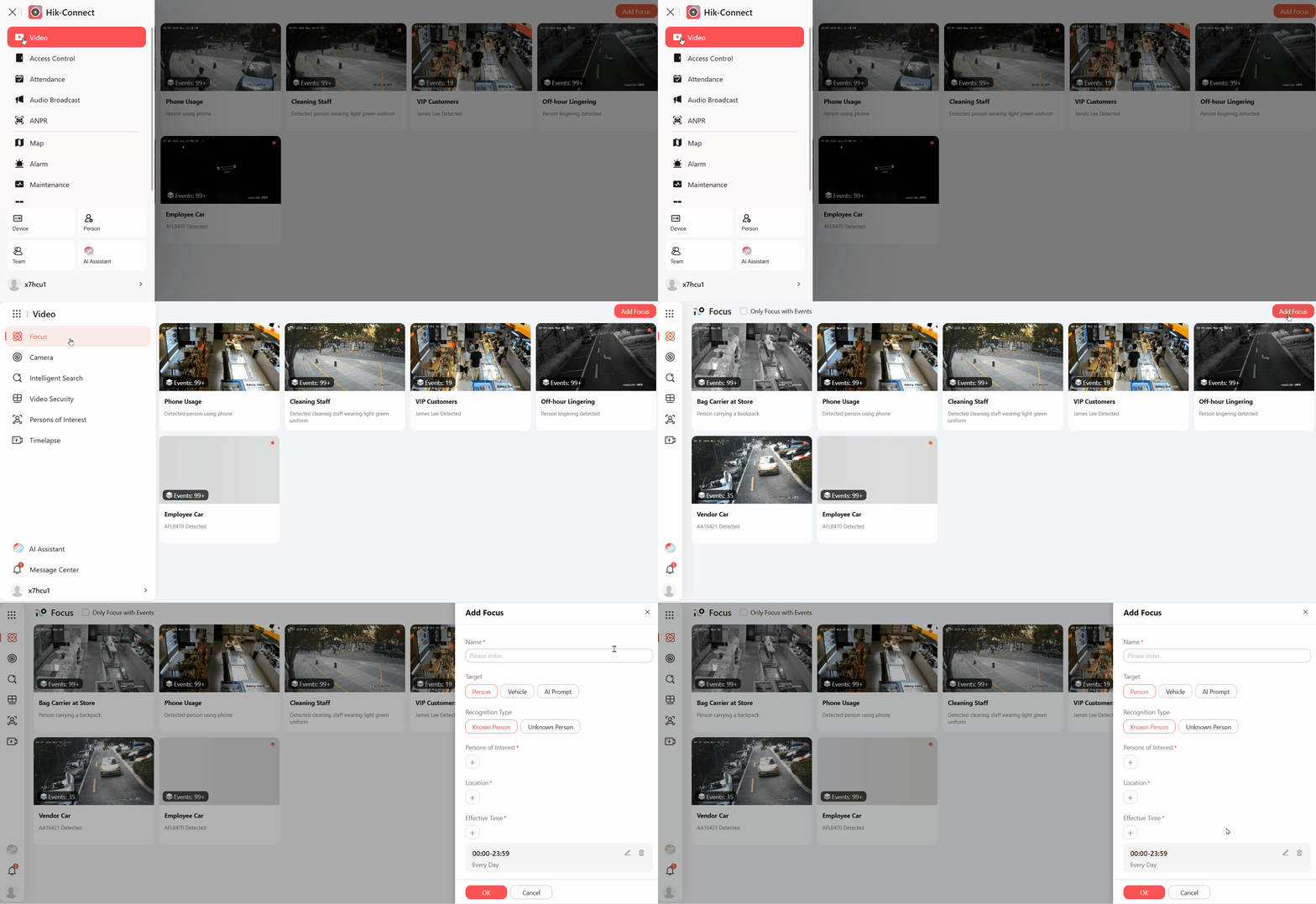
Background & Purpose
Security systems generate a flood of alerts daily, most of which are irrelevant to you. Important events get buried. Focus lets you zero in on what truly matters—specific people, specific vehicles, or custom scenarios target behaviors described in plain language. The system continuously monitors these subjects and delivers precise alerts, freeing you from notification noise.
Key Features
-
Focus on Specific People: Select known individuals (family, employees) from your cloud person library, or choose "Unknown Person" to monitor strangers.
-
Focus on Specific Vehicles: Select vehicles from your license plate library to track their entry, exit, or lingering behavior (requires ANPR camera).
-
AI Custom Focus: Describe a scenario in everyday language, e.g., "Detecte person carrying handbag" The system monitors accordingly.
-
Real-Time Push & Refresh: Receive a push notification on App when a focused subject triggers an event.
Example
-
Scenario 1: Select a vendor vehicle's plate from your waste & recycling library. Get notified the moment it enters the premises, and tap to view its full entry/exit trajectory.
-
Scenario 2: Choose a VIP customer from the VIP Lost. Receive alerts for the customers when they enter your store.
Limitations
-
You can add a maximum of 64 focus rules per user.
-
You can add up to 16 people and 16 vehicles per focus configuration.
AI Notification
Go to .
Background & Purpose
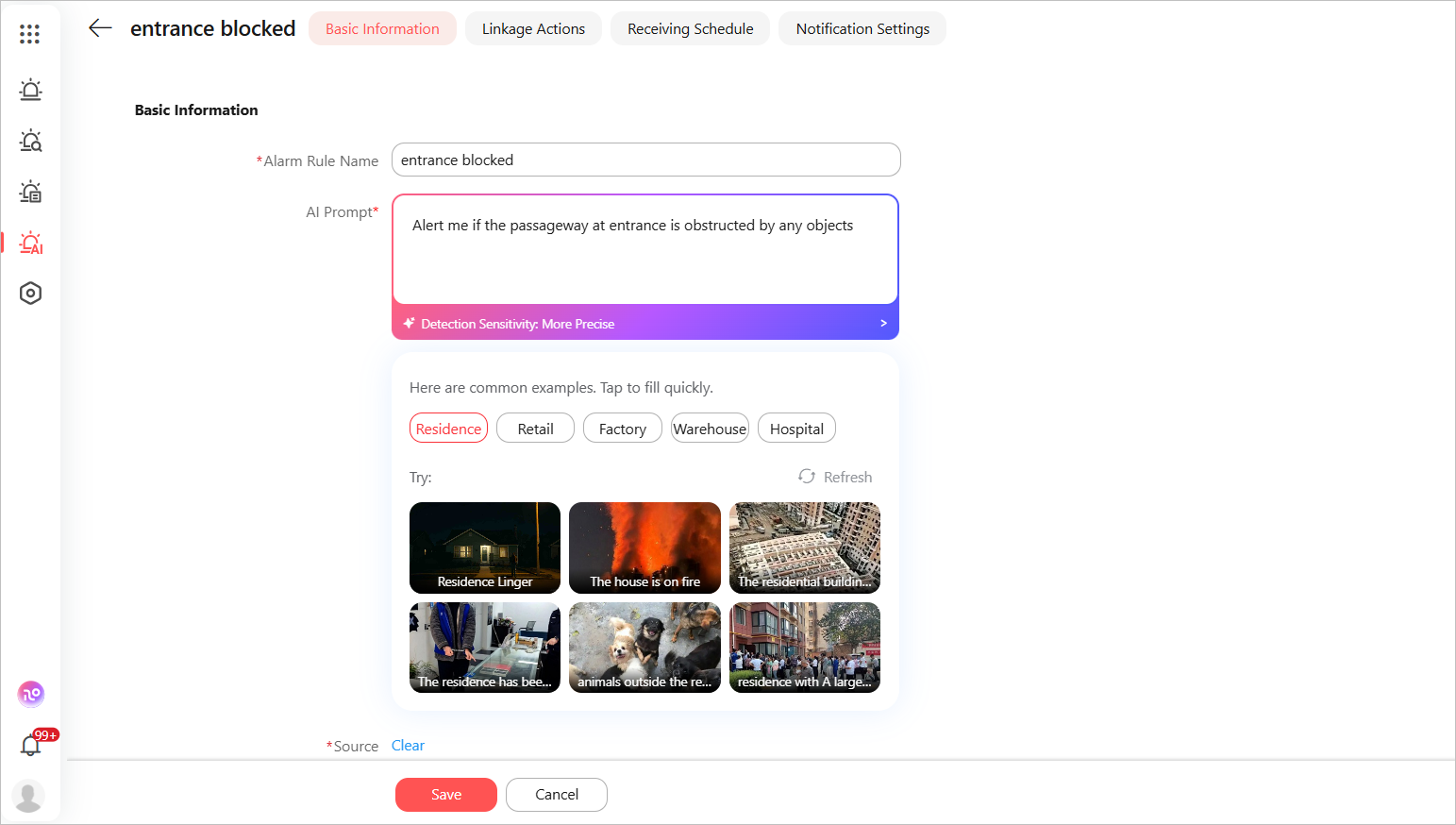
Leveraging AI's natural language understanding, the system turns your everyday descriptions into custom alert rules—so you'll get timely notifications for the events you care about.
For non-customized motion detection events with AI service enabled, notifications now include a description like "A man in black placed a package at the door."
Key Features
Natural Language Input: Describe an alert scenario in plain text, e.g., "Alert me if the passageway at entrance is obstructed by any objects".
Effect Preview: After configuration, the system instantly check matching results from the past 24 hours to verify accuracy, and then presents a structured rule for your review and fine-tuning.
AI Processing: The system automatically identifies targets (person/vehicle), behaviors (appear/linger/loiter).
Dedicated Event List: A new AI Notification Configuration tab consolidates all AI notifications, with support for deletion, and type filtering.
Example
-
Alert me if a person wearing uniform appeared.
-
Alert me if the passageway at entrance is obstructed by any objects.
Limitations
-
Supports a maximum of 16 rules per channel.
-
Only available for channels with the Video AI service enabled.
AI Deterrence
AI Deterrence detects intrusions in real time and instantly responds with AI-generated, targeted voice warnings, like calling out "the person in the blue shirt, please leave." to maximize deterrence.
Go to , add an alarm rule, set intrusion as the triggering event, and set AI Deterrence as the linkage action.
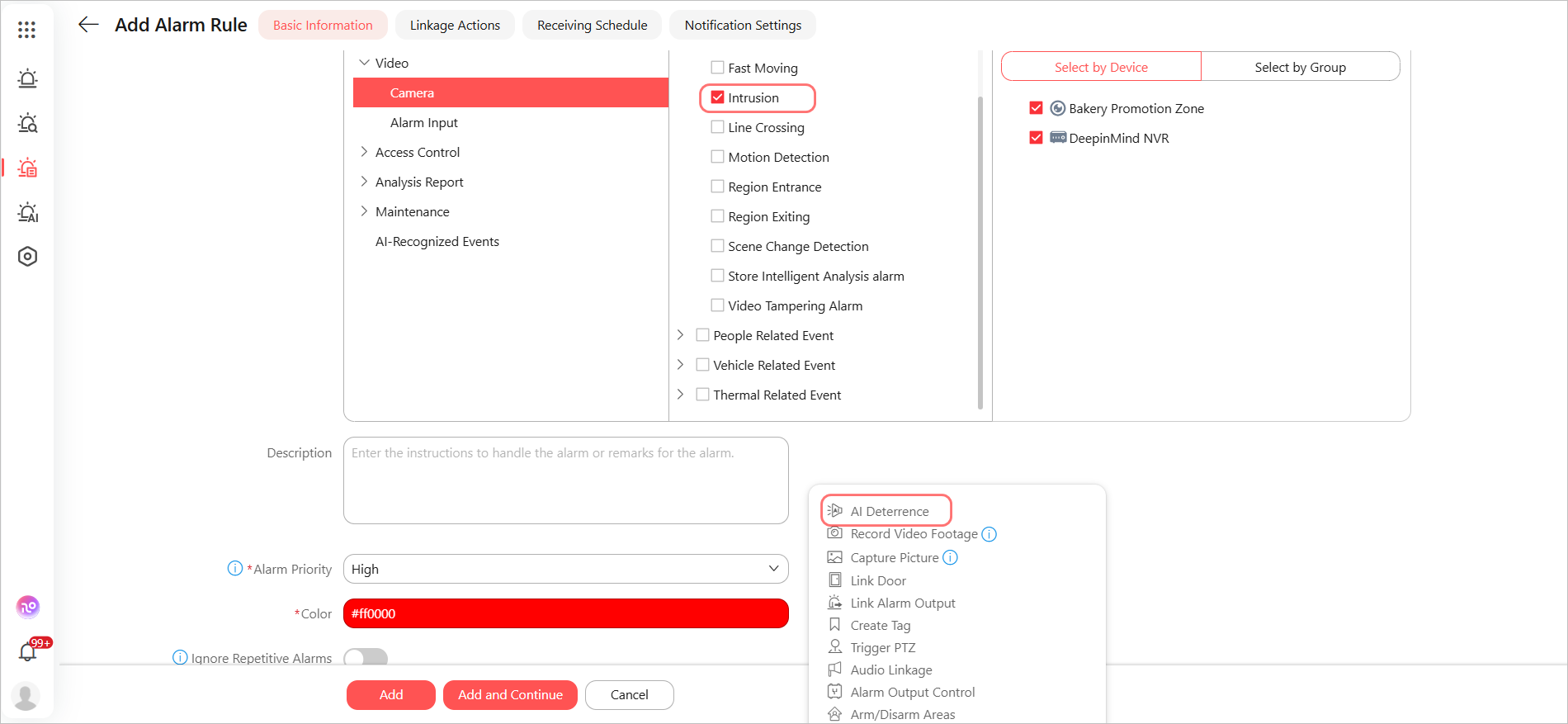
Background & Purpose
AI automatically triggers active intervention such as voice warnings the moment abnormal event is detected. This transforms security from "after-the-fact recording" to "preemptive deterrence," stopping threats before losses occur and significantly reducing the need for constant human monitoring.
Key Features
-
Three-Tier Escalation:
-
Level 1: Initial warning (customized text, no AI)
-
Level 2: AI-detected attributes + warning (please leave)
-
Level 3: AI-detected attributes + escalated warning (security has been notified)
-
-
AI-Powered Voice Alerts: With the video AI service, the system analyzes specific target features (clothing color, behavior) in real time and generates targeted verbal warnings, delivering a far stronger deterrent than fixed audio.
-
Device Integration: Compatible with IP Speakers for custom audio broadcasting and IPC strobe lights for visual alarm.
- Auto-Reset: The deterrence level automatically resets if the alarm is interrupted for more than 2 minutes, preventing false escalation.
Example
Nighttime Store Protection: A person enters the doorway after 11 PM → L1 plays "You are in a monitored area, please leave immediately" → The person lingers for over 2 minutes, triggering L2: "Man in black jacket, please leave" with lights on → They still do not leave, triggering L3: "security has been notified".
Limitations
-
An IP Speaker or a camera with strobe light capability is required for voice and visual alarm functions.
-
The deterrence level automatically resets if the alarm is interrupted for more than 2 minutes.
Daily Summary
The feature analyzes 24 hours of video and events of a camera, automatically generating a daily overview with counts of people, vehicles, animals, suspicious events, and AI alarms—all in one place for quick review.
Go to .
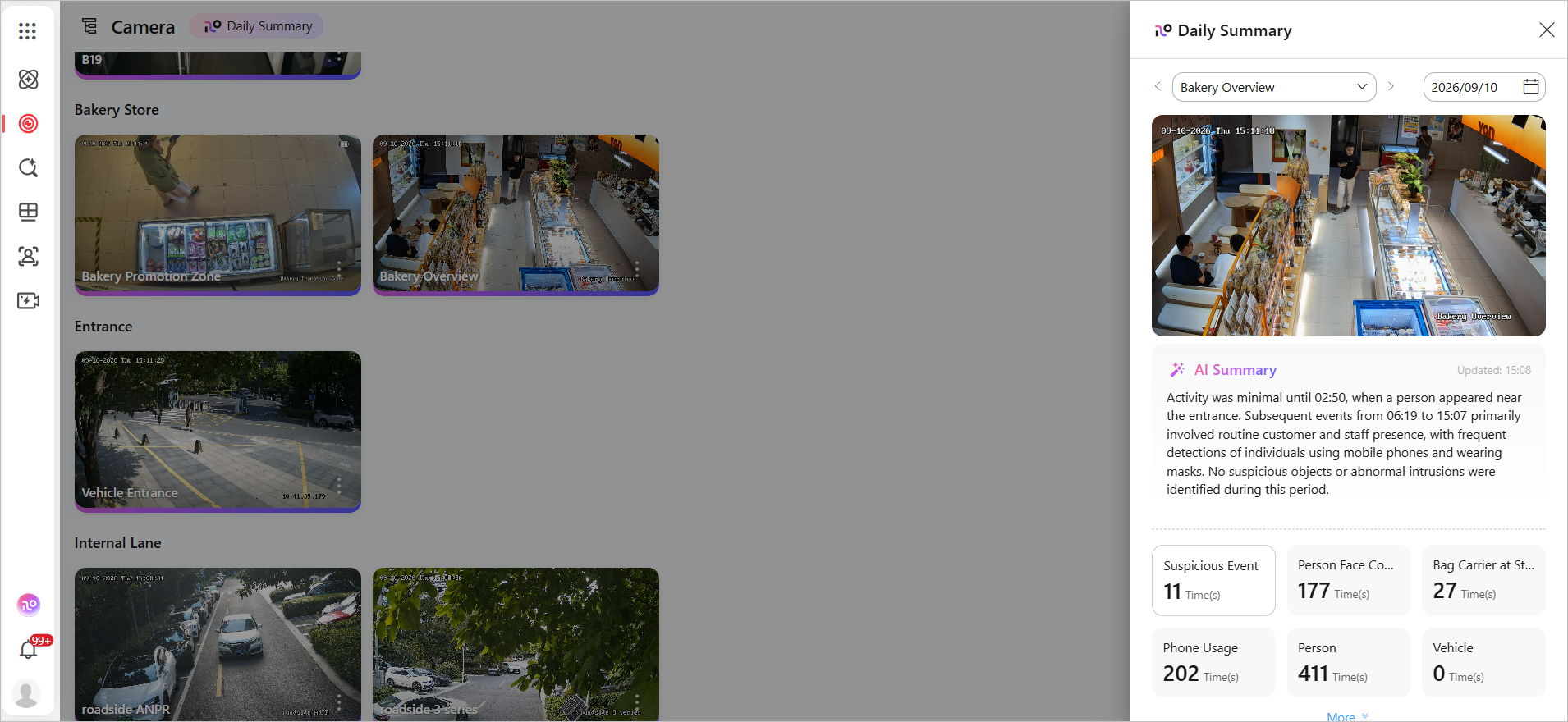
Background & Purpose
Reviewing numerous daily events one by one is time-consuming and makes it easy to miss critical issues. The "Daily Summary" feature solves this by intelligently analyzing 24-hour events in your space. It automatically generates a summary report and highlights events that need your attention, helping you quickly grasp the overall security situation.
Key Features
-
AI Summary: Generates a daily overview, counting events involving people, vehicles, and animals.
-
Key Event Collection: Categorizes abnormal events (e.g., suspicious events, AI alarms, focus, etc.) for quick review. Playback of event footage is available with one click.
-
One-Click Alarm from Suspicious Events: You can instantly convert a "Suspicious Event" found in the report into an AI notification, enhancing your security setup rapidly.
Example
Activity was minimal until 02:50, when a person appeared near the entrance. Subsequent events from 06:19 to 15:07 primarily involved routine customer and staff presence, with frequent detections of individuals using mobile phones and wearing masks. No suspicious objects or abnormal intrusions were identified during this period.
Limitations
-
The report is based on event data from 00:00 to 24:00 of the selected day.
-
You can view daily reports for the last 7 days.
Fusion Search
Enter a name, license plate, etc. and the AI assistant can search for access control, vehicle, and other records of the target, and display all results on a chronological timeline with time, location, and snapshot for each record.
Click to open AI Assistant.
 to open AI Assistant.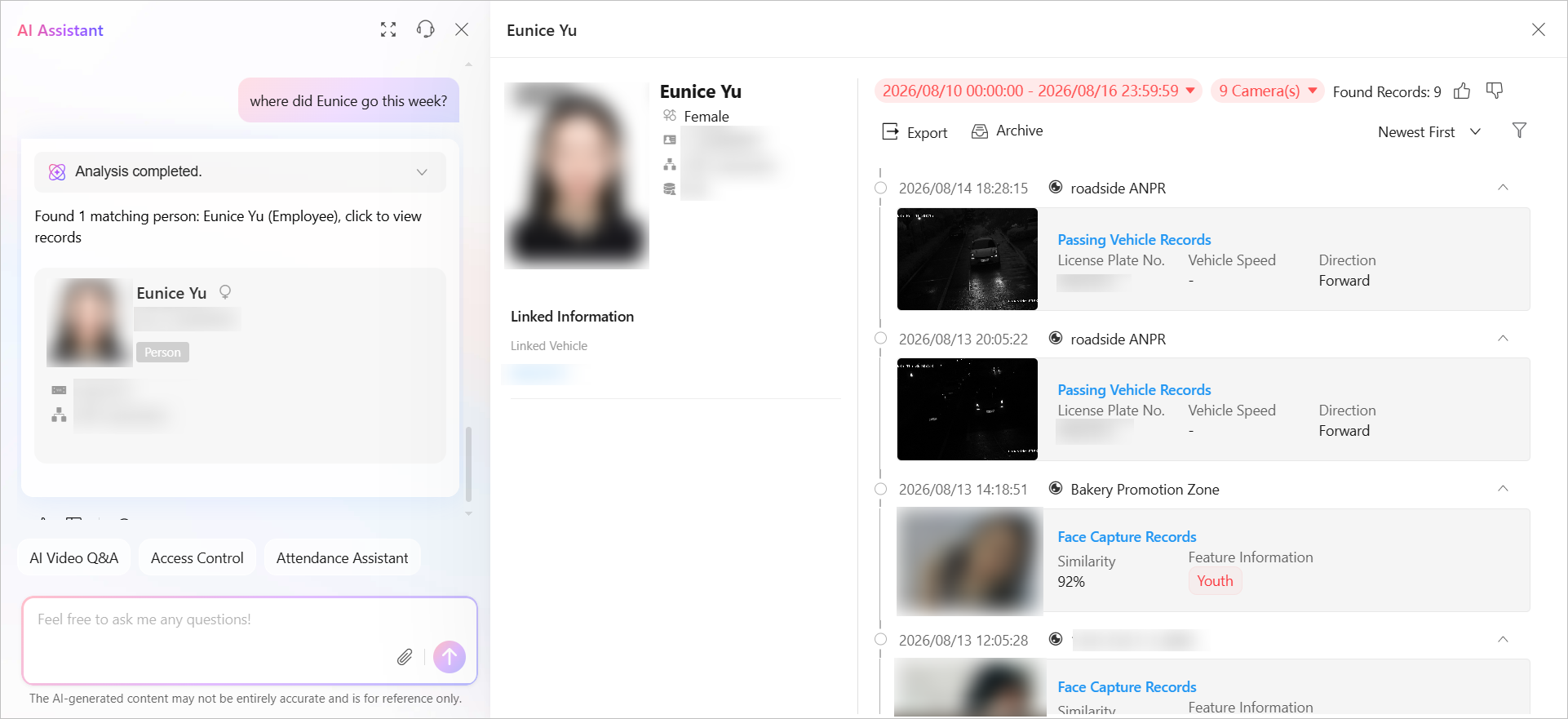
Background & Purpose
During security operations, a target's information is scattered across multiple systems such as person records, access records, face captures, and vehicle data. Traditionally, you'd search each module separately. With Fusion Search, just type a query like "Find all records for John," and the system automatically searches across all systems, consolidating everything into one clear timeline, dramatically improving efficiency.
Key Features
-
Natural Language Search: Enter names, license plates, phone numbers, or employee IDs in everyday language such as "Find John's access records" or "Find license plate xxx's passage records," to focus on exactly what you need.
-
Cross-System Aggregation: Automatically searches personnel database, visitor database, face library, access control logs, and vehicle passage records, consolidating all records for the same target.
-
Timeline Display: Results are displayed in chronological order on a timeline, mixing access control records, face captures, and vehicle passage records. Each entry includes time, location, and snapshot.
-
Export & Archive: Export search results as files or save them as evidence for easy preservation and sharing.
Example
-
Person Search: "Find Tom" → Displays Tom's basic info + a timeline of all today's access, capture, and vehicle records.
-
Vehicle Search: "Find license plate ZA12345" → Displays vehicle info + owner info + all today's passage records.
Limitations
Default search range is today's data; time range can be adjusted via filters or natural language query.
AI Timeline
Pause the video during playback, select a target, and the system will automatically retrieve all appearances of that target across relevant channels, presenting them on a unified timeline for playback.
Start playback, pause the video, select a target, and the system will automatically retrieve all appearances of that target across relevant channels.
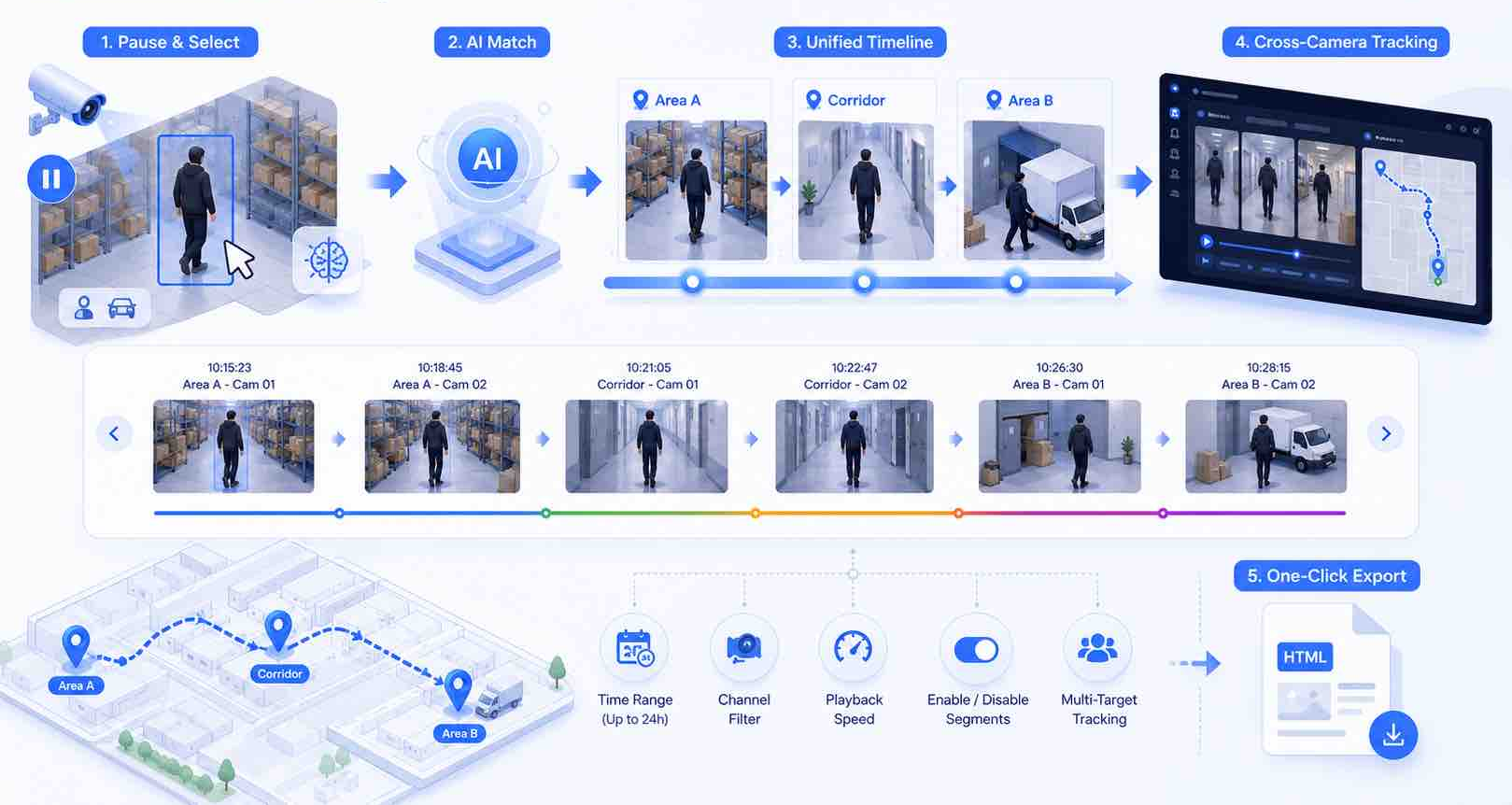
Background & Purpose
During security reviews, tracking a target across cameras used to require manually opening multiple recordings and jumping between timestamps. Now, simply pause the video, select a target, and the system automatically retrieves all appearances across cameras on a unified timeline for synchronized playback, making cross-camera tracking simpler.
Key Features
-
Pause to Detect: Pause at any moment during playback, and the system will automatically identify people in the frame with bounding boxes. Click to select your tracking target.
-
Unified Timeline Playback: Once a target is selected, the system retrieves all appearances of that target across all channels for the day, generating a timeline for synchronized multi-channel playback.
-
Dynamic Target Addition: While the timeline is playing, you can pause at any time, select a newly appearing target, and add it to the current tracking list for parallel multi-target tracking.
-
Map Integration: If an e-map is configured, you can view the target's movement trajectory on the map during playback for clear spatial context.
-
Flexible Parameter Adjustment: Modify the time range (up to 24 hours), filter cameras, adjust playback speed, and disable/enable specific segments on the timeline at any time.
-
One-Click Export & Archive: After tracking, package the entire timeline and associated video clips into an HTML report for offline playback without plugins—ideal for evidence preservation and sharing.
Example
Scenario: Items are missing from a warehouse, and a suspect is believed to have moved from Area A to Area B.
Operation: Pause the Area A video during playback, select the suspicious person → The system automatically generates a timeline of that person's appearances across all channels for the day → The timeline shows the complete trajectory from Area A, through the corridor, to Area B → Export the report with one click as evidence.
Limitations
-
The timeline only supports video channels; access control events are not currently supported.
-
A maximum of 2 persons or one person and one vehicle can be tracked simultaneously.
-
The maximum time range span is 24 hours.
-
Export functionality is available via the Portal, supporting both plugin-free and plugin-based methods.
Gun Detection
-
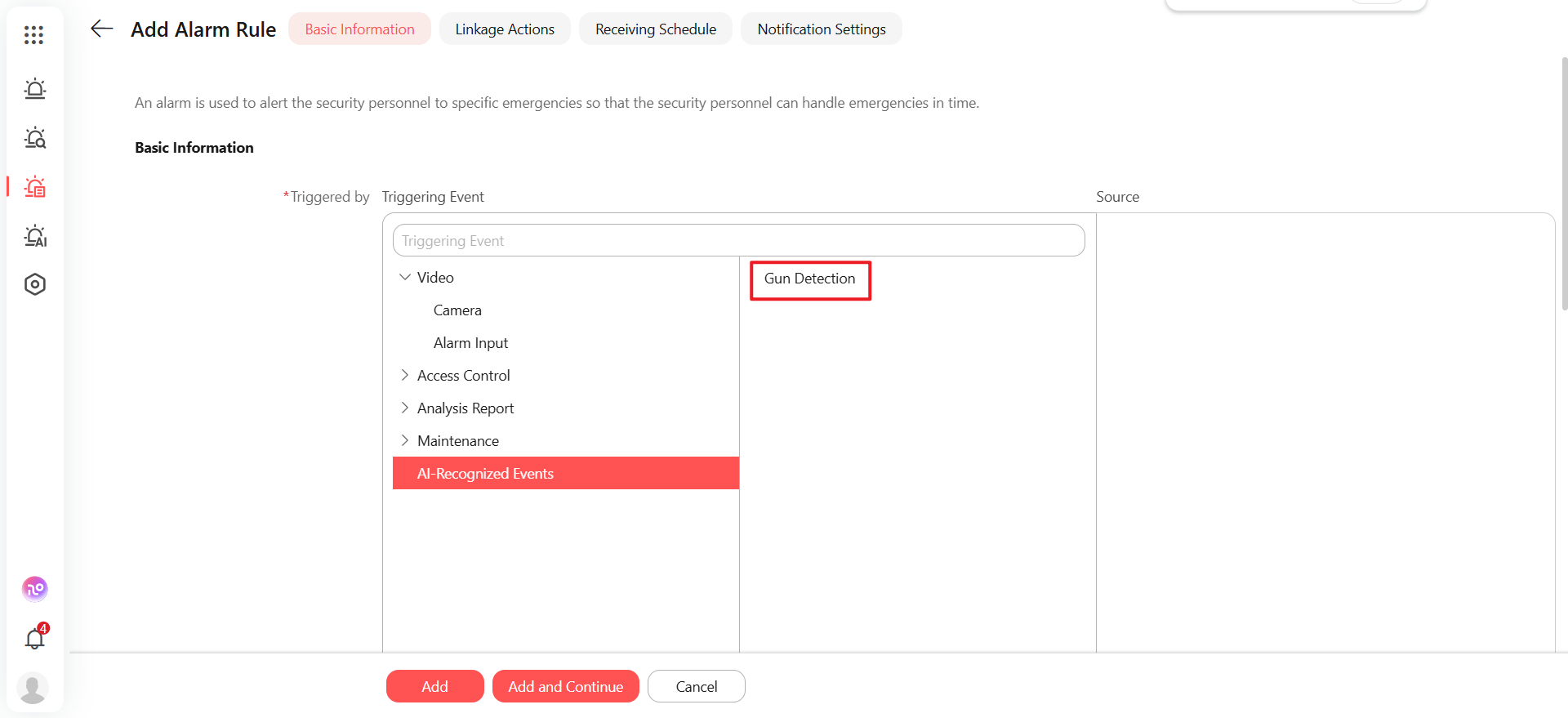
Go to .
-
Add an alarm rule and set Gun Detection as a triggering event.
Figure 11 Gun Detection
Background & Purpose
In high-risk places like schools, malls, and business parks, manual monitoring often misses firearms in real time, delaying responses. The Gun Detection feature uses AI vision to analyze live surveillance footage. When a suspected firearm is detected, an alarm is instantly triggered and pushed to you, shifting security from post-incident response to pre-incident intervention and saving valuable time.
Key Features
-
Real-Time Automatic Detection: When motion detection is triggered, the platform automatically analyzes captured images for firearms—no manual intervention required.
-
Detail View & Export: View alarm details and snapshots containing firearms. Export or save as evidence.
Example
A weapon appears in a crowded area, and the system pushes a real-time notification to you.
Limitations
Gun detection is based on motion-triggered snapshots; scenarios without motion detection cannot be analyzed.
AI Assistant (Video)
Click to open AI Assistant.
Background & Purpose
To help you quickly find critical information in massive video data and avoid tedious manual searches, this version introduces the AI Video Agent. It unifies video AI capabilities through natural language understanding, making tasks like footage retrieval and video analysis as simple as chatting.
Key Features
-
Natural Language Queries: Ask questions like "Did anyone enter the warehouse last night?" or "How many cars came in today?".
-
Smart Answers with Evidence: The system provides a direct text answer along with relevant video clips. Click to play and verify instantly.
-
Multi-Turn Conversation: Supports follow-up questions within context. For example, ask "Did John appeared in these clips?", and the system understands the context automatically.
-
Multi-Channel Q&A: In Team mode, you can ask questions across multiple cameras simultaneously, with results summarized by channel.
Example
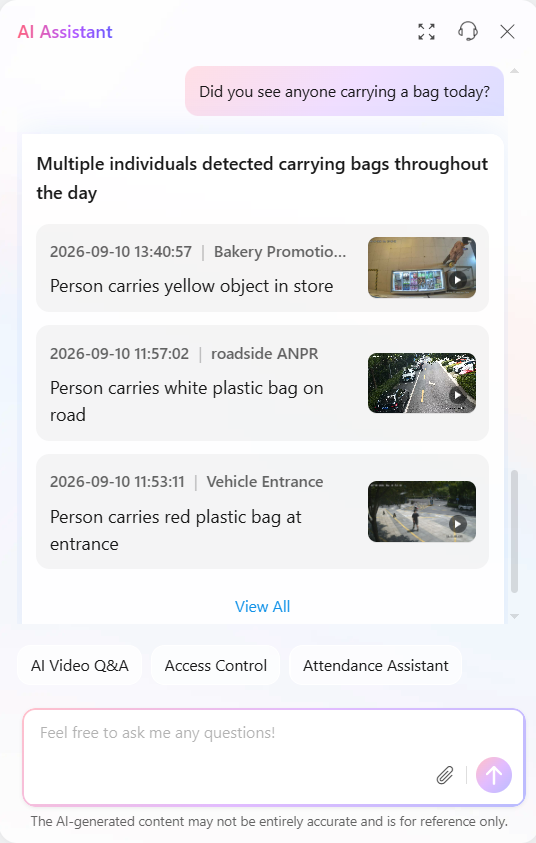
Q: Did you see anyone carrying a bag today?
-
2026-09-10 13:40:57 | Bakery Promotion
Person carries yellow object in store.
-
2026-09-10 11:57:02 | roadside ANPR
Person carries white plastic bag on road.
-
2026-09-10 11:53:11 | Vehicle Entrance
Person carries red plastic bag at entrance.
Limitations
-
Supported question types: occurrence (yes/no), count/frequency, time/period, behavior description, and target attributes.
-
When no time range is specified, the system defaults to searching the last 24 hours.
-
Supports up to 3 turns of contextual conversation.
AI Assistant (Access Control & Attendance)
Click to open AI Assistant.
Background & Purpose
Traditional access control systems are hard to use because they have many menus and pages. Tasks like checking attendance, setting up new employee access, or handling unusual events take a lot of time. To help non-technical users such as security guards, HR staff, and business owners, this version introduces Access Control Assistant. Just tell it what you need in simple words, and it will understand and do the task for you.
Key Features
-
Conversational Query & Insights
Quickly retrieve personnel swipe records, attendance status, and abnormal events via text or voice. Results are presented clearly with summaries and structured cards.
-
Example: "Who was late today?"
-
Example: "Which users with expired credentials still tried to enter the company in the last three days?"
-
-
One-Click Execution & Configuration
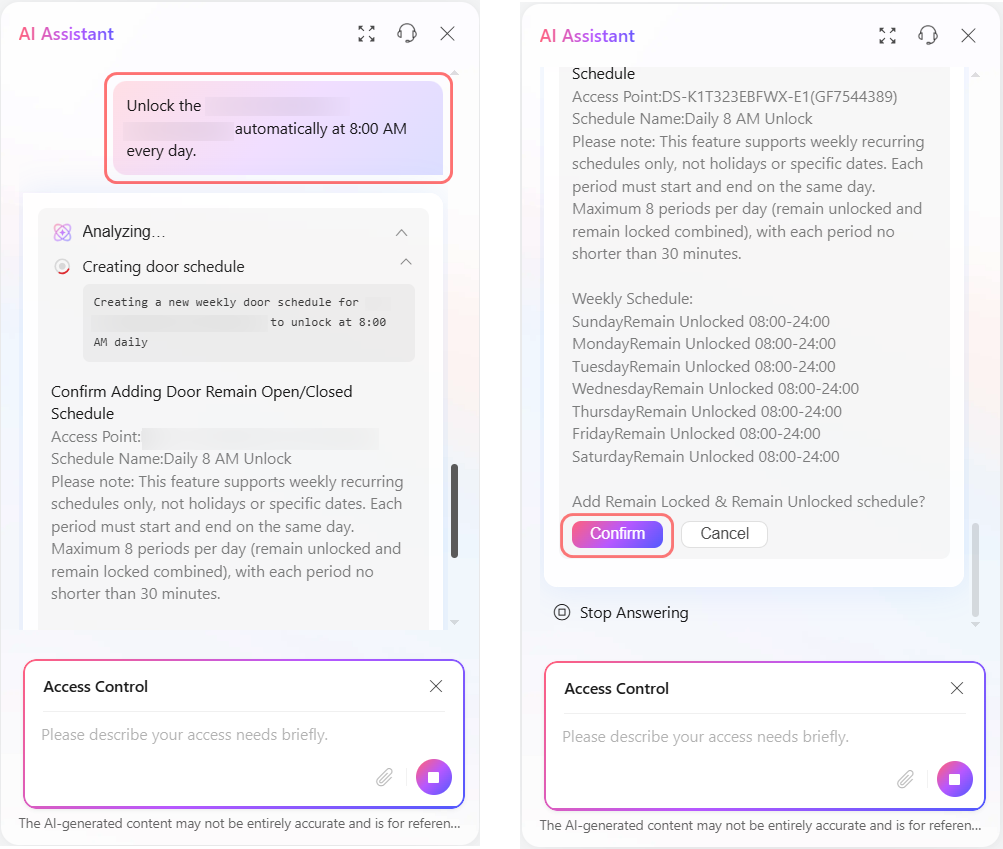
Supports remote door unlocking, revoking user access, and locking down door groups for specific areas. All execution commands require secondary confirmation from the admin to ensure safety.
-
Example: "Unlock the lobby front door."
-
Example: "Lock down all doors in the warehouse group."
-
-
Complex Task Automation
Automates multi-step workflows and provides clear step-by-step progress feedback.
-
Example: "Generate a temporary pass for visitor Jorge, valid for 10 uses today.
-
Example: "Export the attendance records for all employees from the past month."
-
-
Proactive Monitoring & Scheduled Tasks
Create scheduled tasks and receive proactive notifications upon completion, with a one-click option to cancel the plan.
-
Example: "Tell me who has arrived at the company every day at 10:00 AM."
-
Example: "Send me a summary of all abnormal door events today at 8:00 PM, with images and short video clips."
-
Example: "Unlock the south gate automatically at 8:00 AM every day."
-
Limitations
-
Permissions: This feature is only available to accounts with according privileges. Not available to self-service users.
-
Execution Confirmation: All non-query actions (e.g., unlocking doors, deleting permissions) require secondary confirmation from you.
-
Data Privacy: Your conversation history and feedback will be collected for service optimization. You must agree to the relevant terms before use. Sensitive information such as passwords will not be stored persistently.
Video
New Video Navigation
Focus: Personalized Event Subscription and Push
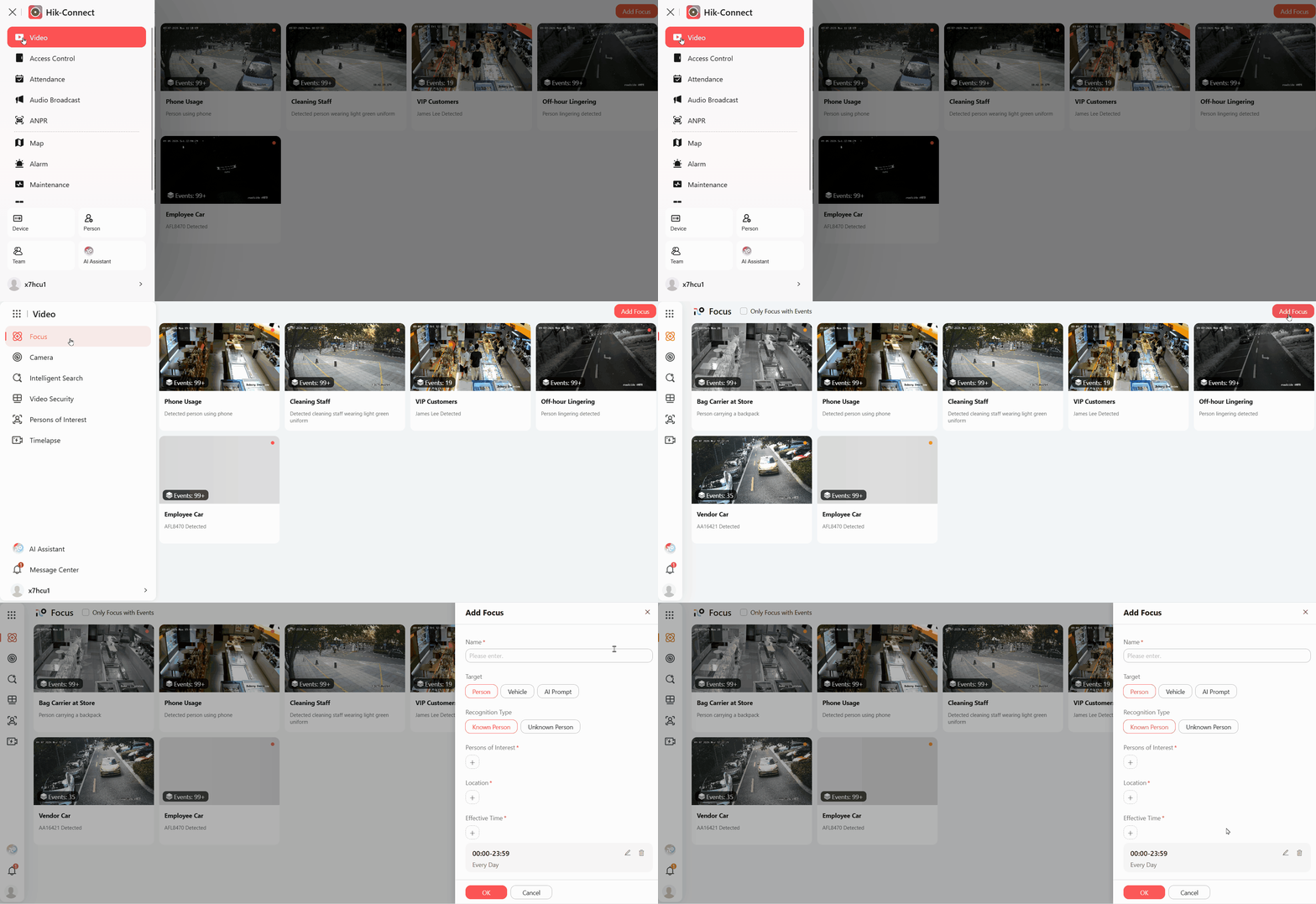
You can now configure focus targets and let the system proactively push matching events to you, reducing the need for manual searching.
-
Focus Configuration: Supports three types of focus objects.
-
Person: Select specific targets from the personnel database, or focus on all "unknown persons."
-
Vehicle: Select specific targets from the license plate database, or focus on all "unknown vehicles."
-
AI Customization: Input text descriptions (e.g., "white minivan"), and the system performs semantic matching.
-
-
Smart Push: Cloud AI matches focus targets in real time, generates events, and pushes them as cards to the home page.
-
Quick Focus: Add targets to the focus list with one click during video playback or event retrieval.
-
Map Linkage: Visually display the locations of focused events on the map.
Camera Wall
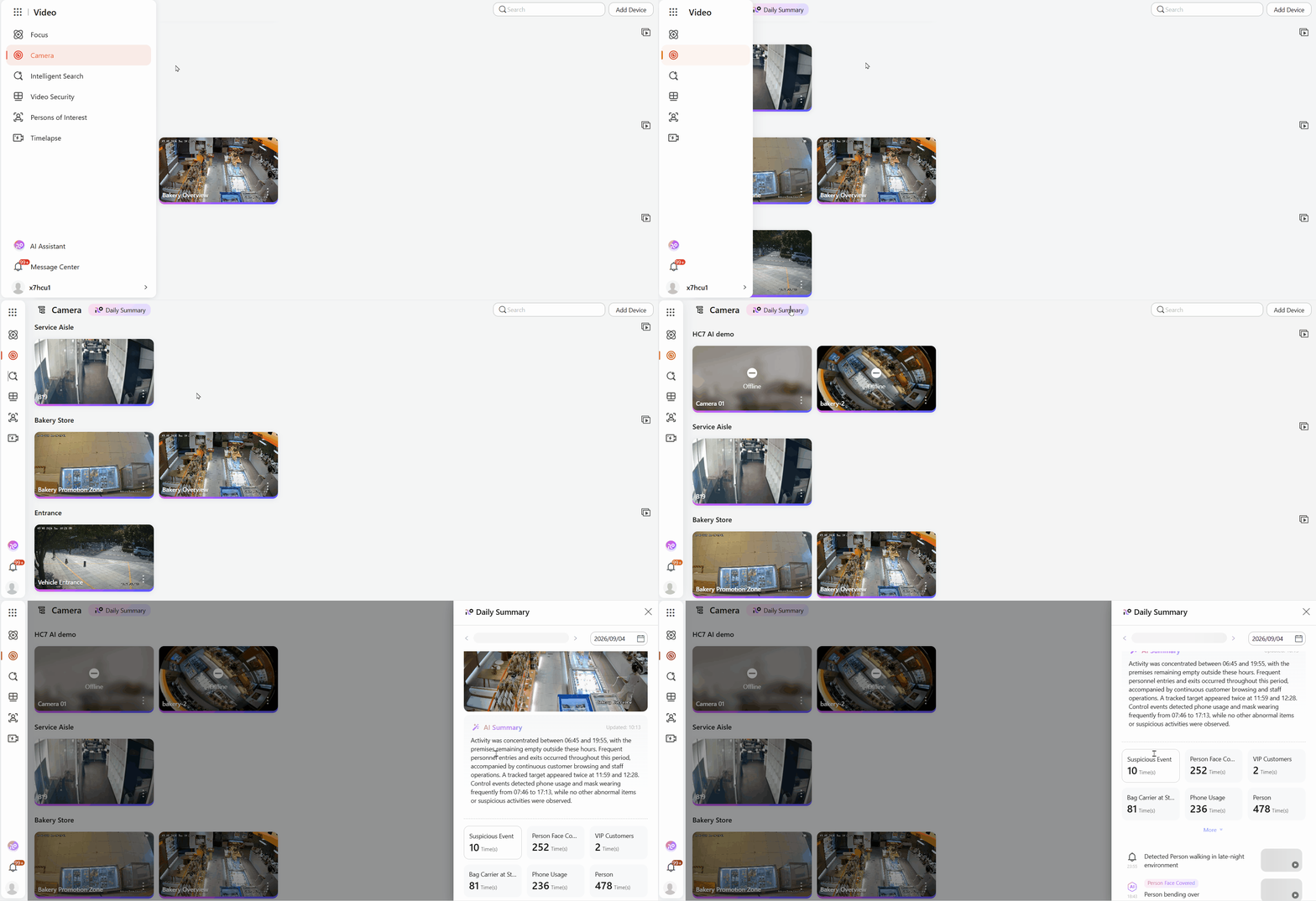
The camera list is upgraded to a dynamic video wall to improve browsing efficiency.
-
Dynamic Cover: Cover images support low-frame-rate rotation, refreshing periodically to display real-time footage.
-
Batch Operations: Support multi-select batch preview of cameras, or one-click jump to the centralized monitoring page for batch playback.
-
Single Camera Details: Click a camera to enter its details page, which supports preview, event retrieval, historical recording retrieval, and other complete functions.
Intelligent Search
The retrieval entry is placed at the top, with new multi-dimensional retrieval capabilities to improve retrieval efficiency and accuracy.
-
New Retrieval Methods: Support face retrieval, license plate retrieval, text-to-image search, and cross-device retrieval.
-
Category Filtering: Add three dimensions, "All," "Known," and "Unknown," to quickly filter target identities.
-
Quick Search: Directly display personnel lists and license plate lists; select to search.
-
Result Operations: Retrieval results support embedded video preview and intelligent image search, and targets can be added to the "Focus" group with one click.
Reconstructed Video Security Page
A redesigned vertical timeline makes it easy to switch seamlessly between live view and playback.
-
Vertical Time Axis: Each window adds a vertical time axis, using different colors to distinguish recording types and event labels, with support for zooming and filtering.
-
Preview/Playback on the Same Axis: Dragging the time axis to the current moment switches to preview mode; dragging it to a historical moment switches to playback mode, with automatic mode switching.
-
Synchronized Playback: Supports up to 16 windows for synchronized playback; operating any window triggers synchronized responses in the other windows.
-
Intelligent Image Search: Automatically identifies target outlines when paused; clicking retrieves the target's event trajectory.
Persons of Interest
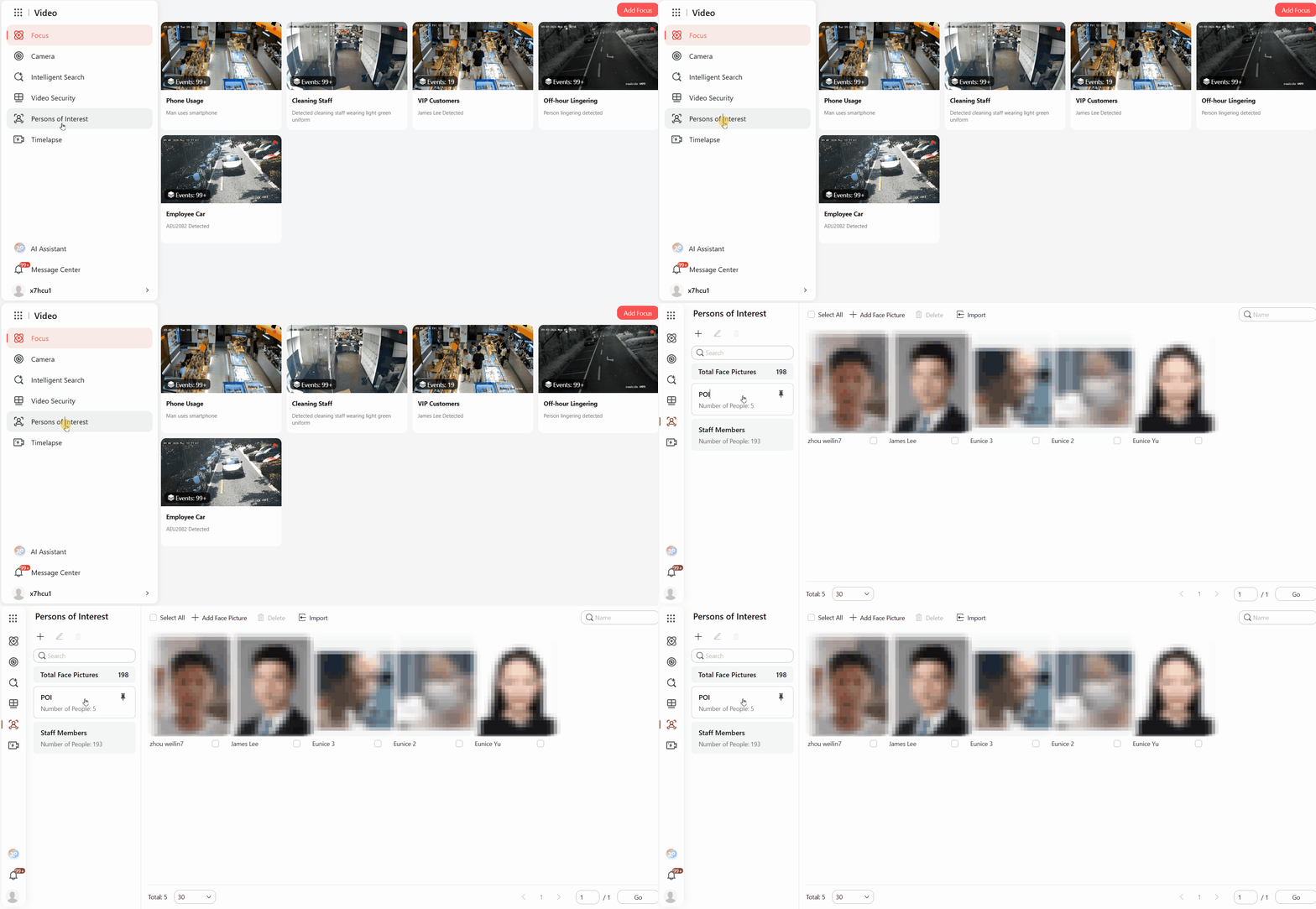
Adds persons of interest list.
-
Group Management: Supports custom person groups.
-
List Management: Supports adding, deleting, editing, searching for persons.
-
Cross-Module Integration: The name list is fully integrated with event retrieval, trajectory tracking, Focus, and other functions.
-
Quick Focus: Targets identified during video playback can be added to a list with one click.
Animal Detection for 5 and 7 Series Cameras
This update introduces animal category detection for the perimeter alarm function on 5 and 7 series IPCs, helping you determine alarm types more accurately and reduce false alerts.
Applicable Devices
-
Primary compatible models: iDS-2CD5T47G2/V-XS, iDS-2CD7A46G2-IZHSY, and other 5 and 7 series models.
-
Supports both direct camera-to-cloud connection and connection via NVR to cloud.
Central Monitoring: Animal Event Filtering and Display
-
Event List: A new "Animal" filter option has been added to the right-side event list, allowing you to filter events by animal type.
-
Playback Timeline: On the playback page, the timeline panel now includes an animal type filter.
Event Search: Animal Type Support
The intelligent search module now includes an animal event type search entry, enabling independent retrieval of animal events.
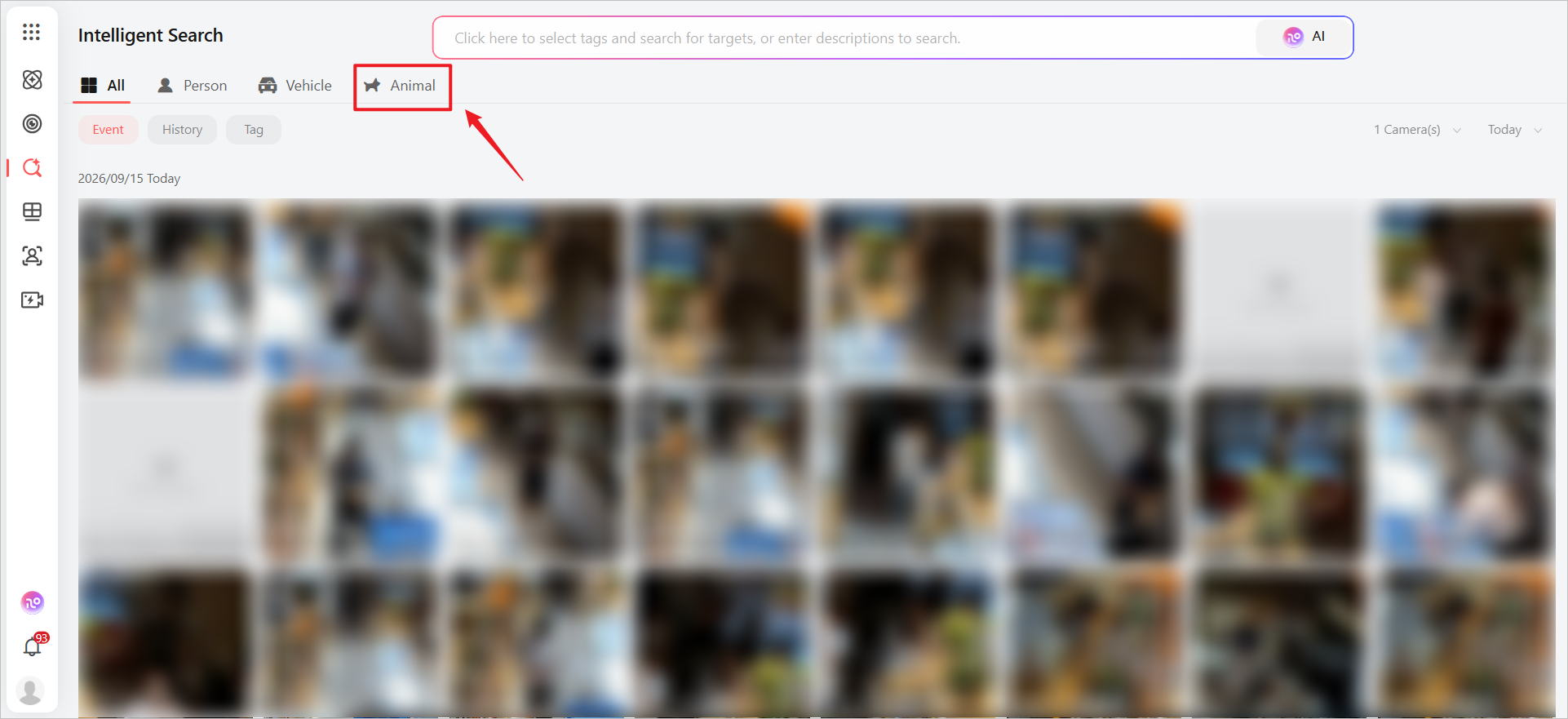
AI Assistant: Animal Event Support
When entering animal-related descriptions (e.g., "dog", "cat") in the text search entry, the system will automatically recognize them and return matching animal event results.
App Support
-
The playback timeline and card mode now support animal event recording display and animal tags.
-
Animal event search and text search are also supported.
Person/Vehicle Filtering for Cloud-Connected Cameras (Mobile Client)
Previously, person/vehicle classification in HC App playback required an NVR, adding cost and complexity for single-camera users. Now, cameras directly connected to the cloud can use this feature in the HC App, provided the device supports it.
Access Control
New Access Control Dashboard
-
The Access Control Dashboard provides a unified interface for monitoring devices, managing access tools, and tracking events in real time.
-
Main Page: See all your devices at a glance, with image, name, online status, and door lock state.
-
Upper-Right Panel: One click to manage your most-used tools: persons, access levels, and temporary passes.
-
Bottom-Right Panel: Follow every access event as it happens, live and up to date.
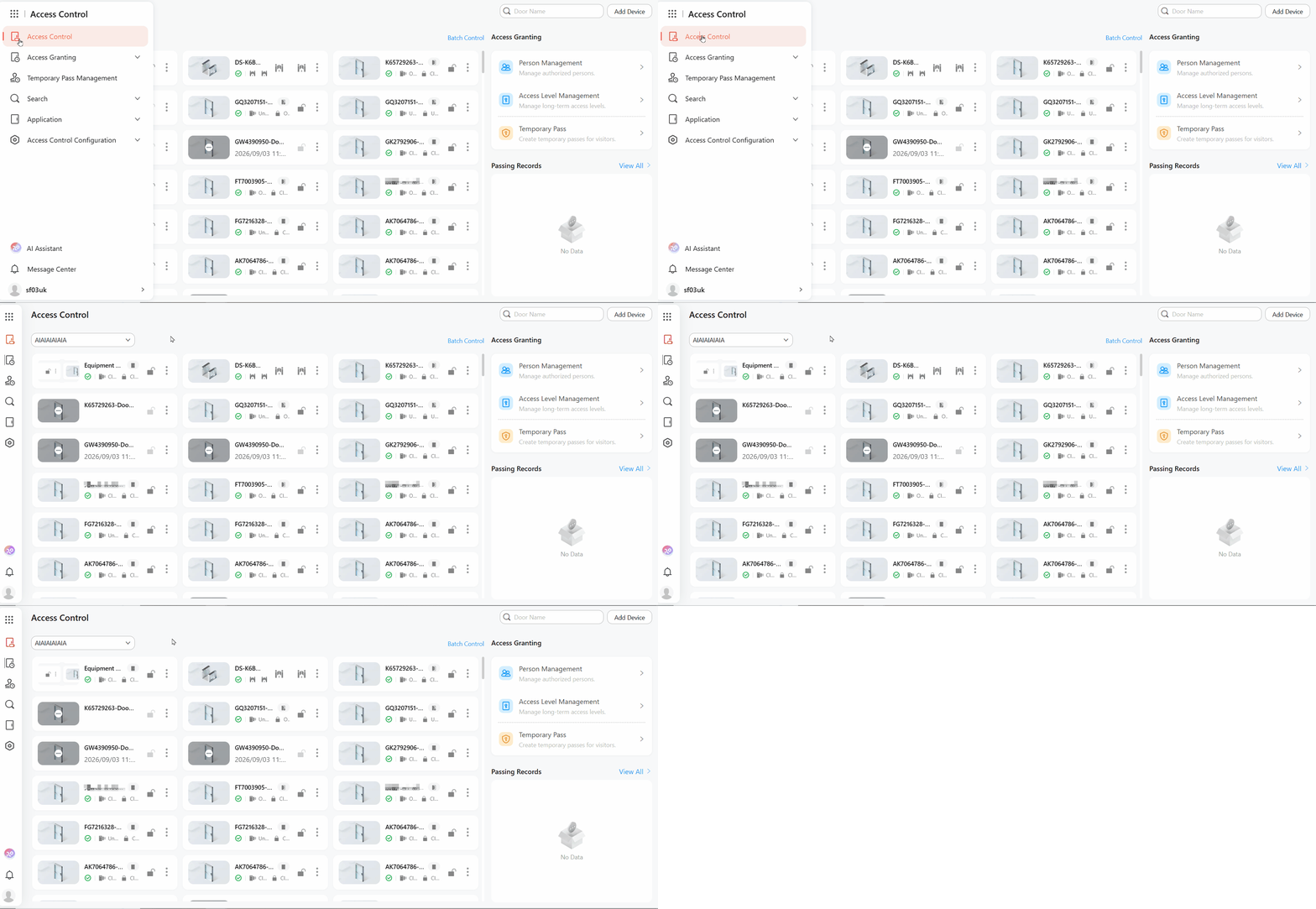
Figure 19 Access Control Dashboard -
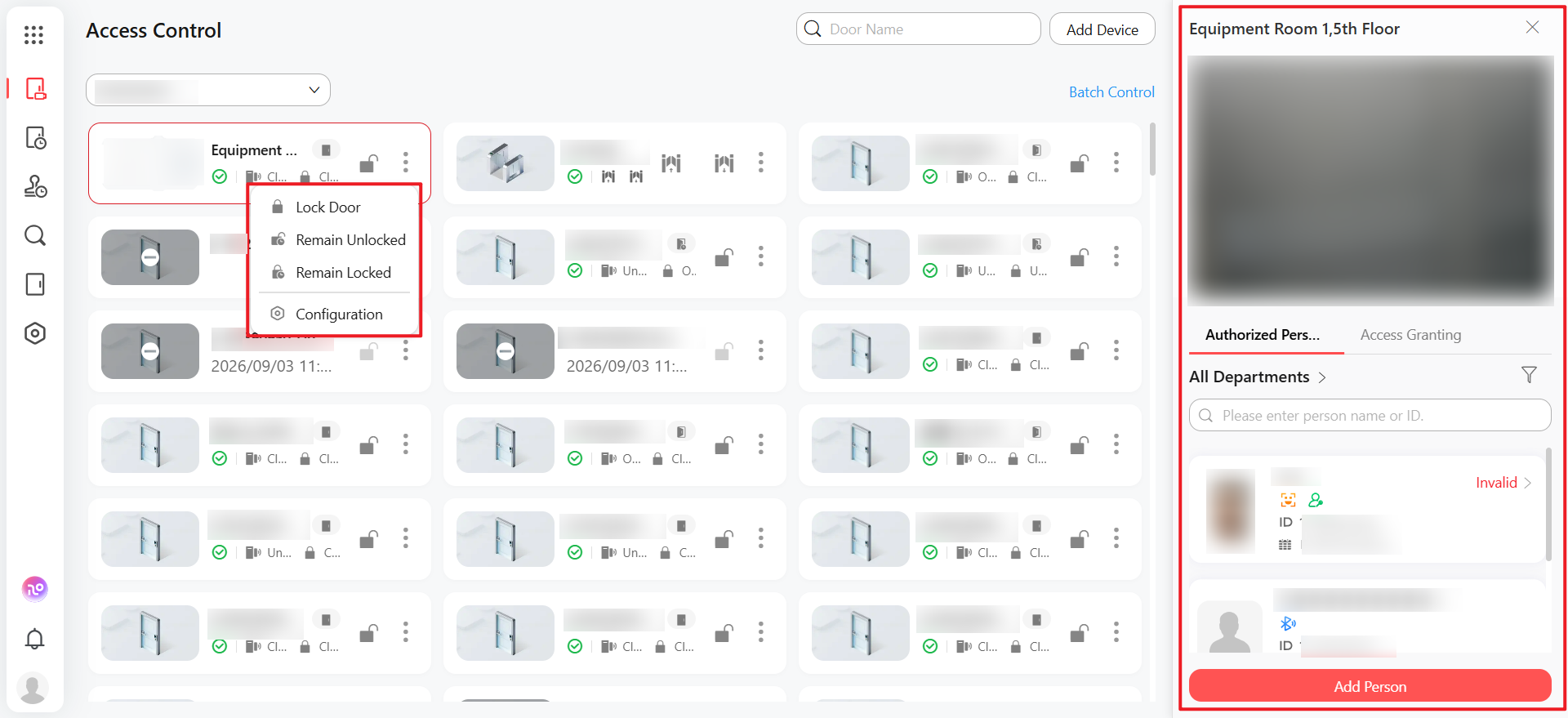
Video-Integrated Access Control: This update brings door status, live video, and remote control together on one screen, so you can see what’s happening, verify the situation, and take action all from a single place.
Figure 20 Video-Integrated Access Control
Compatible with Swing Barrier
This update adds support for specified swing barrier models, enabling unified cloud management for access control scenarios.
Overview
Swing barriers are widely deployed at entrances and exits of residential communities, office buildings, and similar scenarios. With this update, the platform officially supports specified swing barrier models, with cloud capabilities fully aligned with standard access control devices, including device enrollment, person permission management, and visitor QR codes.
Device Adding
-
Swing barrier devices can be added via serial number, SADP device discovery, QR code scanning, and batch import.
-
After enrollment, devices are categorized under the "Swing Barrier" sub-type within the Access Control category.
-
A floor range must be specified during enrollment (default: 1-16 floors). The batch import template has been updated accordingly.
Entry/Exit Direction Configuration
-
Supports configuring entry and exit directions for swing barriers, consolidating the device's two physical doors into a single bidirectional door for simplified management.
-
The configuration interface can load a device image, with an animation effect when switching between entry and exit directions.
Device Details and Parameter Configuration
-
Supports viewing device information such as version number, model, serial number, Wi-Fi, and MAC address.
-
Supports remote configuration of device parameters, including door parameters, reader parameters, M1 card encryption, and RS-485 settings (subject to actual device capabilities).
-
Supports linking cameras, associating entry/exit directions with corresponding surveillance channels.
Alarm Support
The Access Control alarm type now supports swing barrier-related alarm events.
Supported Models
Software and hardware release schedules may vary. Refer to the compatibility list for specific details.
Compatible with MinMoe Devices and Alcohol Detection Peripherals
With this update, the HC Team platform officially supports new MinMoe device models including 673 and the alcohol detection peripheral for the 673 device, enabling real-time reception, querying, and management of alcohol detection events.
Go to to enable or disable alcohol detection on a per-device or batch basis. When enabled, you can configure the alcohol concentration unit, drinking threshold, and intoxication threshold.
Intercom
Notice Delivery (Free for a Limited Time)
This update adds a Notice Management feature to the HC-T Portal, so property managers can send regular and emergency notices directly to the resident app.
Go to .
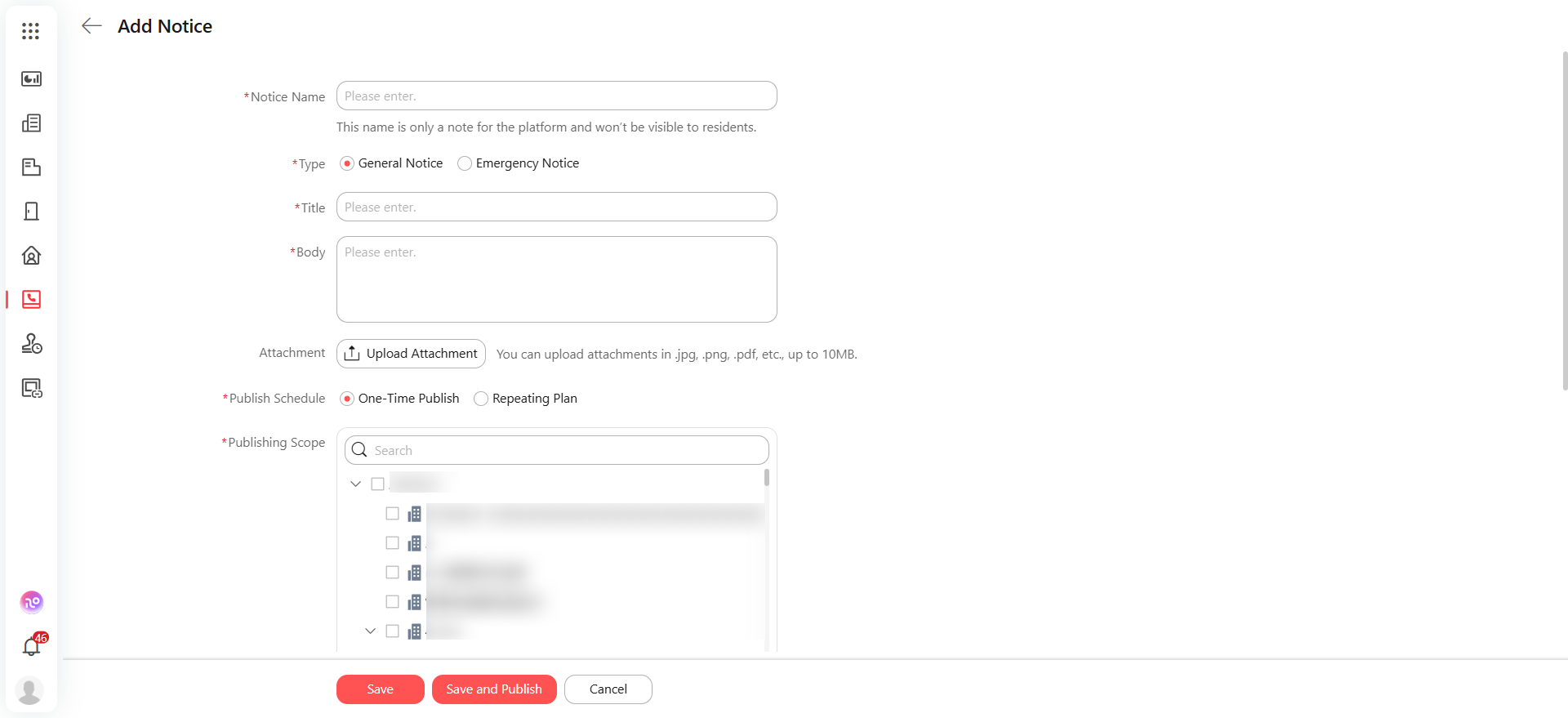
Property managers can now deliver notices to residents through the HC-T Portal, replacing traditional paper bulletins. Two notice types are supported: General Notices for daily updates with image and PDF attachments, and Emergency Notices that trigger an immediate pop-up with an alert sound on the resident app.
Managers can select recipients by unit, building, or the entire community, and set one-time or repeating schedules. Publishing records can be managed, exported, and deleted in batch.
On the resident app, a new "Notices" category has been added to Notification. Emergency notices are text-only, and attachments are limited to jpg, png, and pdf formats.
Call Evidence Upload (Free for a Limited Time)
After remotely opening a door for a resident, administrators can optionally upload proof of authorization, such as a selfie taken with the computer's camera. The resident receives a notification on their app and can view the evidence.
-
After the call, the Portal prompts whether to upload door open evidence. The administrator can choose Upload Evidence or Skip.
-
Select a room from the building and room list. The system displays the resident's information for confirmation.
-
The system invokes the computer's camera to capture a selfie of the administrator as proof.
-
A notification is pushed to the resident's app, and the resident can view the door open details and evidence attachment in the app.
-
On the Portal's call record page, administrators can filter records by Evidence Uploaded and view or download the evidence.
-
Credential upload is optional; the manager can skip it.
-
The credential photo must be captured in real-time using the computer's camera; local file upload is not supported.
-
If the selected room is not linked to any resident account, the credential cannot be uploaded, and a new room must be selected.
-
Only models that support cloud intercom are supported.
General
Batch Device Compatibility Detection
This update introduces a batch device compatibility detection tool for HCT. Previously, adding legacy devices required checking compatibility one by one. Now, you can simply upload an Excel file and run compatibility analysis on up to 50,000 devices at once.
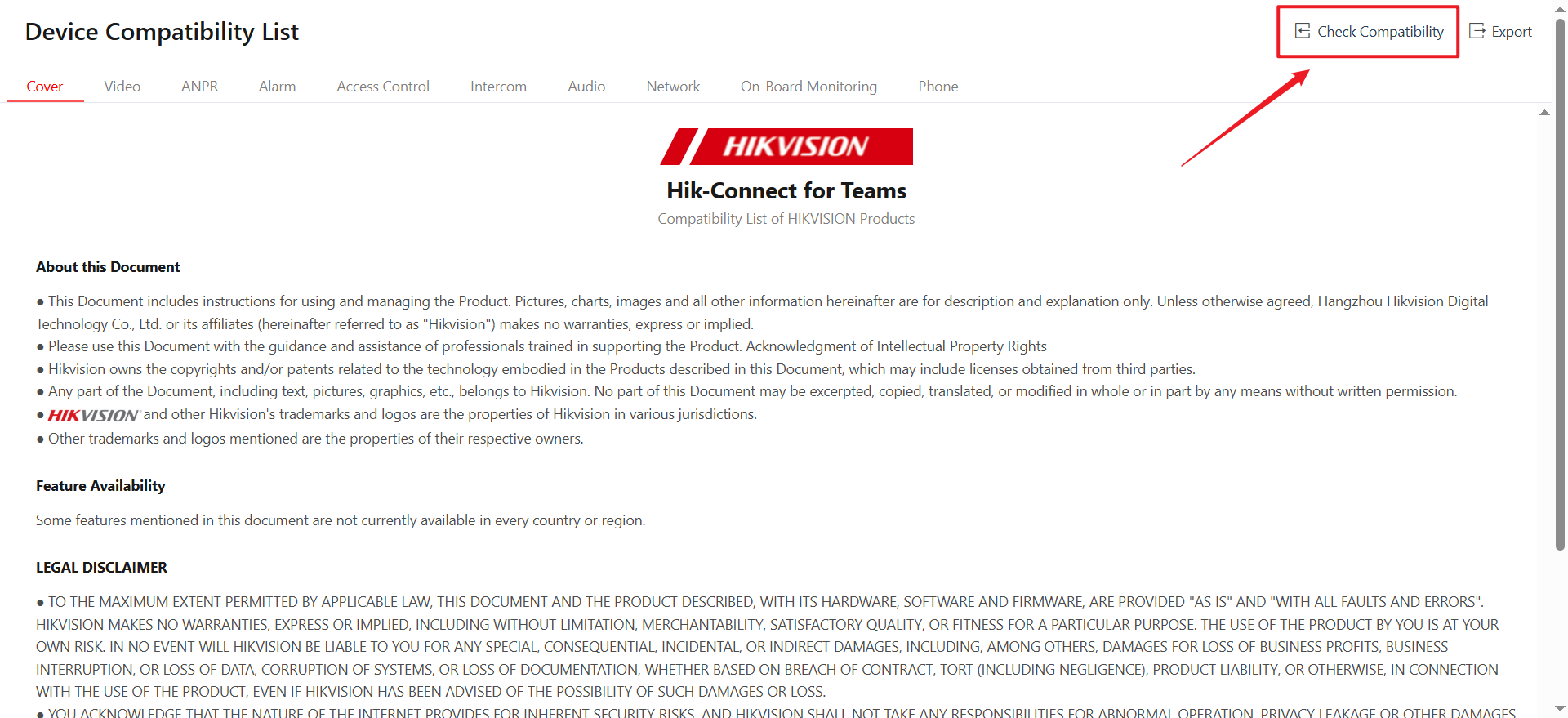
Key Features:
-
Batch Upload: Download the template, fill in the device model (required), serial number (optional), and firmware version (optional), then upload the file for batch detection.
-
Intelligent Analysis: The system automatically checks each device's compatibility with HCT and generates an Excel report. The report clearly marks each device as "Supported" or "Not Supported," along with specific reasons for any incompatibility (e.g., "Version too low, upgrade required").
-
One-Click Import: Compatible devices can be imported into HCT directly from the report, streamlining project delivery.
Customizable Notification Sounds for Events (Mobile Client)
This update lets you set unique notification sounds for different alarm event types (e.g., Motion Detection, Intrusion Detection, Tamper Alarm), so you can instantly tell urgent alarms from routine notifications.
Key Features:
- Personalized Sound Configuration: Assign specific sounds to different alarm event types in the App's settings.
- Real-Time Preview: Sounds play immediately when selected, so you can compare and choose easily.
Automatic Freezing and Activation of Inactive Accounts
To optimize cloud resources and improve operational data accuracy, HC Team now automatically freezes non-paying systems that have been inactive for 60 consecutive days. When you need to use it again, simply log in and reactivate with one click—all data and configurations remain intact.
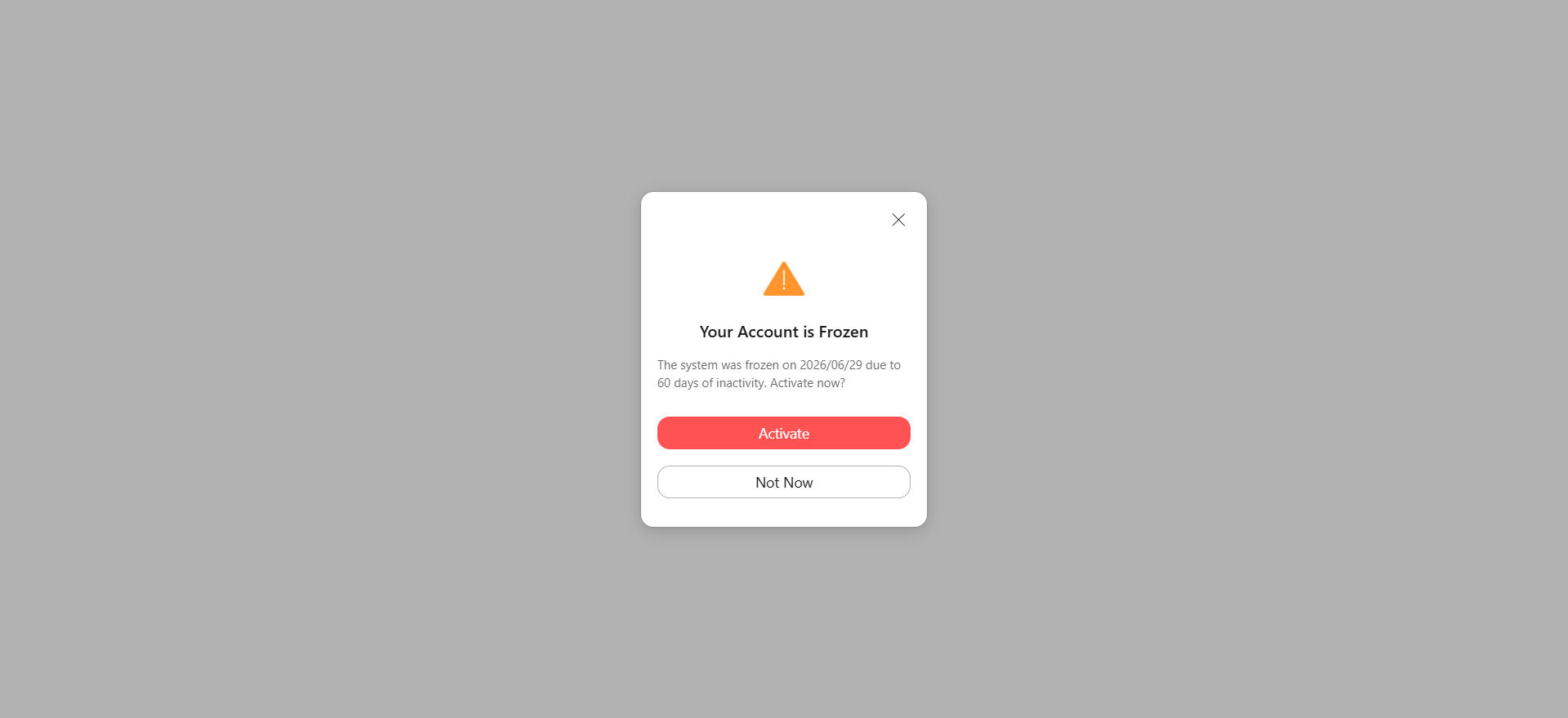
Key Features:
-
Automatic Identification & Notification: Inactive non-paying accounts are identified monthly. A pre-freeze reminder is sent daily via push notification and email (email-registered users only) for 7 consecutive days.
-
System Freeze: Background tasks (device inspection, event listening, video recording inspection, attendance calculation) are suspended. All data, configurations, and plan information are retained as is.
-
One-Click Activation: Upon logging in again, a pop-up shows the freeze date and asks if you want to "Activate." After clicking, a progress bar appears while all background services are restored. A system message confirms successful activation.