HikCentral ReGuard Service: Security Management Solution for Customers
HikCentral ReGuard (hereinafter referred to as HCRG) services are the value-added services offered by the HCRG. HCRG provides a security management solution that helps its users (i.e., remote monitoring center) with alarm receiving and handling.
The HCRG services are supported only in some countries/regions. For details, contact the local distributors or after-sales.
For What Kind of Customers & What You Can Offer to Them
|
For What Kind of Customers |
|---|
|
Remote Monitoring Centers (RMC) (for alarm receiving and handling, etc.). |
|
What You Can Offer to Them |
|
You can help customers install and set up a system with the following capabilities.
|
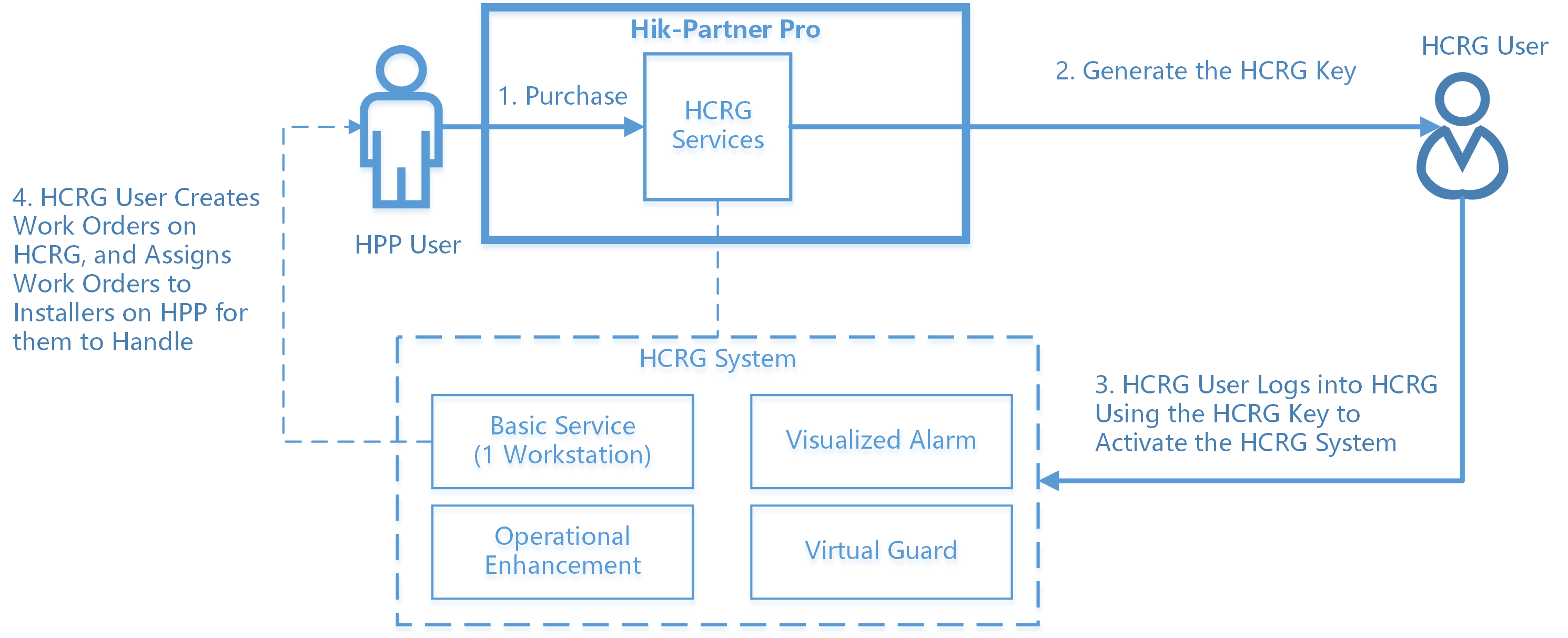
Overall Instructions for Service Providers to Provide HikCentral ReGuard Services
|
Role / Platform |
Description |
Related Topics |
|---|---|---|
|
Service Providers (Installers, etc.) on Hik-Partner Pro |
|
|
|
Customers (i.e., Remote Monitoring Centers) on HikCentral ReGuard |
|
Step 1: Get HikCentral ReGuard Services
You can purchase a service key from the local distributor first and then activate by the service key to get the purchased services.
Get Services by Service Key Using the Portal
-
Contact your local distributor and purchase a service key from them.
-
Go to .
-
In the HikCentral ReGuard Services area, click Activate by Service Key.
-
In the Service Key field, enter the service key.
-
Click OK.
Step 2: Generate HikCentral ReGuard Key for HCRG Activation
After you get the HCRG services by service key, you can generate an HCRG key for activating the HCRG system. Users can use your HCRG key to activate the HCRG services.
Generate the HikCentral ReGuard Key Using the Portal
-
Go to .
Figure 2 HikCentral ReGuard Service -
Click Generate. The key will appear on this page and be sent to the email of Installer Admin.
-
Enter the key on HCRG to activate the services.

(Optional) Step 3: Receive and Handle Work Orders
If your customer (RMC) assign work orders to your company, all installers with the Manage All/Assigned Site permission can receive the notifications, and can choose whether to handle the work orders.
Receive and Handle Work Orders Using the Mobile Client
-
Go to Me > > Site Message.
-
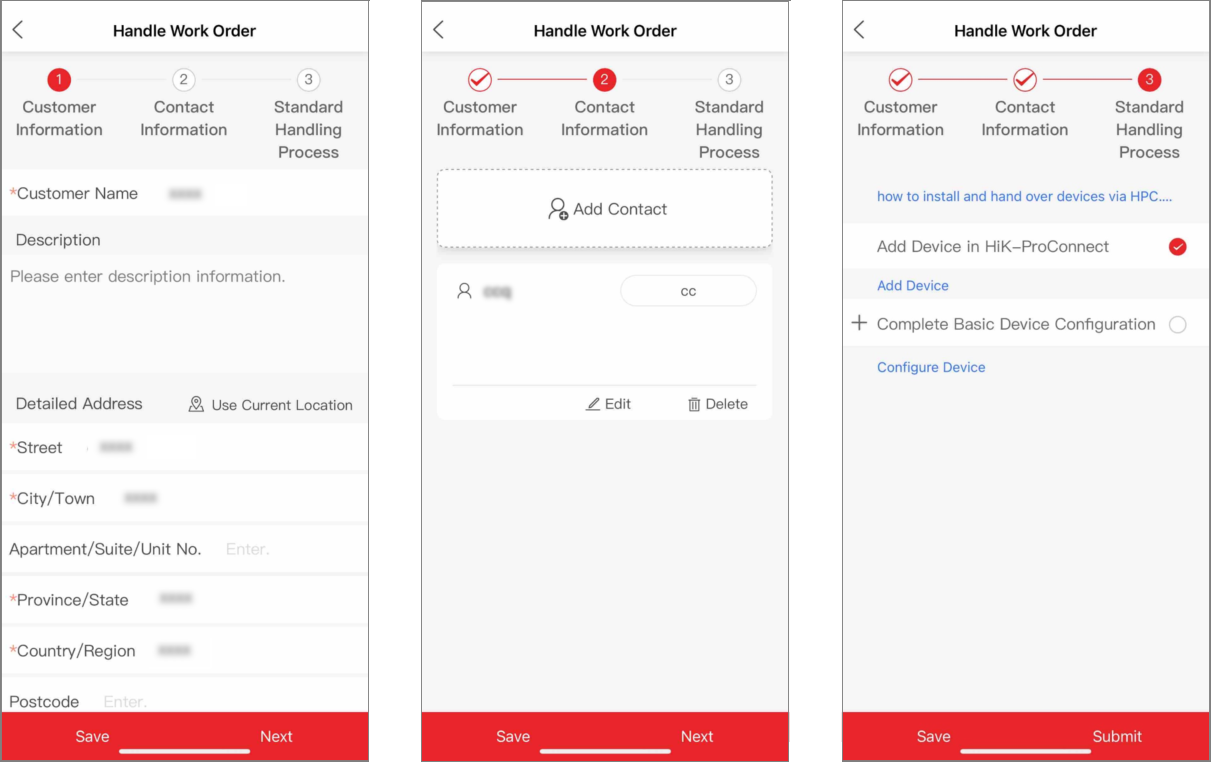
Find the work order and tap Handle New.
-
Go to the site, and install and configure the devices. After you complete, tap submit to submit the work order and hand over the devices to your customer's HCRG.
Figure 3 Handle a Work Order on the Mobile Client

Step 4: Manage HikCentral ReGuard Services
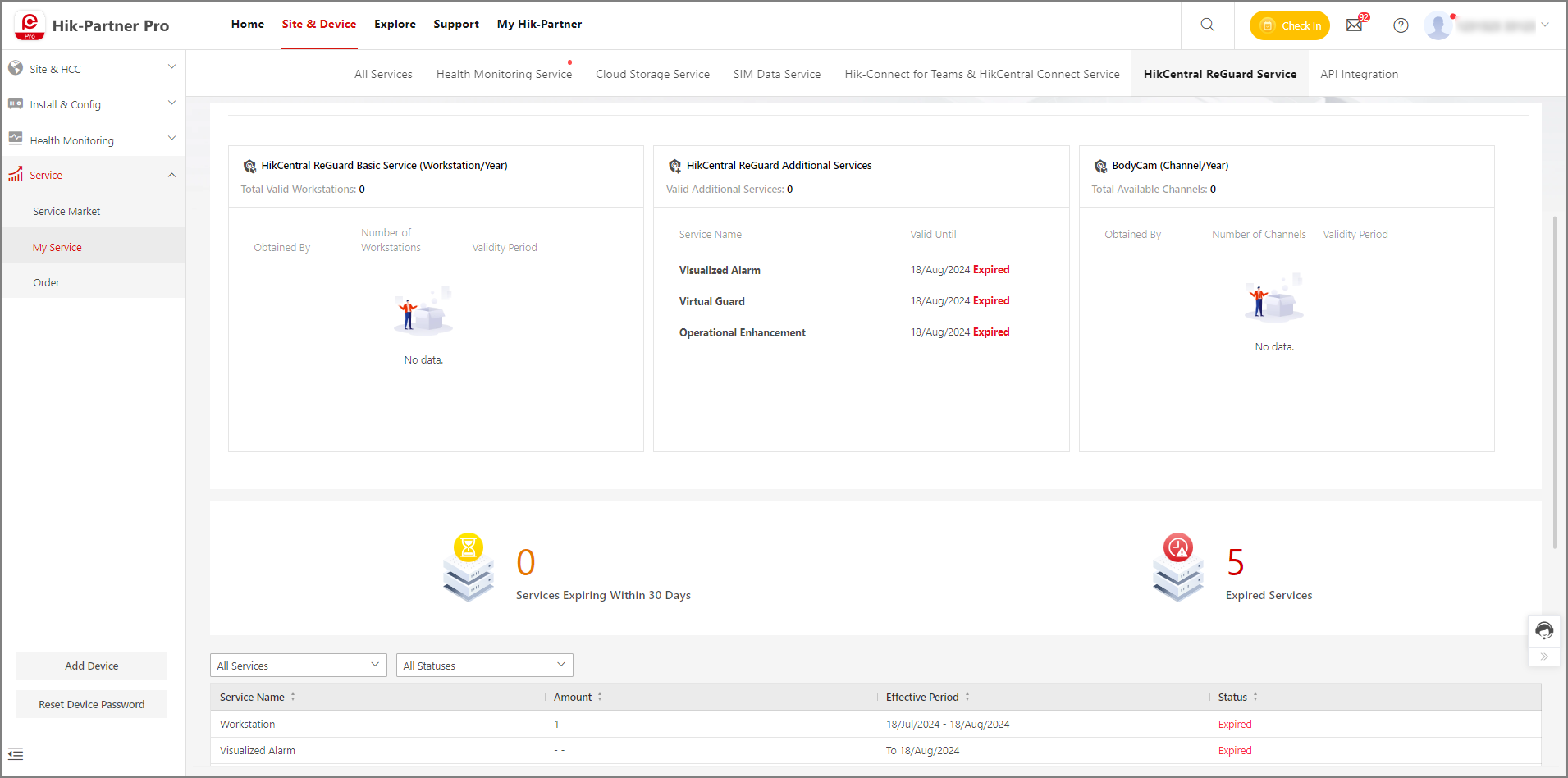
After purchasing and activating HCRG services, you can monitor the real-time status of HCRG services on Hik-Partner Pro, including the total number of valid workstations, the number of valid additional services, the number of services expiring within 30 days, and the number of expired services.
Manage HikCentral ReGuard Services Using the Portal
Go to .