Add Employees to Your Company and Remove Account Limit with Add-On
Step 1: Add Employees: Company Invites Employees or Employees Self-register Accounts
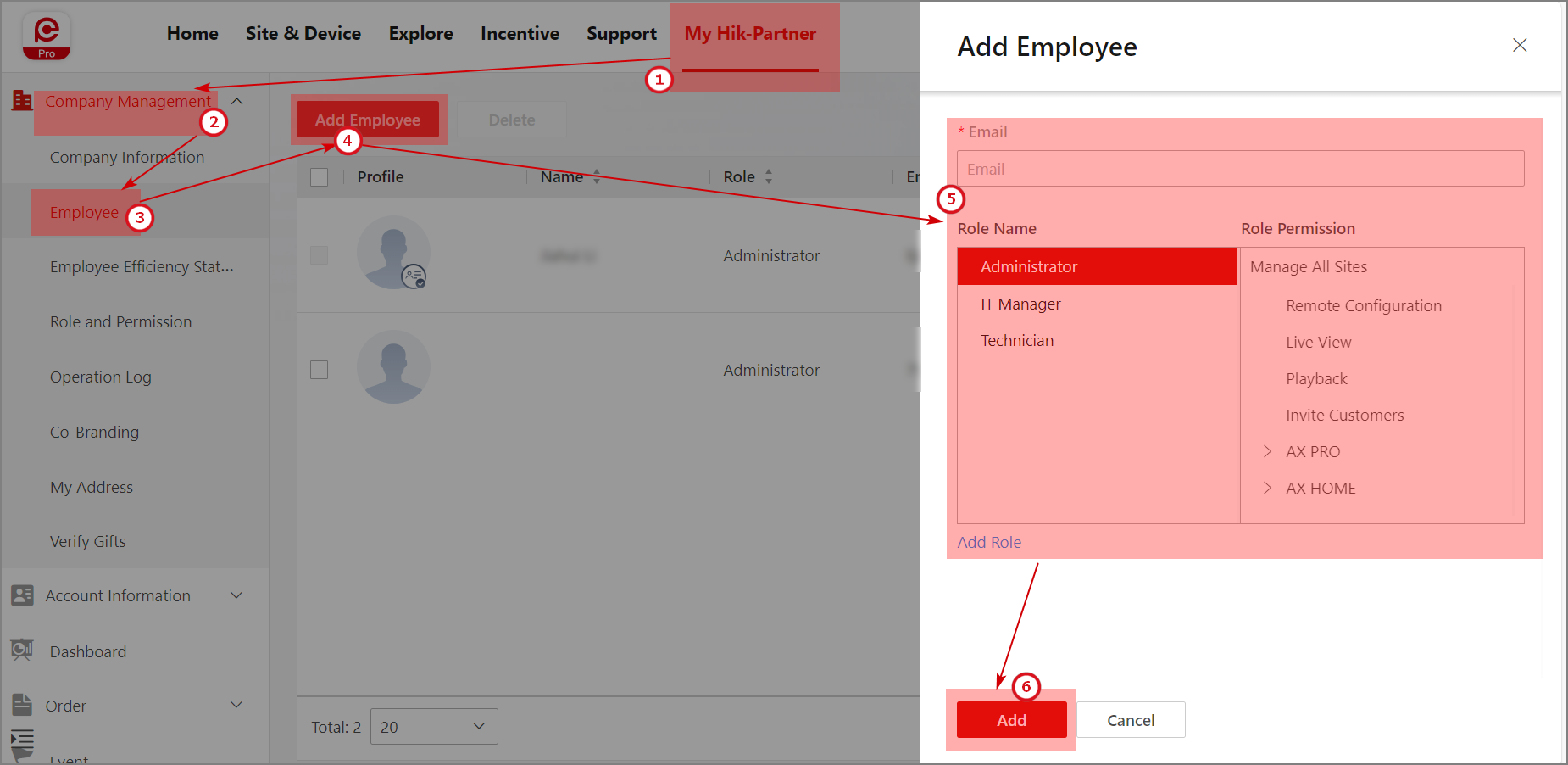
Company Invites Employees Using the Portal
Company Invites Employees Using the Mobile Client
Step 2: Employees Accept Registration Invitations or Self-register Accounts
|
Accept Registration Invitations |
After you are invited to register the Installer account, you will receive an email containing the link for registration. |
|
Self-register Accounts Without Invitations |
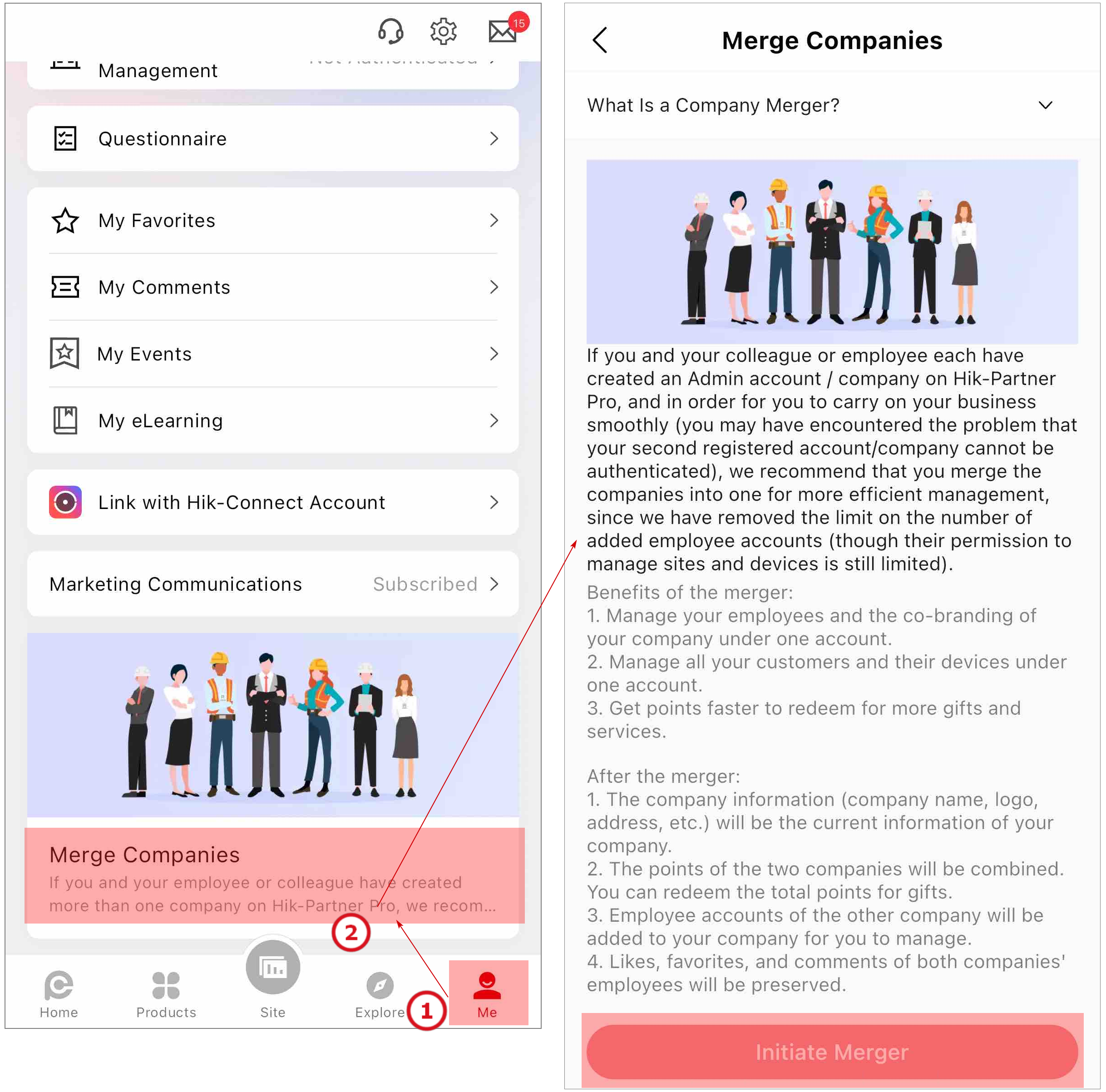
If there are companies with names similar to the company name you enter on the registration page, these companies will be listed, and you can apply to join one of them. |
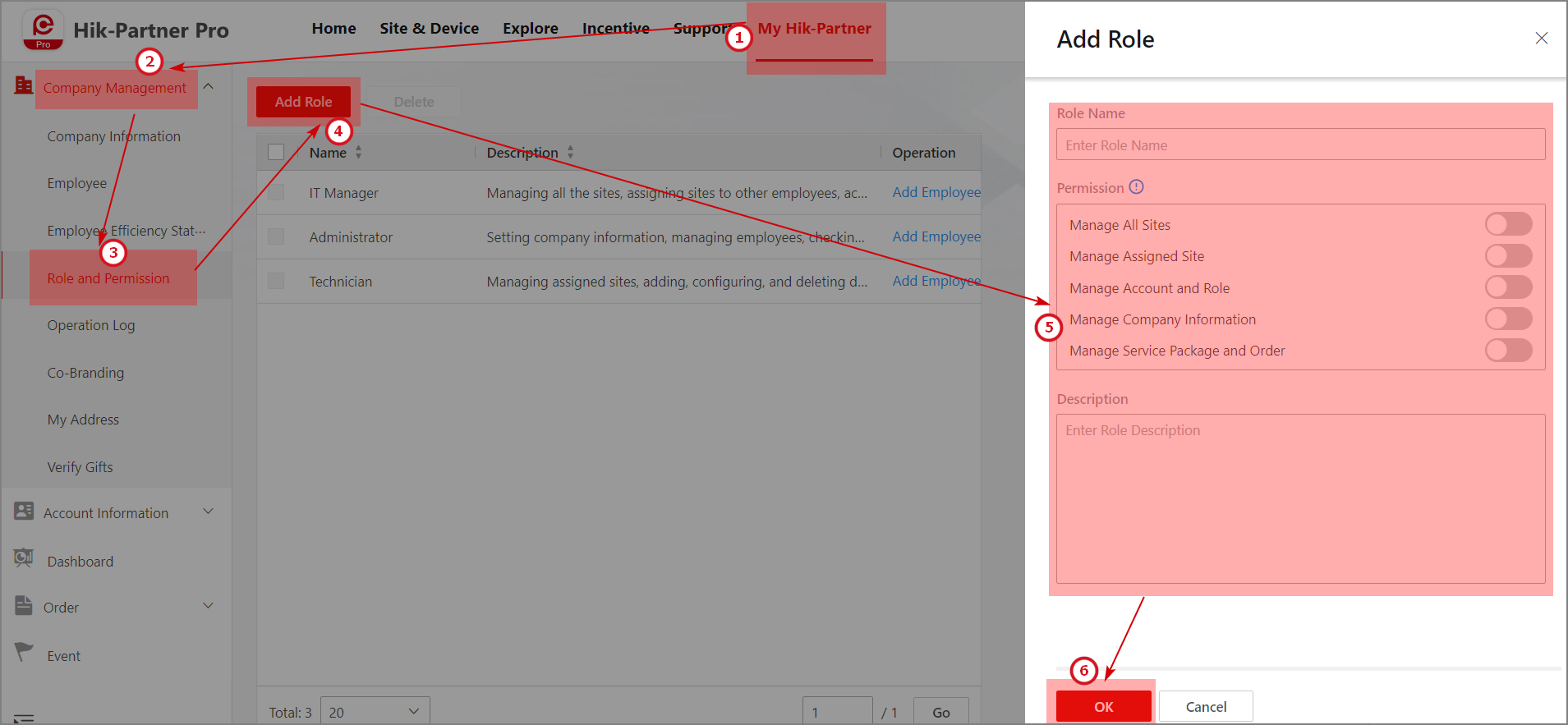
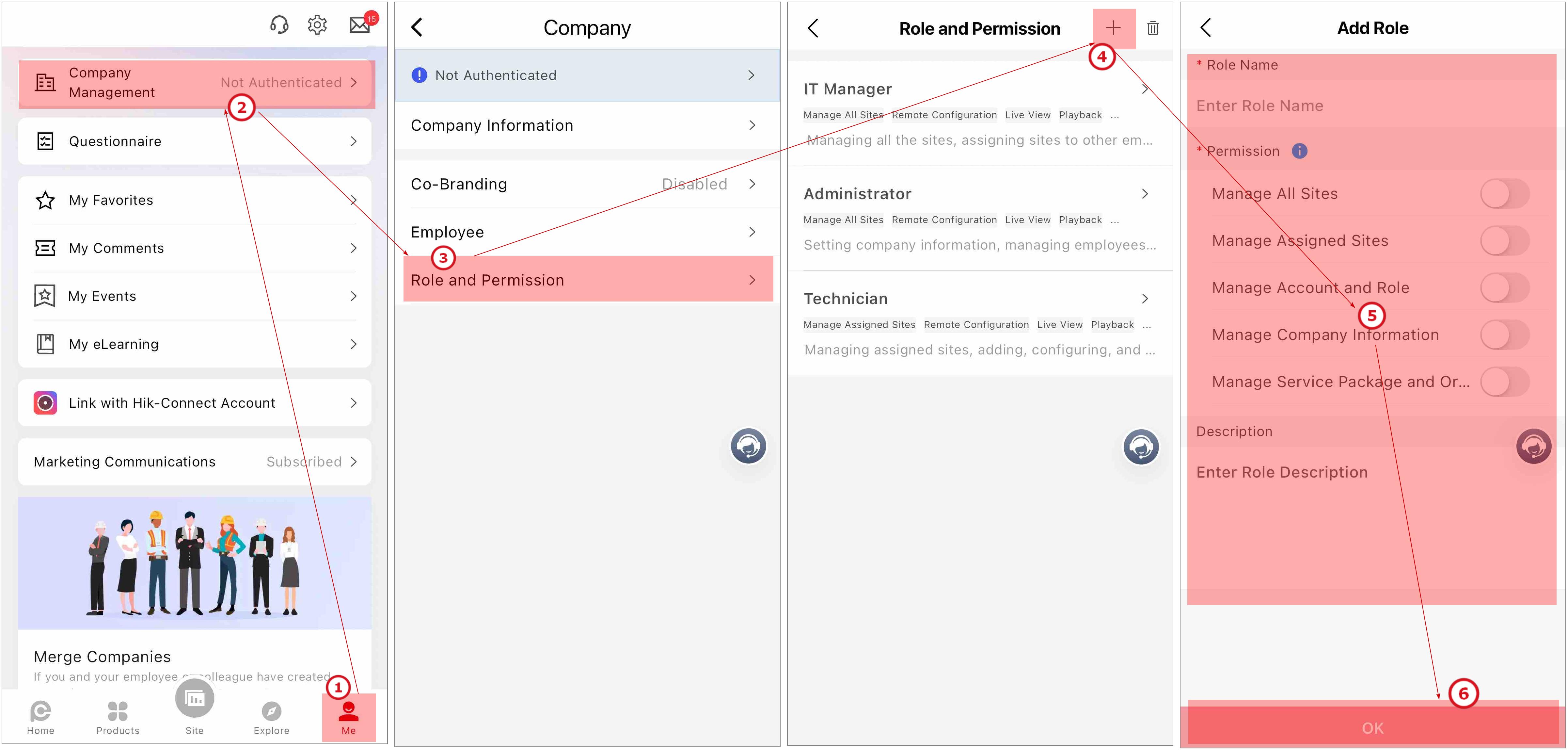
Step 3: (Optional) Add Role and Permissions
Add Role and Permissions Using the Portal
Add Role and Permissions Using the Mobile Client
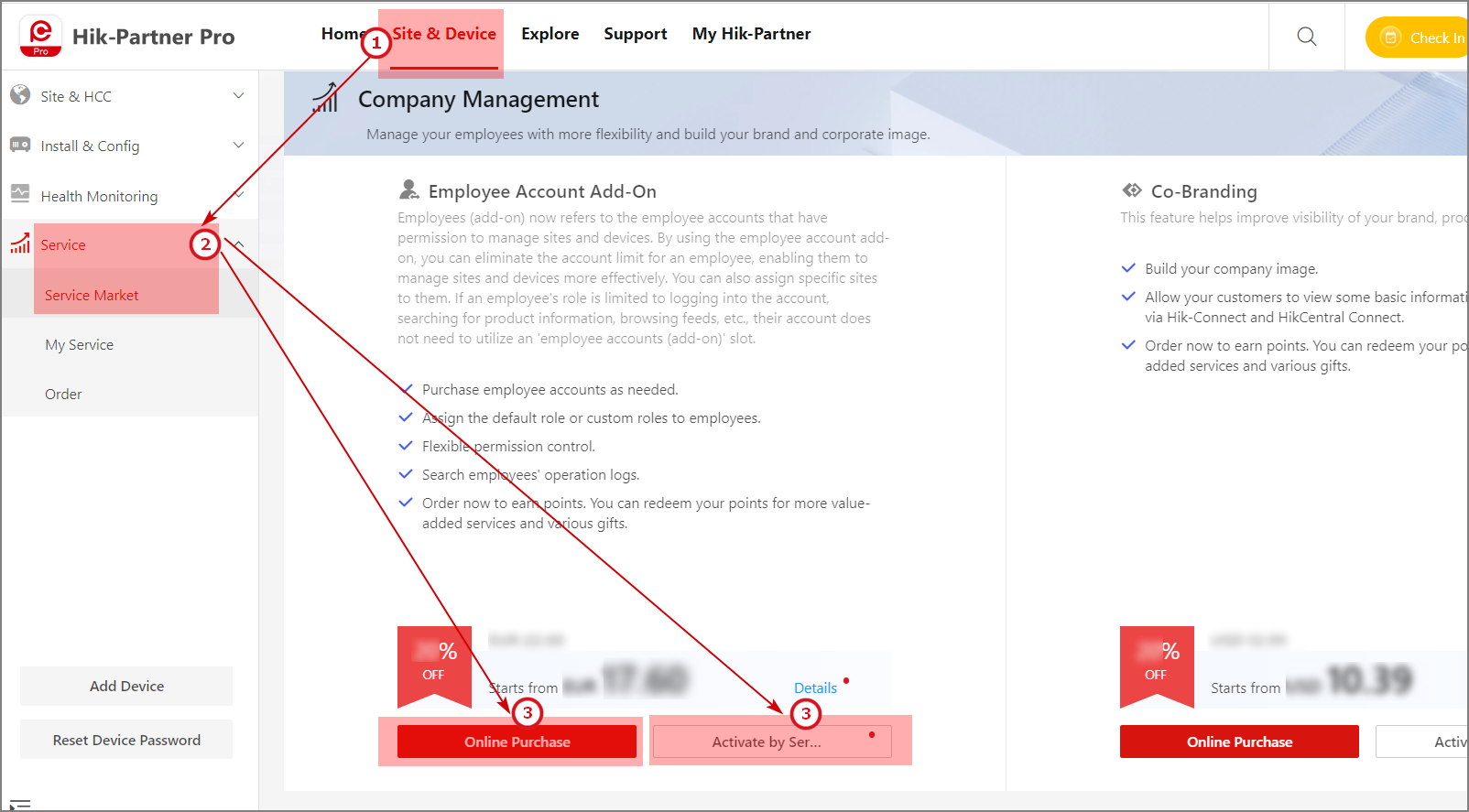
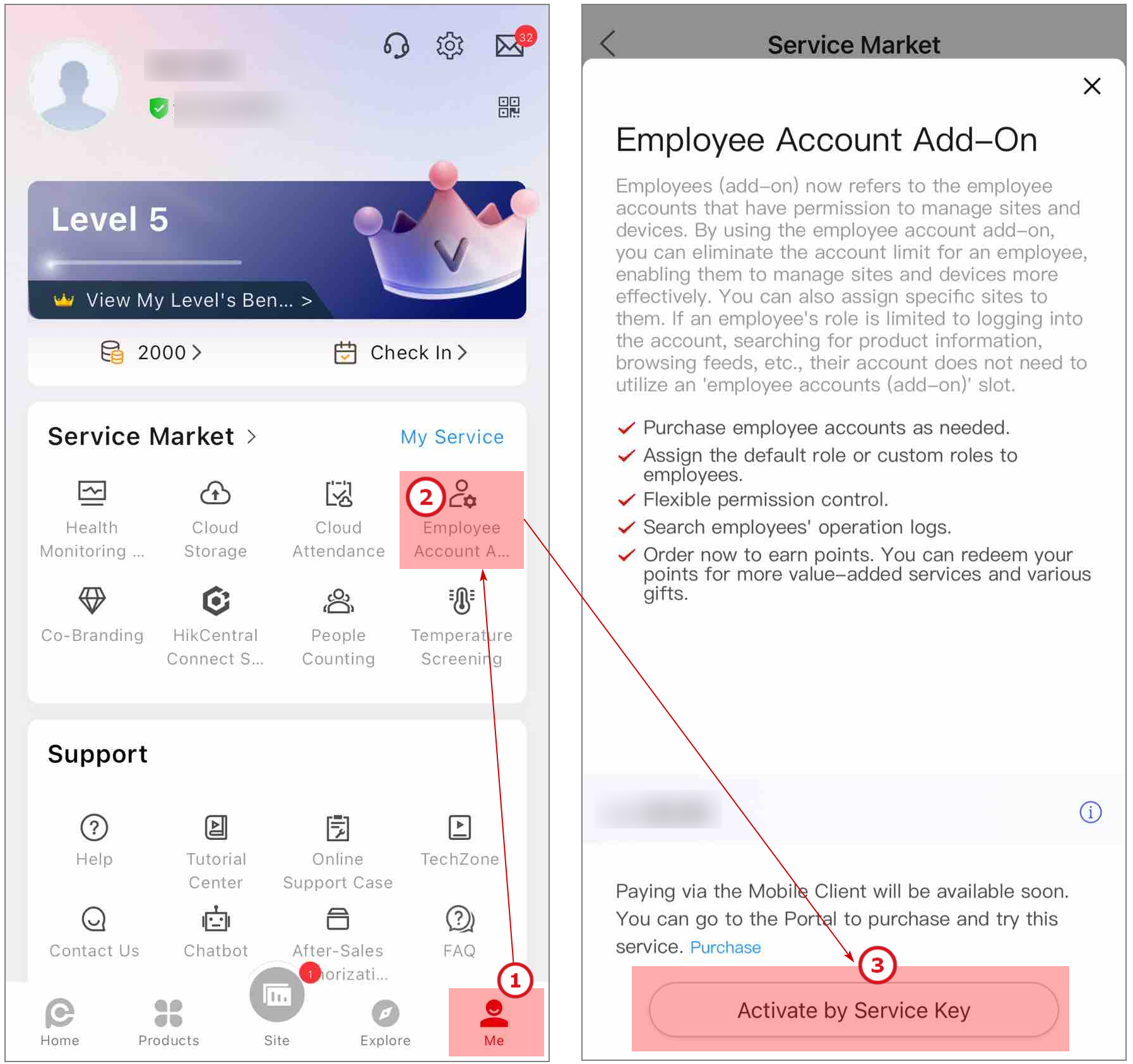
Step 4: (Optional) Purchase Employee Account Add-On
The employee account add-on is for removing the Installer account limit so they can manage sites and devices.
|
Purchase Method |
Description |
|
Purchase Online |
Select the item types and quantities, and directly pay for your order online via the Portal or Mobile Client. |
|
Activate by Service Key |
Purchase and pay for the items offline at your distributor/dealer, where you get a service key. |
Supported purchase methods vary depending on your region/country.
Purchase Employee Account Add-On Using the Portal
Purchase Employee Account Add-On Using the Mobile Client
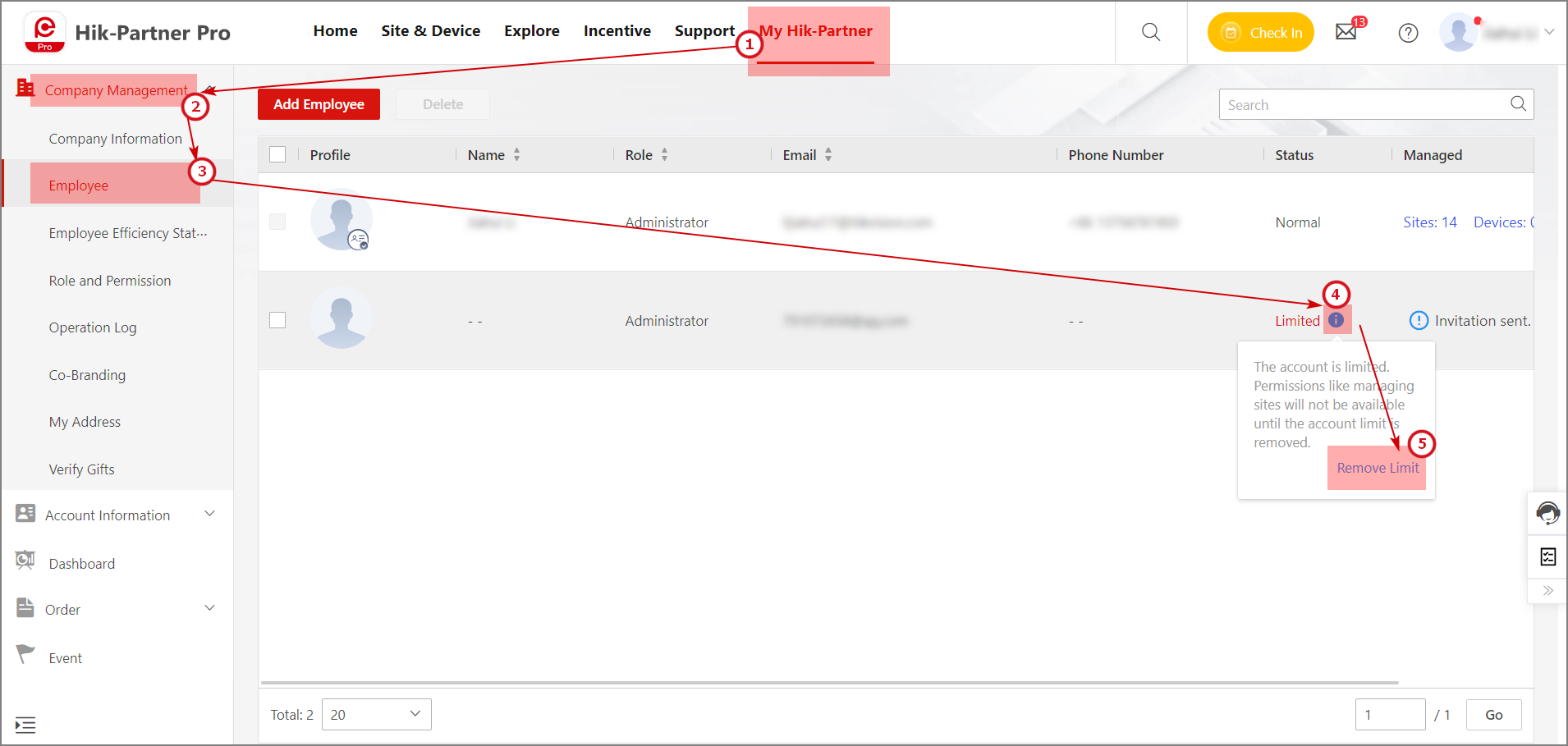
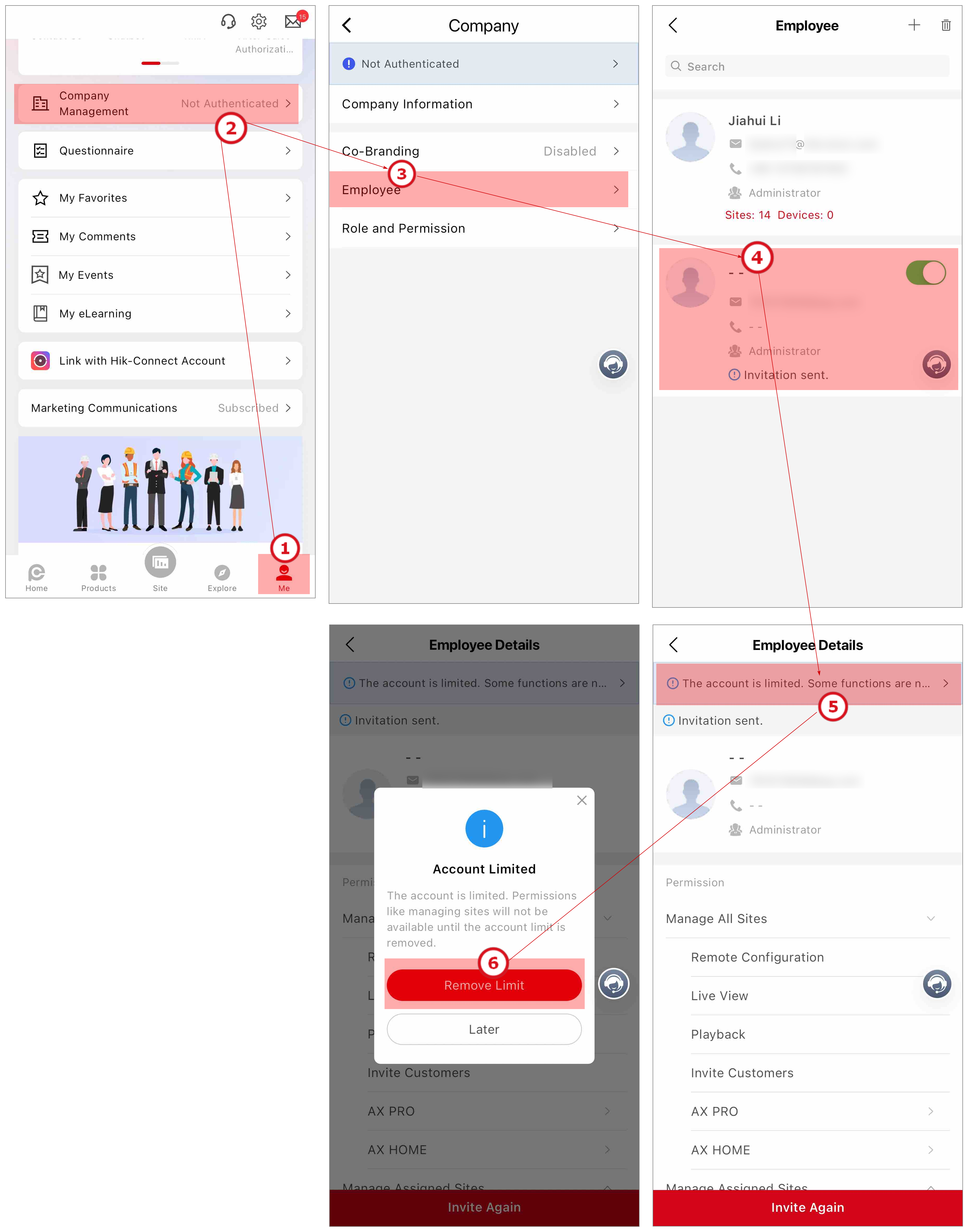
Step 5: (Optional) Remove Account Limit to Allow Employees to Manage Devices
Remove Account Limit and Enable Employee Account are different. The former is to allow the employees to manage the devices, which requires the employee account add-on. The latter is to allow the employees to log in their accounts, which does not need an 'employee account add-on' slot.