Live View
In the Live View module of Web Client, you can view the live video of the added cameras and do some basic operations, including picture capturing, recording, PTZ control.
In the top left corner of the Client, select > Video > Video Security

Before You Start
Step 1: Add Encoding Devices
Refer to Add Device(s) to add encoding devices.
Step 2: Add Cameras to Area
Refer to Add Element to Area.
Choice 1: Start Live View in Area Mode
The areas which the current user has permission to access are listed and the resources which the user has permission to access are shown in the corresponding areas.
-
Click in the upper-right corner to change live view window division.
-
Start live view.
-
Drag a camera to the display window to start the live view of the camera, or double-click the camera to start the live view in a free display window.
-
Drag an area to a display window, and click Batch Play, or double-click the area to start the live view of all cameras in the area.
-
 in the upper-right corner to change live
view window division.
in the upper-right corner to change live
view window division.Choice 2: Start Live View in View Mode
A view is a window division with resource channels (e.g., cameras and access points) linked to each window. View mode enables you to save the window division and the correspondence between cameras and windows (or correspondence between map and window) as the default so that you can quickly access these channels and/or map later. For example, you can link camera 1, camera 2, and camera 3 located in your office to the certain display windows and save them as a view called office. Then, you can access the view office and these cameras will display in the linked window quickly.
-
For live view, the view mode can save resource type, resource ID, stream type, position, and scale after digital zoom, preset No., and fisheye dewarping status.
-
For playback, the view mode can save resource type, resource ID, position, and scale after digital zoom, and fisheye dewarping status.
-
Click on the left navigation bar.
-
Add a custom view group.
-
Select Public View or Private View to add the view group.
NoteThe view groups and views that belong to the private view group are hidden from the other users.
-
Click , set a name for the view group, and click OK.
-
-
Add a view.
-
Select a view group, click , and set a name for the view.
-
Click Add to select cameras.
-
Set the required parameters, and click Add to add a view.
-
-
(Optional) Select a view, and click > Share on the right side of the view's name to share it with others.
-
Double click a view or move the cursor over a view, and click > Play beside the view name.
 on the left navigation bar.
 , set a name for the view group, and click
 , and set a name for the view.
Choice 3: Start Live View of Favorited Cameras
-
Click on the left navigation bar.
-
Select a parent Favorites, click to add a Favorites under the parent Favorites, and select the camera(s) to be added to Favorites.
NoteUp to 5 levels of Favorites can be added.
-
(Optional) Select a Favorites, and click > Share on the right side of Favorites' name to share it with others.
-
When in Live View window, select a Favorites, and click > Play All to start viewing the live view of all the camera(s) added in Favorites.
 on the left navigation bar.
Choice 4: Auto-Switch Cameras in an Area
-
Start auto-switch in the area.
-
Drag an area to the live view window and select Single-Screen Auto-Switch to start the auto-switch the cameras of the area in the selected display window.
-
Click on the right side of the area name and click Area Auto-Switch to switch the cameras of the area in the live view window.
-
-
Move the cursor over the live view window and perform further operations after auto-switch starts.
Operations
Descriptions
Adjust Switching Interval
Click or in the lower-left corner of the live view window to adjust the interval of the auto-switch.
View Previous or Next Camera
Click or in the lower-left corner of the live view window to go to the previous or next camera.
Pause
Click in the lower-left corner of the live view window to pause the auto-switch.
 on the right side of the area name and
click
on the right side of the area name and
click  or
or  in the lower-left corner of the live view window to
adjust the interval of the auto-switch.
in the lower-left corner of the live view window to
adjust the interval of the auto-switch. or
or  in the lower-left corner of the live view window to go
to the previous or next camera.
in the lower-left corner of the live view window to go
to the previous or next camera. in the
lower-left corner of the live view window to pause the auto-switch.
in the
lower-left corner of the live view window to pause the auto-switch.(Optional) Start PTZ Control
The PTZ control for cameras with pan/tilt/zoom functionality is provided. You can set the preset, patrol and pattern for the cameras on the PTZ control pane.
In the top left corner of the Client, select > Video > Video Security
Start live view of a camera, and click PTZ Control to open the PTZ pane.
 PTZ Control
The PTZ control function should be supported by the camera.
Introduce the Main Pane
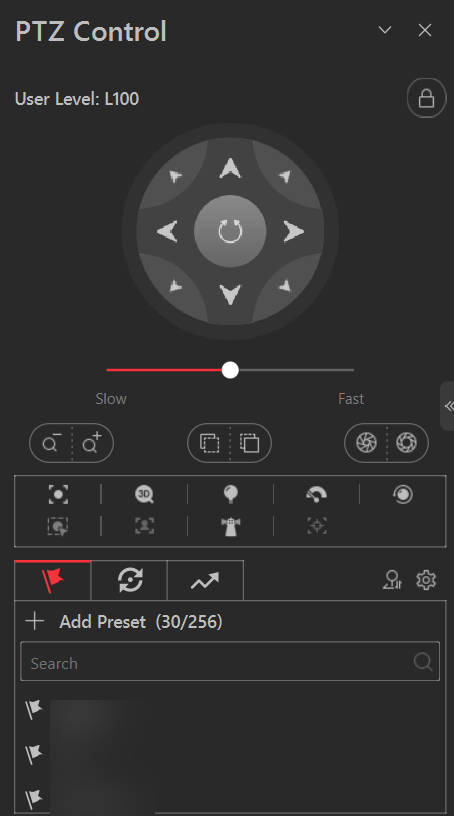
The following buttons are available on the PTZ control pane:
|
|
Lock the PTZ for a designated time period. When the PTZ is locked, users with lower PTZ control permission levels cannot change the PTZ controls. Note
For details about setting the PTZ control permission level, refer to the User Manual of HikCentral Professional Web Client. |
|
|
Direction Button, Auto-scan and PTZ speed. |
|
/ |
Zoom in or out the video for cameras that do not have their own optical zoom capabilities. Click again to disable the function. |
|
/ |
Used for adjusting the luminance of the image. The larger the iris is, the more the light enters, and the brighter the image will be. |
|
/ |
Click to move the focal point backward, and click to move the focal point forward. |
|
Auxiliary Focus: Click to focus automatically. |
|
|
3D Positioning: Click on the desired position in the video image and drag a rectangle area in the lower right direction, then the dome system will move the position to the center and allow the rectangle area to zoom in. Click to drag a rectangle area in the upper left direction to move the position to the center and allow the rectangle area to zoom out. |
|
|
Light: Click to fill light. |
|
|
Wiper: Use the wiper to clear the dust on the camera lens. |
|
|
Lens Initialization: Initialize the lens and focus again for a clear image. |
|
|
Manual Tracking: For speed dome with auto-tracking function, enable the auto-tracking (via right-click menu) for it and click the icon to manually track the target by clicking on the video. |
|
|
Manual Face Capture: Click this button, and hold the left mouse button to select a face in the image to capture it. The picture will be uploaded to the server for viewing. |
|
|
Park Action: For the speed dome with one-touch park function, click the icon and the speed dome saves the current view to the preset No.32. The device starts to park at preset No. 32 automatically after a period of inactivity (park time). For setting the park time, refer to user manual of the speed dome. |
|
|
Auto Track: For cameras support and tracking, click the icon and select the target (person or vehicle) in the live view to arm and track this target. |


 /
/
 /
/
 /
/


-
In the live video display window, click the icon to start PTZ control. Click and drag the cursor with a white arrows to control the direction.
-
Click to get device PTZ configuration.
 to start PTZ control. Click
  and drag the cursor with a white arrows to control the
direction.
and drag the cursor with a white arrows to control the
direction. to get device PTZ configuration.
Configure Preset
A preset is a predefined image position which contains configuration parameters for pan, tilt, zoom, focus and other parameters. You can also set a virtual preset after enabling digital zoom.
-
Click to enter the PTZ preset configuration pane.
-
Use the direction buttons to control the PTZ movement.
-
Select a PTZ preset number from the preset list and click to name and save the settings.
 to enter the PTZ preset configuration
pane.
to enter the PTZ preset configuration
pane. to name and save the settings.
Configure Patrol
A patrol is a scanning track specified by a group of user-defined presets (including virtual presets), with the scanning speed between two presets and the dwell time of the preset separately programmable.
Before you start, make sure you have added two or more presets.
-
Click to enter the patrol configuration pane.
-
Select a PTZ patrol number and click to set the patrol.
-
Select or as the preset type.
NoteA device preset () is a predefined image position, while a virtual preset () is a predefined and zoomed image position. You can add a virtual preset by starting live view, zooming in, and adding the image position as a virtual preset.
-
Click to add a configured preset, hover your cursor over the values in the Preset, Speed, and Time columns, and slide the mouse to change the value.
-
Click or to adjust the presets sequence.
-
-
Set other parameters, and click OK.
 to enter the patrol configuration
pane.
to enter the patrol configuration
pane. as the preset type.
 to add a configured preset, hover
your cursor over the values in the
to add a configured preset, hover
your cursor over the values in the  or
or  to adjust the presets sequence.
Configure Pattern
By recording pattern, the movement path and the dwell time in a certain position can be recorded precisely. By calling pattern, mobile PTZ starts move totally according to the recorded path.
-
Click to enter the PTZ pattern configuration pane.
-
Click to start recording the movement path of the pattern, use the direction buttons and other buttons to control the PTZ movement, and click to stop and save the pattern recording.
-
Click to call the pattern.
 to enter the PTZ pattern configuration
pane.
to enter the PTZ pattern configuration
pane. to start recording the movement path of
the pattern, use the direction buttons and other buttons to control the PTZ movement,
and click
to start recording the movement path of
the pattern, use the direction buttons and other buttons to control the PTZ movement,
and click  to stop and save the pattern
recording.
to stop and save the pattern
recording. to call the pattern.