How to Open the Door by Your Smart Phone
Users can open the door quickly by the Mobile Client or by rotating their phone by the reader. With a specific configuration, they can open the door without logging into the Mobile Client.
Step 1 Add Access Control Devices
First, you need to go to the Device module to add an access control device that supports Bluetooth. See details in Add Device(s).
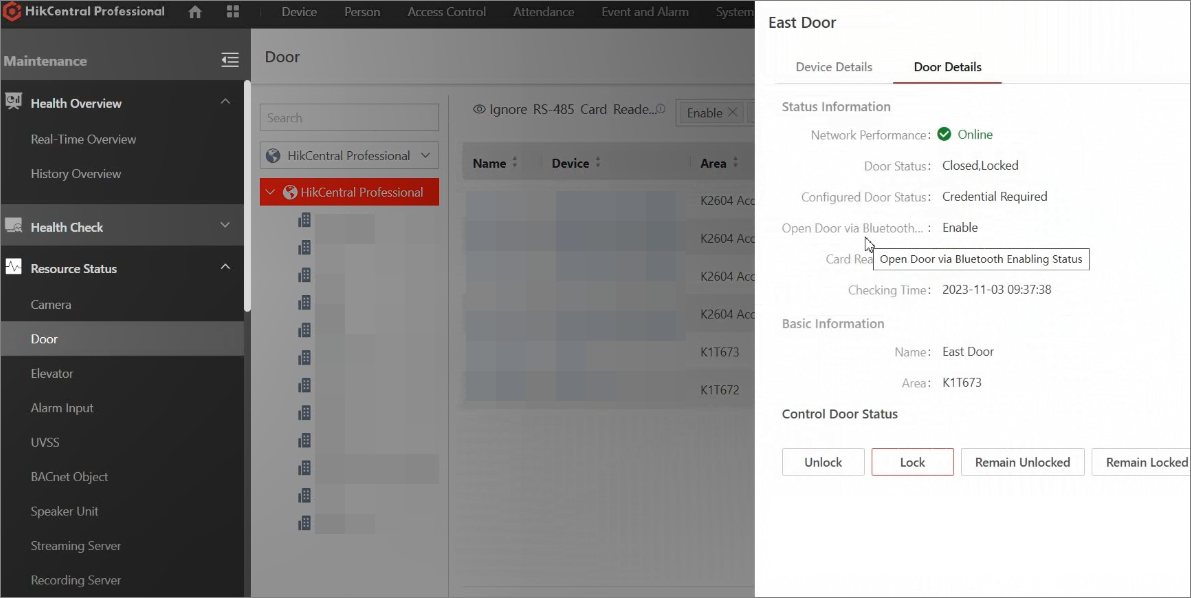
Then, go to the Maintenance page to check the device capability.
Step 2 Enable Self-Service Login for the Person
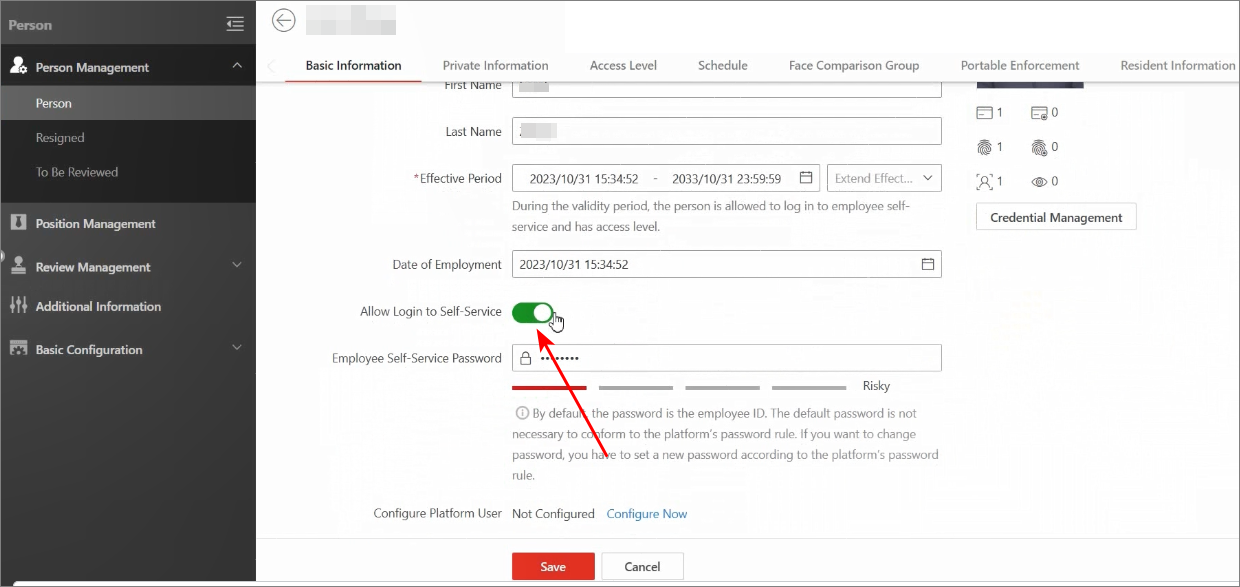
Go to the Person page, click a person name to enter the editing page, and then enable the Allow Login to Self-Service for the person. This allows the person to log into the Mobile Client and the Self-Service of Web Client.
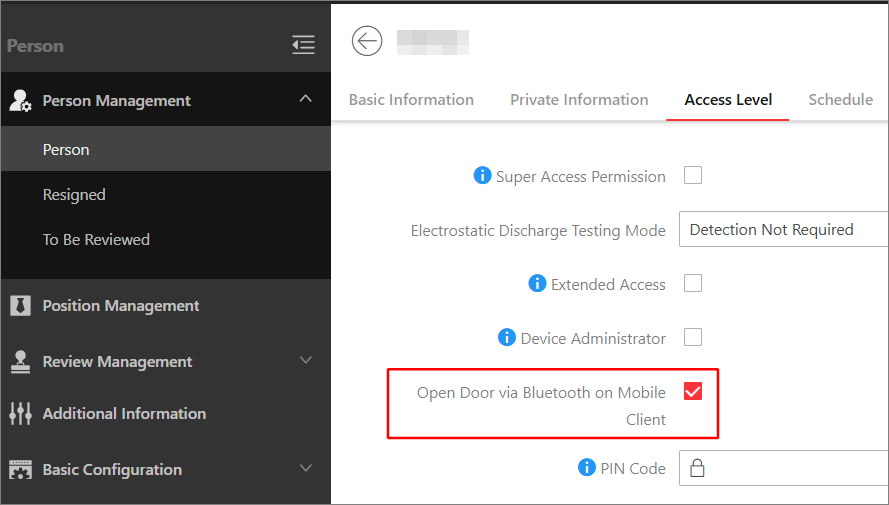
Go to the Access Level tab, and enable Open Door via Bluetooth on Mobile Client.
Step 3 Basic Settings in Access Control Module
-
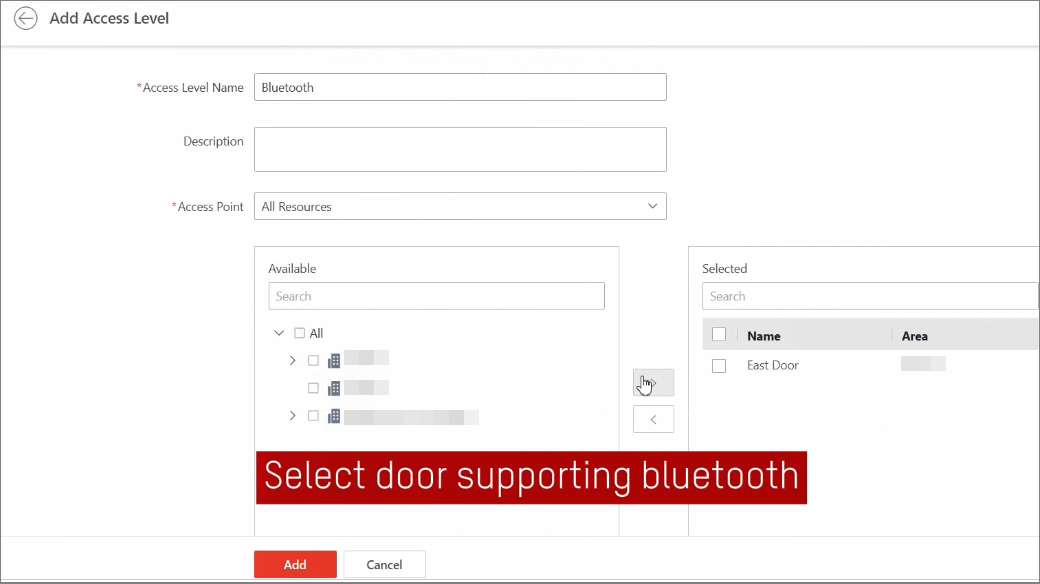
Go back to the Access Control page, create an access level for the door supporting Bluetooth.
Figure 4 Create Access Level -
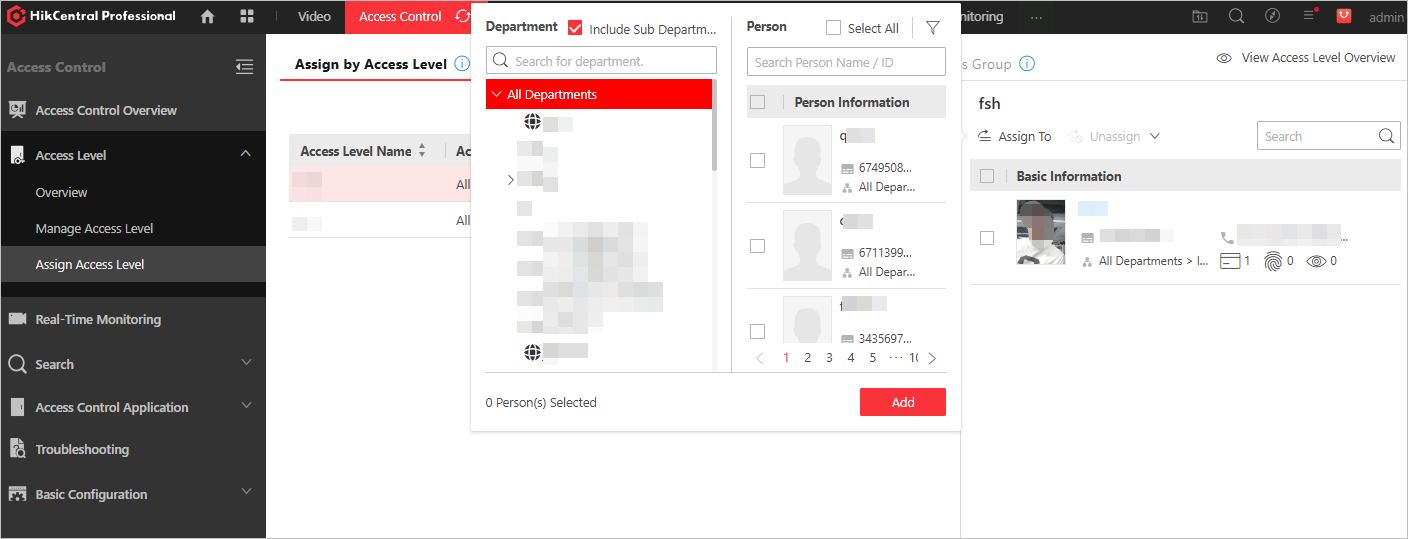
Assign the added access level to person(s).
Figure 5 Assign Access Level to Person(s) -
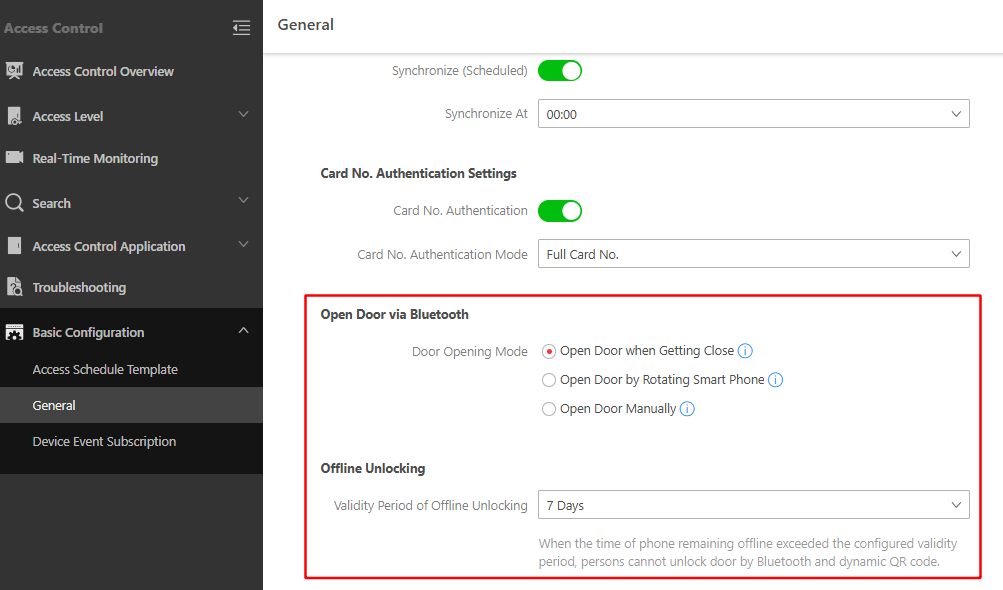
Select on the left. In the Open Door via Bluetooth area, select the door opening mode.
(Optional) In the Offline Unlocking area, select the validity of offline unlocking.
Figure 6 Open Door via Bluetooth Settings
Step 4 Open Door via Bluetooth on the Mobile Client
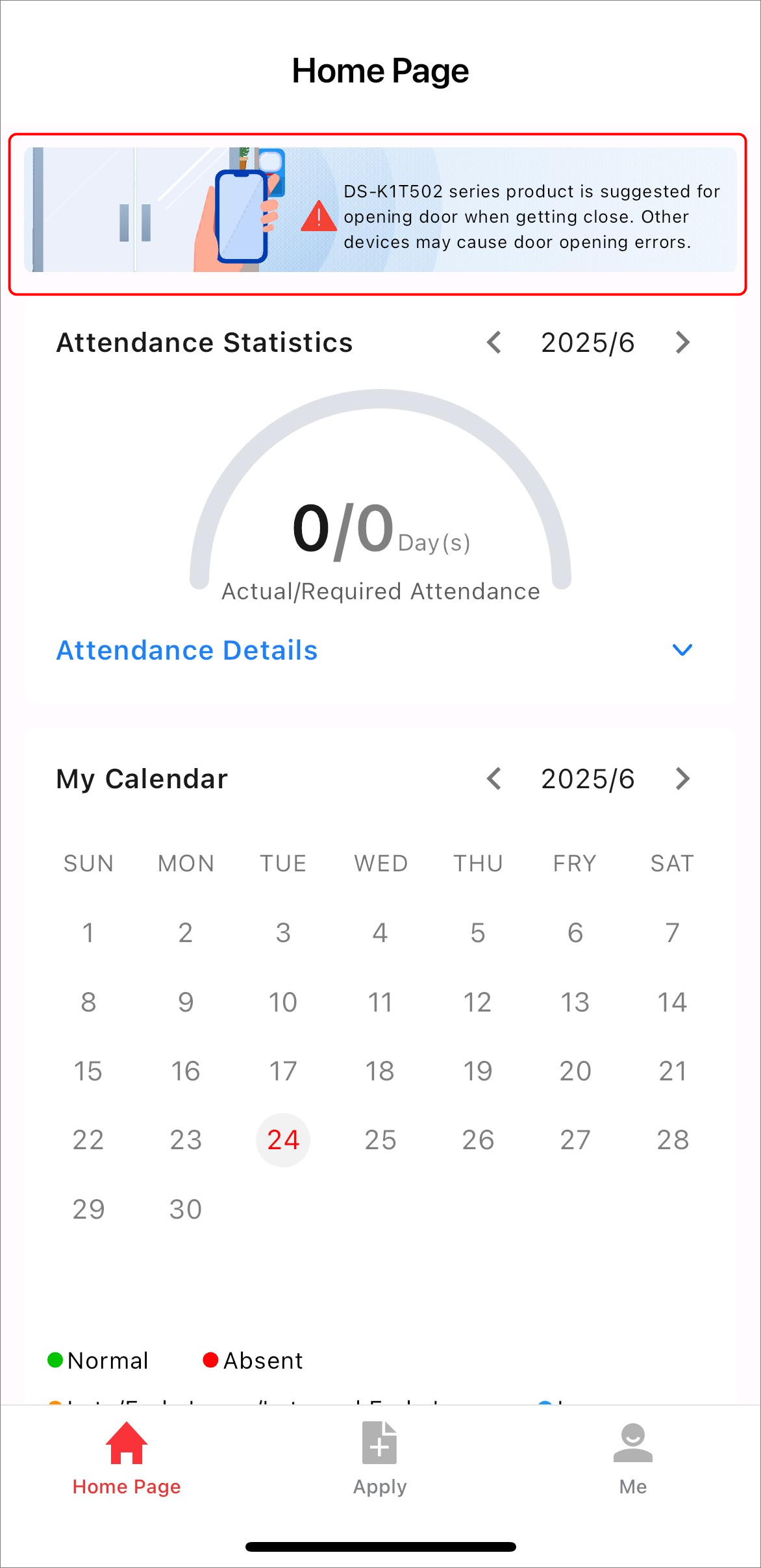
After completing the above steps, you can open the door via Bluetooth on the Mobile Client. In both the Open Door when Getting Close and Open Door by Rotating Smart Phone modes, only devices with permissions will be unlocked. In the Open Door Manually mode, only devices with permissions will be displayed.
Step 5 View Real-Time Events and Search History Access Records
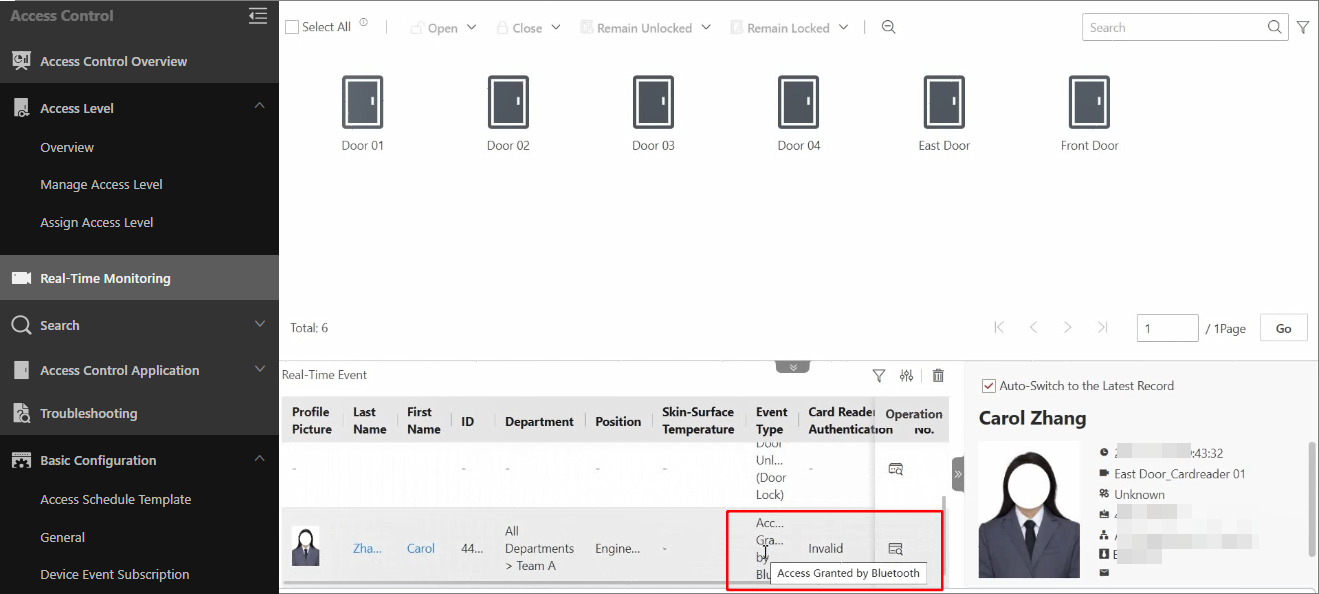
The operation of opening door via smart phone may trigger configured events. You can find the access event in the Real-Time Event area on the Real-Time Monitoring page.
Or click to search for history access records stored on the device.
 to search for history access records
stored on the device.
to search for history access records
stored on the device.