Add Element to Area
Add Devices to Area
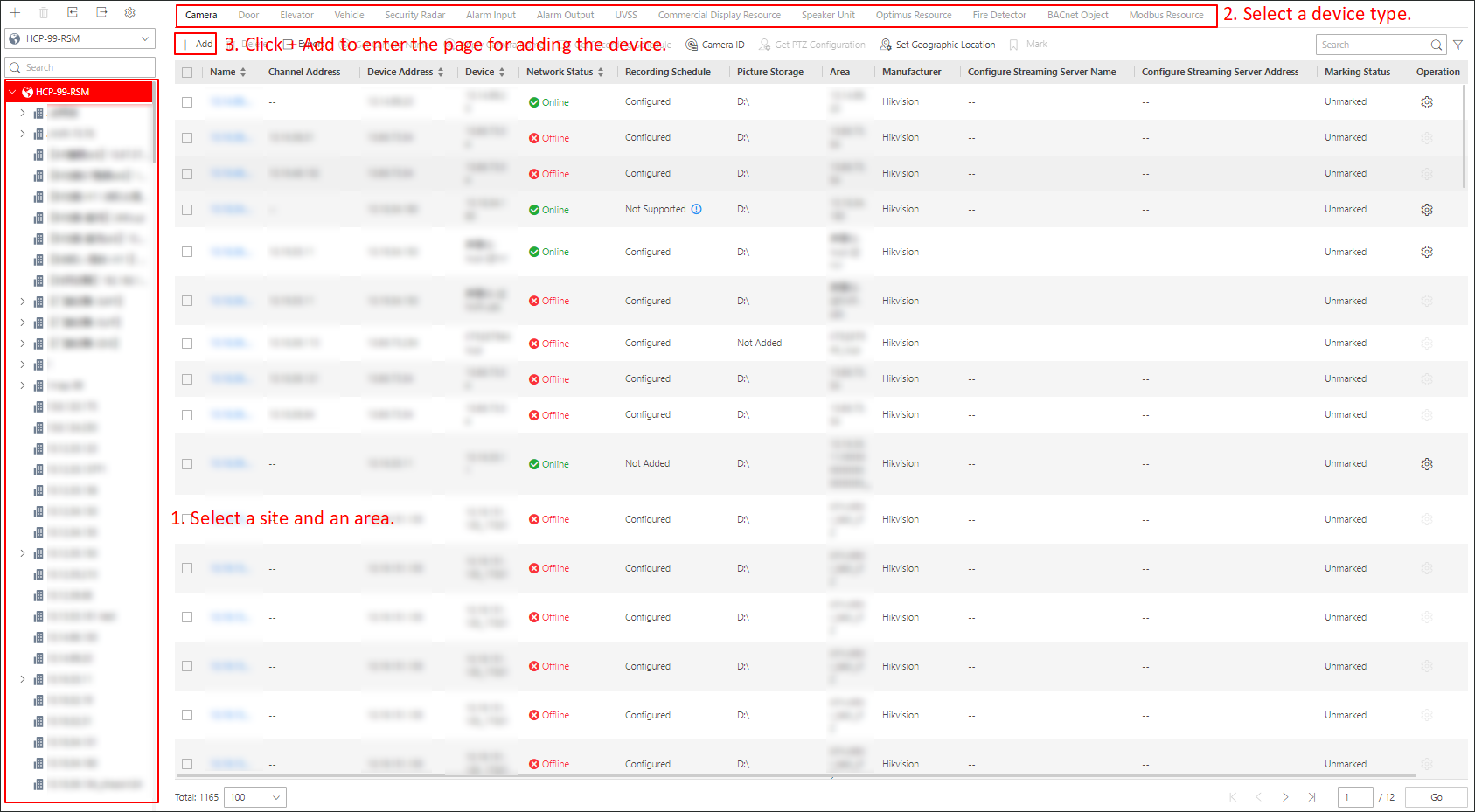
Select a site and an area on the left, select a device type on the top, and click Add.
-
The icon indicates that the site is the current site. The icon indicates that the site is a Remote Site.
-
For alarm output, when the alarm or event linked with the alarm output is detected, alarm devices (e.g., the siren, alarm lamp, etc.) connected with the alarm output will make actions. For example, when receiving the alarm out signal from the system, the alarm lamp will flash.
 indicates that the site is the current site. The
icon
indicates that the site is the current site. The
icon  indicates that the site is a Remote Site.
Parameters on Add Device Page for Current Site
|
Device Type |
Parameters |
Descriptions |
|---|---|---|
|
Camera |
Get Device's Recording Settings |
Check Get Device's Recording Settings to obtain the recording schedule configured on the local device and the device can start recording according to the schedule. Note
If the recording schedule configured on the device is not continuous recording, it will be changed to event recording on the local device. |
|
Elevator |
Range of Floor No. |
In the Range of Floor No. field, enter the start No. and end No. of the floors that you want to import to the area. The floors between the start No. and end No. will be imported to the area. After imported, you can manage the floors in the system, such as adding to access levels, controlling status, etc. |
|
Vehicle |
Linkage Device |
Select the on-board device linked with the vehicle from the Linkage Device drop-down list. |
|
Alarm Input |
Device Type |
For the security control device, you need to select its zones as alarm inputs to add to the area. |