Add Analysis Group
Before generating people counting report, you can add people counting group before the report; before generating heat analysis report, person feature analysis report, and pathway analysis report, you can add the corresponding analysis groups.
People Counting Group: The people counting group is used to group the doors, people counting cameras, queue management cameras, and fisheye cameras of certain region. You can set some doors and cameras as the region edge. Only the persons accessing these doors or detected by the cameras are calculated, and other doors and cameras outside the region are ignored. By grouping these doors and cameras, the platform provides counting functions based on the detected records on these doors and cameras.
Heat Analysis Group: The heat analysis group is used to group the resources (such as doors, fisheye cameras, people counting cameras) in certain region. By grouping these resources, you can know the dwell time of the people stayed in this region, how many persons stayed in this region, and average dwell time of each people. This function is mainly used to calculate and show the popularity of each stores in one shopping mall.
Person Feature Analysis Group: Person feature analysis is a group of cameras which support face recognition and feature analysis. You can group the cameras in one region into one group. After that, when generating a report, you can view the features of the persons appeared in this region, based on the data detected by the cameras in the group. For example, if there are five cameras which support facial recognition mounted in the store, the store manager can add these five cameras into one group. Then you can view features of the customers who entering the store in the Intelligent Analysis module.
Pathway Analysis Group: Pathway analysis is mainly used to analyze the people counting on the pathways in the shopping malls. With the help of fisheye cameras, the system can collect the consumers data (for example,where the customers walk mostly) and translate that data onto a dashboard for mall managers. This helps managers analyze which areas/shops of the mall best catch a shopper's attention and which are overlooked. After setting the fisheye camera's pathways and their directions, the system calculates the people dwell time at each pathway and number of people walking by, thus helps them make decisions.
Adding analysis groups is not supported by queue analysis report, people density analysis report, temperature analysis report, and multi-target-type analysis report.
The process of adding analysis groups for these reports can be generally divided into 3 sections: basic configuration, adding analysis resource, adding analysis group to map. Some specific parameter configurations may vary by reports.
See the example process of adding person feature analysis group.
-
Under the Intelligent Analysis module, select .
-
Click Add.
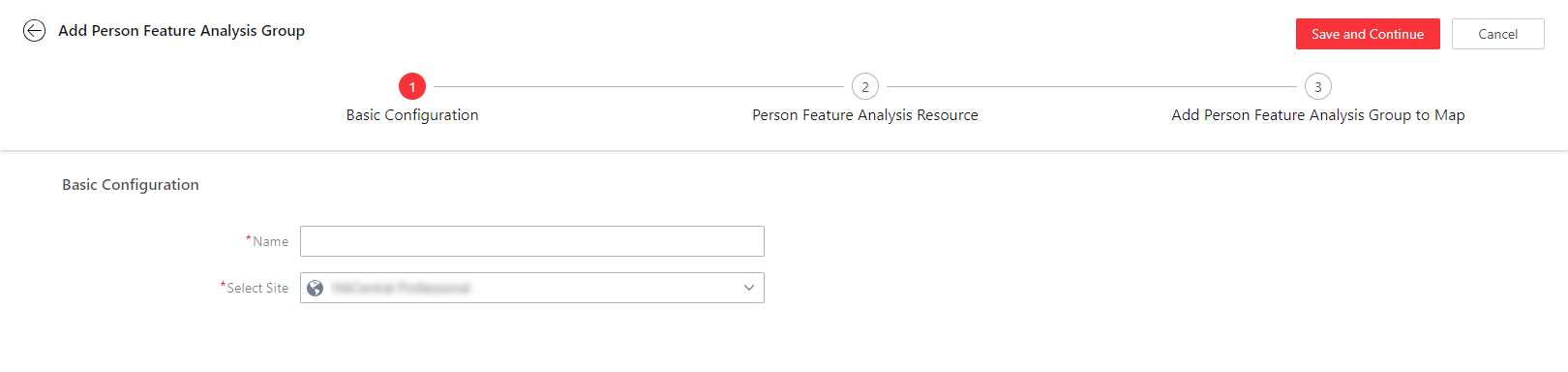
Figure 1 Add Analysis Group (Person Feature Analysis Group) -
Set basic configurations such as name and site, and click Save and Continue. Click Save and Continue.
-
Configure resources for analyzing the detected persons' features.
-
In the Person Feature Analysis Resource part, click Add to select the resources.
-
Click Save.
-
(Optional) Click Remote Configuration to go to Remote Configuration page of the device.
-
Click Save and Continue.
-
-
(Optional) Locate the person feature analysis group on the map by setting the locations of the cameras in the group and setting the edge of the region for detection.
-
Drag the person feature analysis group from the Resource Group list on the right to the map. The region as well as the cameras in the group will be added on the map.
-
Drag to draw the region according to the actual needs.
-
Drag the icons of the cameras to set the their locations on the map.
-
Right click to finish.
-
(Optional) Check Only Display the Current Group to only display the added analysis group on the map.
-
-
Click Finish. After adding the person feature analysis group on the map, you can view the features of the persons appeared on the Control Client.