Use SSL/TLS Certificate for HTTPS Connections
As a digital certificate issued by the Certificate Authority (CA), the SSL/TLS certificate secures all types of information transferred to and from the server and proves the identity of the server owner. Compared with the platform provided certificate, the SSL/TLS certificate has a higher security level.
Get Your SSL/TLS Certificate
The SSL/TLS certificate is purchased from a certificate authority.
-
Choose a CA that you trust.
-
Generate a certificate signing request (CSR) and a private key.
There are multiple methods to generate a CSR and a private key: via Microsoft IIS, OpenSSL, or a trusted website.
-
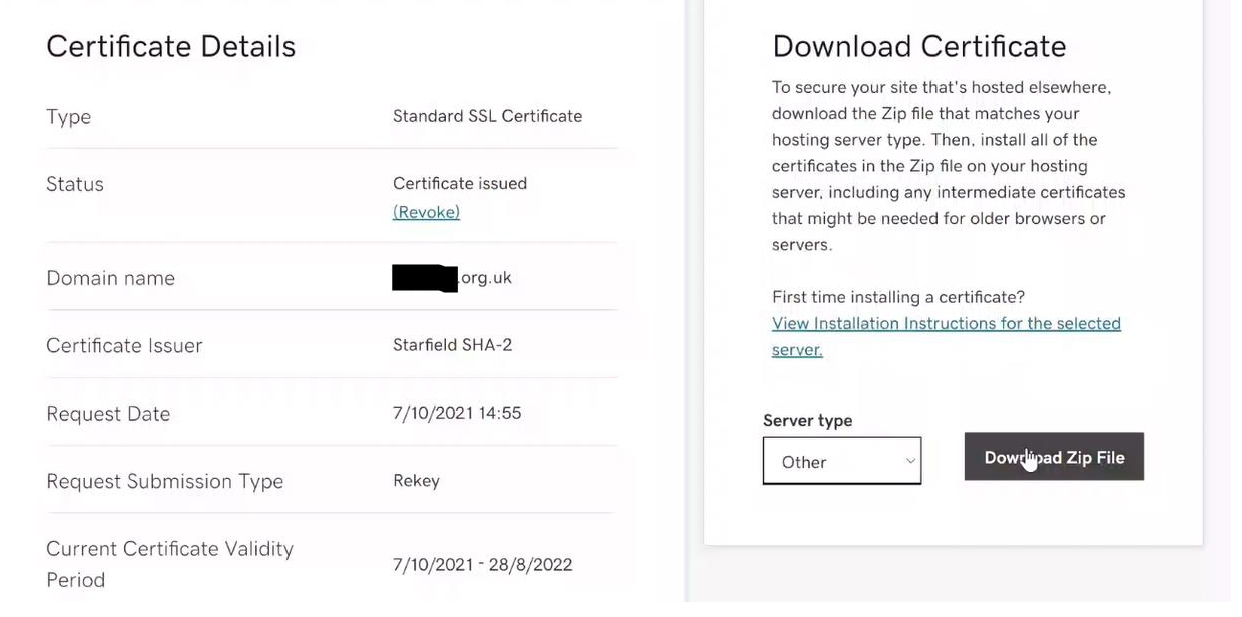
Send the generated CSR to the CA to get the authorized SSL/TLS certificate.
Figure 1 SSL/TLS Certificate Example -
Download your SSL/TLS certificate to your local PC.
Make sure that the certificate is in PEM format. You can try to edit the file extension to .pem or use a tool to convert its format to PEM.
Upload Your SSL/TLS Certificate to the System
-
Check your SSL/TLS certificate.
Generally, the issued SSL/TLS certificate contains the certificate file in PEM format, certificate chain in PEM format, and certificate file in other formats (such as CRT and PLCS-7).
-
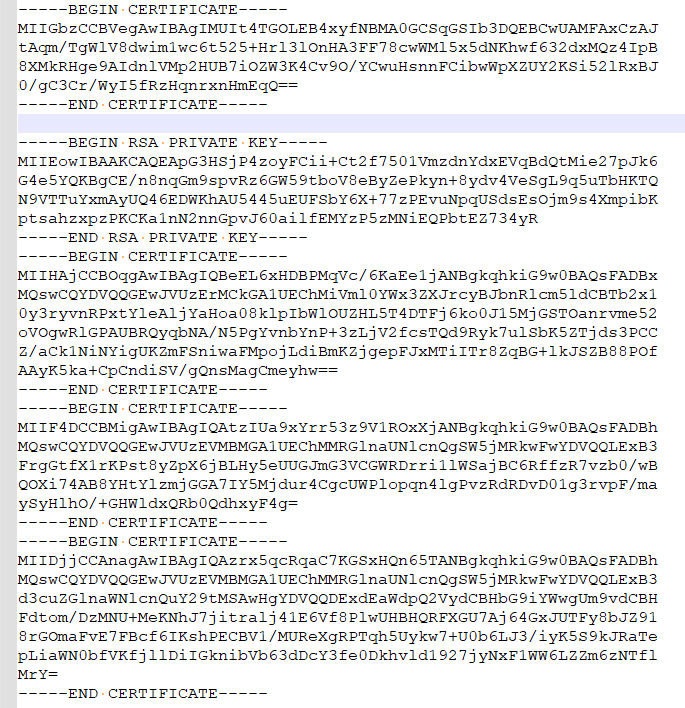
Get the certificate file in PEM format, the private key which is generated together with the CSR, and the certificate chain in PEM format. And concatenate them into one PEM file in order.
You can use the CertTool provided by Hikvision to concatenate a certificate. (Tool download address: https://www.hikvision.com/en/support/download/software/hikcentral-professional-v2-6-0/.)
Note-
The PEM file encoding method should be UTF-8.
-
The order of contents in the PEM file should be certificate file -> private key -> certificate chain.
Figure 2 Example of Concatenated Certificate -
-
On the top of the Desktop, click .
-
Click New Certificate > to upload the concatenated certificate.
NoteThe Desktop will restart automatically when the certificate is uploaded.
-
(Optional) In the Upper-Level Certificate section, you can click Add to upload the certificate chain to the server.
The invalid or incomplete certificate chain of operating system will result in SSL/TLS certificate verification failure. In this case, users can download the certificate chain, convert it to CRT format, and double-click to install it on their PCs.