Add Face Picture Libraries and Face Pictures
Face pictures are used to compare with the face pictures of the capture persons. Face picture libraries are used to manage or group face pictures, for example, you can add the face pictures of VIP customers in to a specific face picture library named "VIP Customer".
Click to enter the managing face picture libraries and face pictures page.
-
Add Face Picture Library:
Click Add Face Picture Library in the down left corner to add face picture libraries.
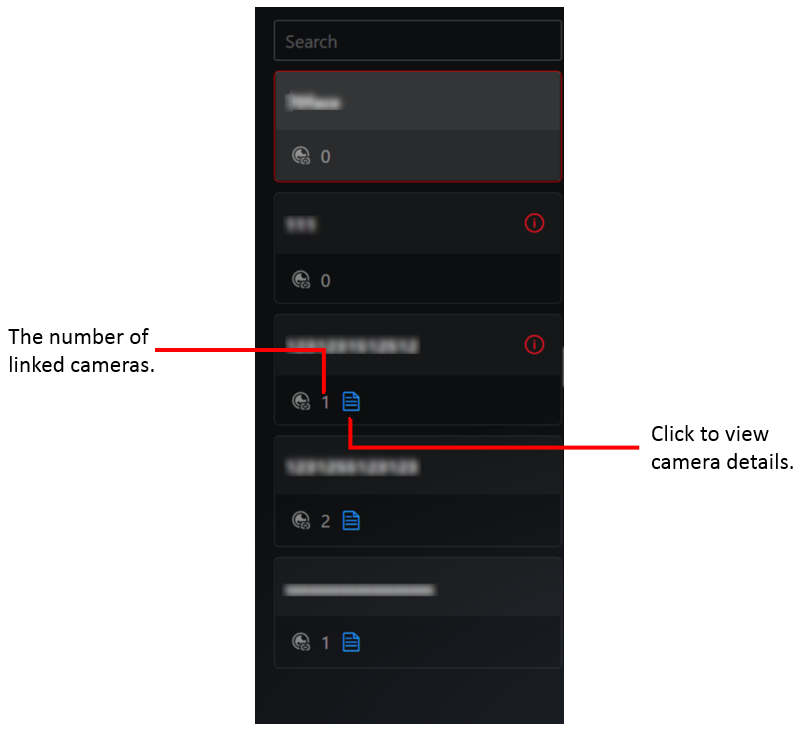
If you link cameras with the face picture library, you can view the number of cameras and the corresponding camera names below the name of face picture library.
Figure 1 Cameras Linked with Face Picture Libraries -
Add Face Picture:
-
Click Add Face Picture in the down left corner to add a single face picture.
-
Click to add face picture(s) of the added person(s).
-
Click to batch import face pictures by a template file.
-
Click to batch import face pictures after manually packing them.
-
Click Import Device Face Picture Library to batch import face pictures in the device face picture libraries.
-