Configure User Preference
You can configure desktop-specific preferences from different aspects (video playing, alarm notification, and login).
Event and Alarm
In the upper-right corner of the Desktop, go to User Name > > Local Configuration.

- Display
-
-
Audio: Enable/disable all alarm-related audio (audible alarm, alarm sound, etc.) for the current client.
-
Pop-Up Window: Enable/disable all pop-up windows for the current client. The pop-up window will be displayed in the center by default. If you moved it, the new position will be remembered for the next time.
NoteWhen Audio or Pop-Up Window is disabled, you can still add relevant linkage actions but they will not come into effect.
-
- Alarm Sound
-
-
Voice Engine (Requires the Operating System's Support): Play the voice text configured (the audible alarm in Supported Linkage Actions), by the voice engine supported by the computer system.
-
Local Audio Files: Play the uploaded local files. The configured voice text will be irrelevant.
-
Advanced Settings
In the upper-right corner of the Desktop, go to User Name > > Local Configuration.
- Time Zone
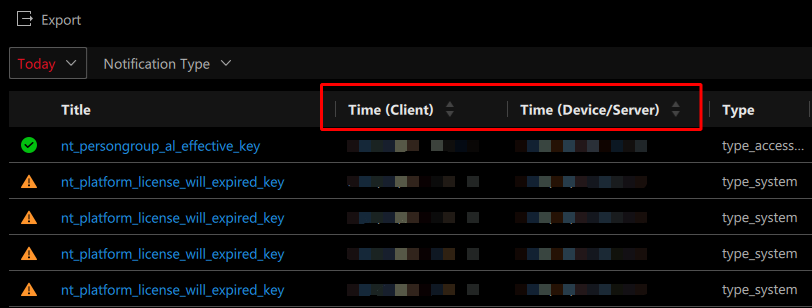
Enable Display Multiple Time Zones to display the client and device/server time zone in the list at the same time. You can view multiple time zones when searching for events such as Alarm, Access Control, Vehicle Passing Event, etc., in the Investigation page.
- File Saving Path
-
Click and then select a folder as the saving path for files such as images, downloads, manual recordings, etc.
- Ringtone
-
You can customize and preview call ringtones for your device. An audio file, restricted to WAV format, will play as the ringing tone when the device is called.
NoteThe feature is available only after access control devices or video intercom devices have been added to the system.
- Streaming Access Mode
-
Define how to access all the added encoding devices and decoding devices.
-
Automatically Judge: Automatically adjust the access mode according to the domain of devices. If the Desktop is in the same domain as devices, it will get streams directly from devices, otherwise, it will get steams via streaming server.
- Via Streaming Server: The Desktop will access devices via streaming severs, which can lower the load of devices. When there are multiple Desktops to get streams from the same device, you can use this mode.
-
- Version Update Notification
-
Enable this to receive notifications of version updates.
 and then select a folder
as
the
saving path for files such as images, downloads, manual recordings,
etc.
and then select a folder
as
the
saving path for files such as images, downloads, manual recordings,
etc.Basic Video Preference
Right-click on any blank area of the main panel for monitoring and control.
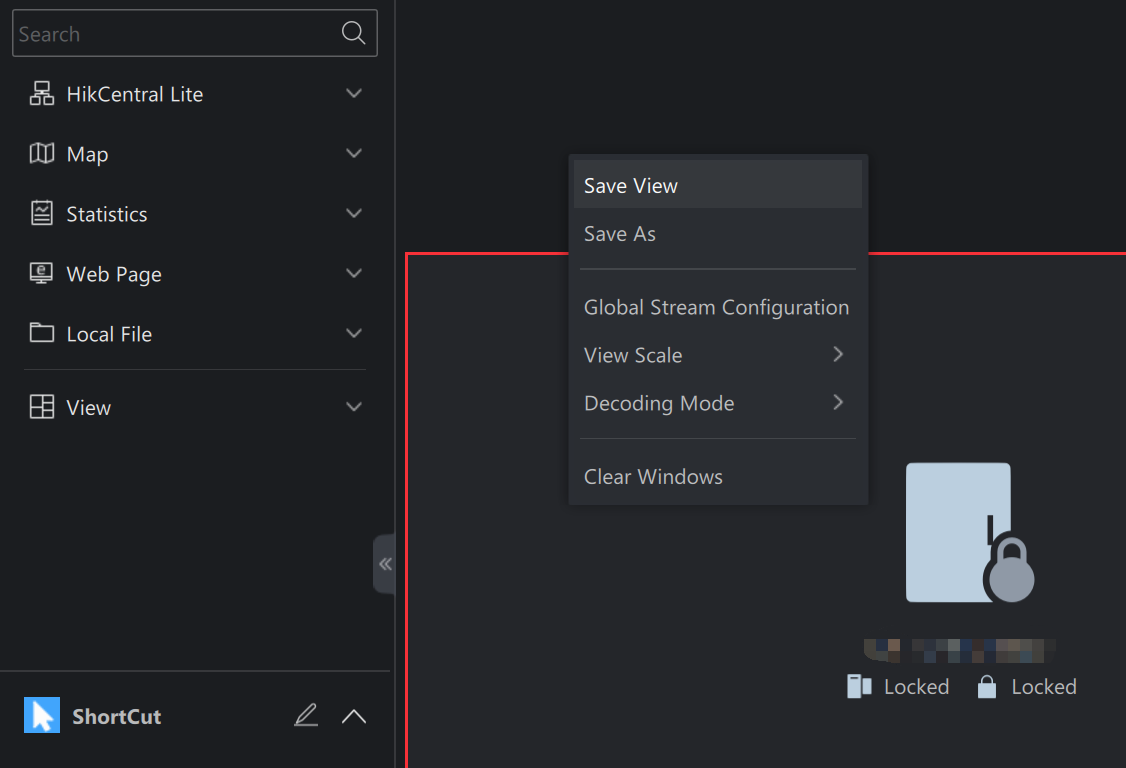
- Global Stream Configuration
-
Select the appropriate video resolution based on device and network conditions. When the playback window size is smaller than the selected resolution, the video will automatically switch to a lower sub-stream to ensure performance:
-
Extra Large (1920*1080)
-
Large (704*576)
-
Medium (640*360)
-
Small (320*180)
-
- View Scale
-
Original Resolution indicates to play a video in original size, and the image may not fill the live view / playback window. Full Screen indicates that the image is filled the entire live view / playback window.
- Decoding Mode
-
Hardware decoding is to decode based on GPU, while software decoding is on CPU. Choose the decoding mode according to your GPU/CPU performance.