Main Panel for Monitoring and Control
The following is the introduction of main panel for monitoring and control.
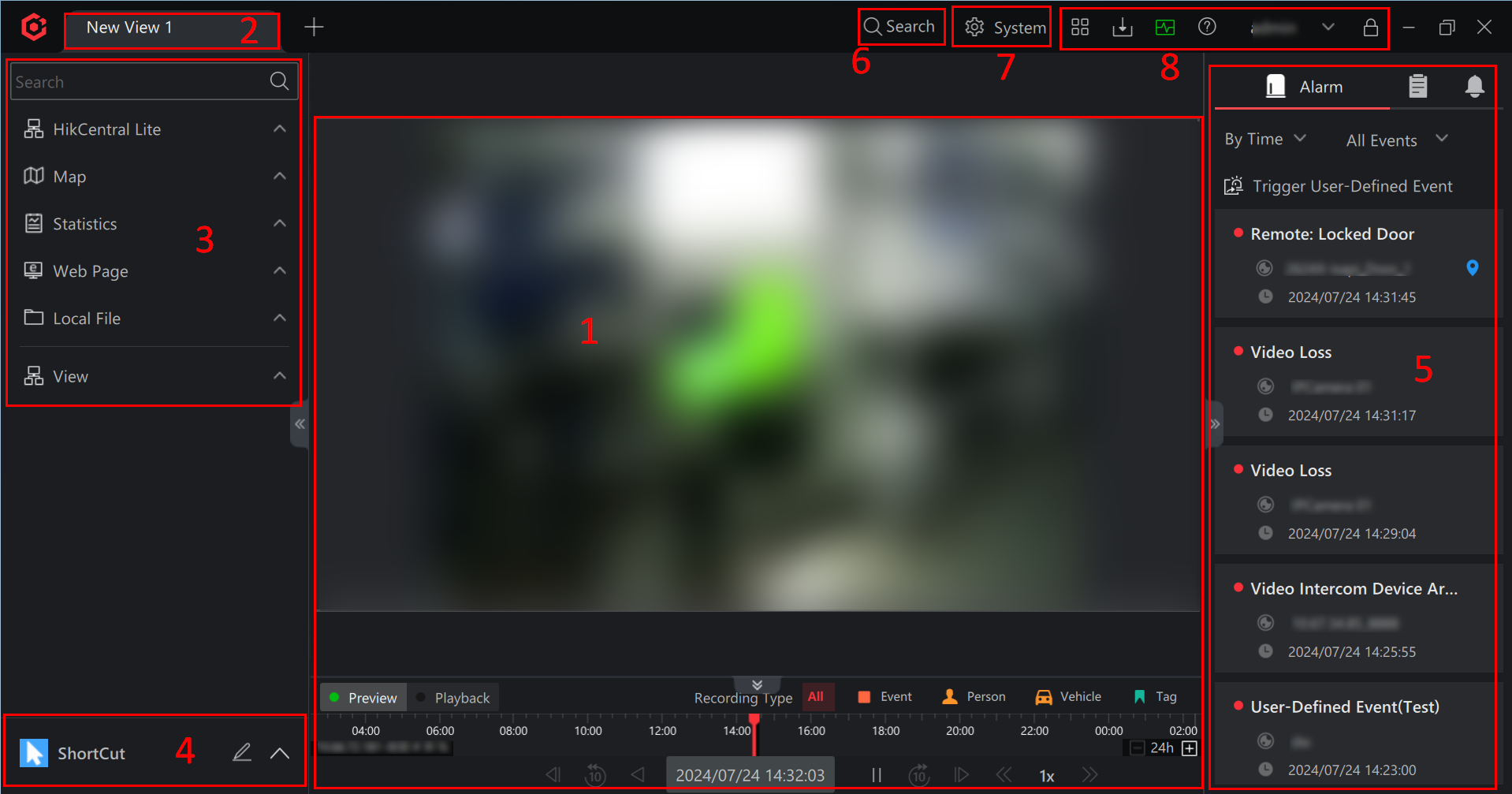
|
No. |
Function |
|---|---|
|
1 |
Display resources, maps, statistics reports, web pages, local files, and views in the viewing grid. Local files include captured pictures and recorded videos during live view and playback. You can also drag a picture or video from local PC to the viewing grid. |
|
2 |
Drag a view upwards or downwards, or right-click a view and click Open in New Window to open the current view in a new window. |
|
3 |
Right-click to add areas, resources, maps, statistics reports, web pages, local files, and views. You can double-click an area, a resource, a map, a statistics report, a web page, a local file or a view for display, or drag them one by one to the viewing grid for display. |
|
4 |
Click to pop up the menu of the client, and click to add a module to the Shortcut, which provides a quick access to the corresponding module. You can drag the added modules to adjust their sequences. |
|
5 |
Alarm: View the alarm list in real time. If there is no alarm added, click Configure to add alarms. For details, refer to Add an Alarm. At most 100 alarms can be displayed in the list. You can hover on an alarm to view alarm details, drag an alarm to view the related video. Also, you can enable/disable certain alarm types. The enabled types of alarm will be displayed here. Refer to Alarm List. You can display alarms by time or priority order, and filter alarms by event types. You can right-click an alarm to view the alarm details, acknowledge the alarm, mark the alarm, export the alarm, view alarm configuration, etc. |
|
Event: View all the events configured in the client. You can view events related with the resources on the current view or events related with all resources. You can hover on an event to view event details, drag an event to view the related video, and right-click an event to perform more operations. Note
Operations after right clicking are different according to different event types. |
|
|
Notification: View the system notifications which indicate status or operations. |
|
|
VCA: View the VCA search results. You can filter by time and click a picture to view the corresponding video at the specific time. |
|
|
Object Search: View object search results. You can filter by time and similarity, view the similarity between the captured face picture with that in the face picture library and view the comparison details. |
|
|
6 |
The entry to the Search module, where you can search for historical alarms, person access records, vehicle passing records, etc. For details, refer to Search. |
|
7 |
The entry to the System module, where you can add and manage devices, persons, face picture libraries, vehicles, access levels, events and alarms. Also, you can set parameters related with account and security, and configure system parameters. |
|
8 |
|
 to pop up the menu
of the client, and click
to pop up the menu
of the client, and click  to add a module to
the
to add a module to
the  : Install and
manage third-party integration applications.
: Install and
manage third-party integration applications. : Enter the
Download Center.
: Enter the
Download Center. : View the
performance of PC on which the client is installed.
: View the
performance of PC on which the client is installed. : Get the
User Manual of the client.
: Get the
User Manual of the client. : View the
information of the login user, manage Licenses, back up
data, change password, etc.
: View the
information of the login user, manage Licenses, back up
data, change password, etc. : Lock the
client.
: Lock the
client.