Add a Server and View Server Details
You can add an external streaming server to the system for distributing and streaming the media content in real-time to multiple clients or devices. This setup allows for efficient management of video data, ensuring immediate accessibility as needed.
Add a Server
On the Home page, go to .
The server is for the live view, playback, video intercom, etc. Max. Streaming Channel refers to the max. channel of streams that the streaming server can support.
After adding servers, you can perform further operations on the server list.
- View Alarm Configuration
-
Hover on one server, then right-click and select View Alarm Configuration to view and edit the alarm configurations of the corresponding server.
- Remote Configuration
-
Hover on one server, then right-click and select Configure on Device to open the device's web configuration page.
View Server Details
Hover on the server, then right-click and select View Details to view the specific information of the corresponding server.
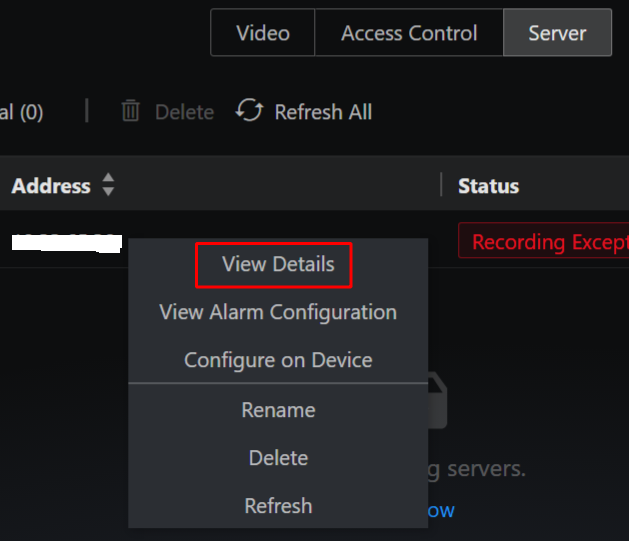
You can perform the following operations.
-
View the normal and abnormal status under the server name. The abnormal status is displayed by default. Click More to view all status information.
-
Edit the Basic Configuration of the server.