Add Hot Region on Map
The hot region function links a map to another map. When you add a map to another map as a hot region, an icon of the link to the added map is shown on the main map. The added map is called child map while the map to which you add the hot region is the parent map.
At least 2 maps should have been added. Refer to Add E-Map for Area or Set GIS Map and Icons for details about adding maps.
-
In the top left corner of Home page, select
 > Visual Map > Map > Map Settings to enter the map settings page.
- Optional:
Perform the following operation(s) after adding the hot region.
Option Description Adjust Hot Region Location
Drag the added hot region on the parent map to the desired locations.
Edit Hot Region
Click the added hot region icon on the map to view and edit the detailed information, including GPS location (only available when parent map is GIS map), hot region name, icon style, name color, and remarks on the appearing dialog.
Edit Hot Region Area
Drag the white point on the hot region's line to edit the hot region's size or shape as the following picture.
Delete Hot Region
Click the hot region icon on the map and click Delete on the appearing dialog to delete the hot region.
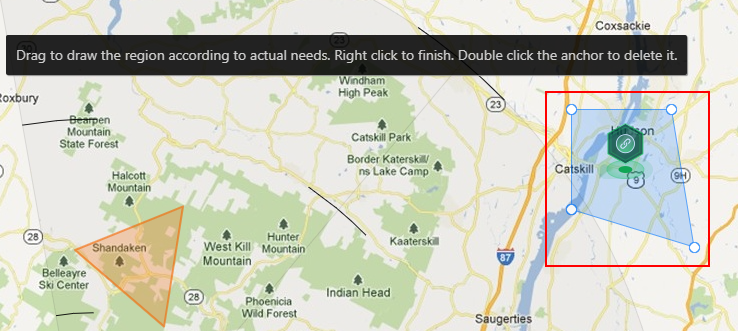 Figure 1 Edit Hot
Region Area
Figure 1 Edit Hot
Region Area