Add an Online Device
The Mobile Client can detect the online devices in the same local area network with your phone or tablet, and you can add the detected online devices to the Mobile Client.
Make sure the devices are connected to the same local area network with the phone or tablet.
-
On the device list page, tap
 > Online Device to enter the Online Device page.
All detected online devices will be in the list.
-
Select a device for adding.
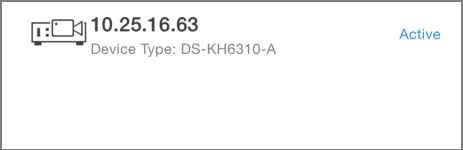 Figure 1 Online DeviceNote:
-
For network cameras, make sure the device Multicast Discovery function is enabled so that the online network camera can be automatically detected via private multicast protocol in the LAN. For details, see User Manual of the network camera.
-
For the inactive device (excluding the access control device), tap Active to create a password for it before you can add the device properly. For more information about the device activation, see Set a Password to Activate a Device.
-
- Optional:
Edit the network information.
-
Tap
 .
- Change the device IP address to the same LAN as your phone's by either editing the IP address manually or enabling the device DHCP function.
-
Tap
 and input the admin password of the device to save the
settings.
-
Tap
-
Tap .
- Optional:
Tap the device name or tap
 , and then tap Delete
Device.