When your network bandwidth is overloaded, and stuttering occurs in the
remote playback main-stream image, the transcoded playback function may help to lower the
live view network bandwidth requirement and improve image fluency.
Note:
This function is only available for certain models.
-
Go to .
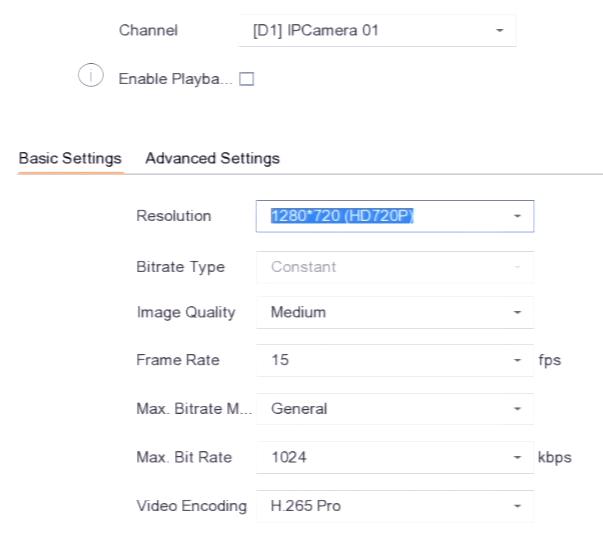
Figure 1 Transcoded
Playback
-
Select a channel.
-
Turn on Enable Playback Compression.
-
Click Basic Settings to set the basic parameters,
including resolution, bitrate, frame rate, etc.
Note:
The transcoded stream resolution should not be higher than
the original stream resolution.
- Optional:
Click Advanced Settings to draw ROI (Region of Interest)
areas.
- ROI
-
ROI is an encoding technology which helps to
discriminate the interested region and the background
information in video compression. The interested region would be
assigned with more encoding resource to lossless compression
while the background information will be showed in lossy
compression.
-
Click Apply.
Use sub-stream or transcoded stream to remotely view the playback
image.